
Managing Shopify store data, such as products, customers, orders, collections, and more, often means working with large spreadsheets and repetitive manual tasks. Now, with the Matrixify MCP connection, you can bring AI directly into that workflow. By connecting Claude AI to your Shopify store through the Matrixify Model Context Protocol (MCP) server, you can use natural language to export data, create imports, check job progress, and manage your store — all without leaving the conversation.
In this tutorial, you’ll learn how to set up the Matrixify MCP connection in Claude and start managing your Shopify store data with AI.
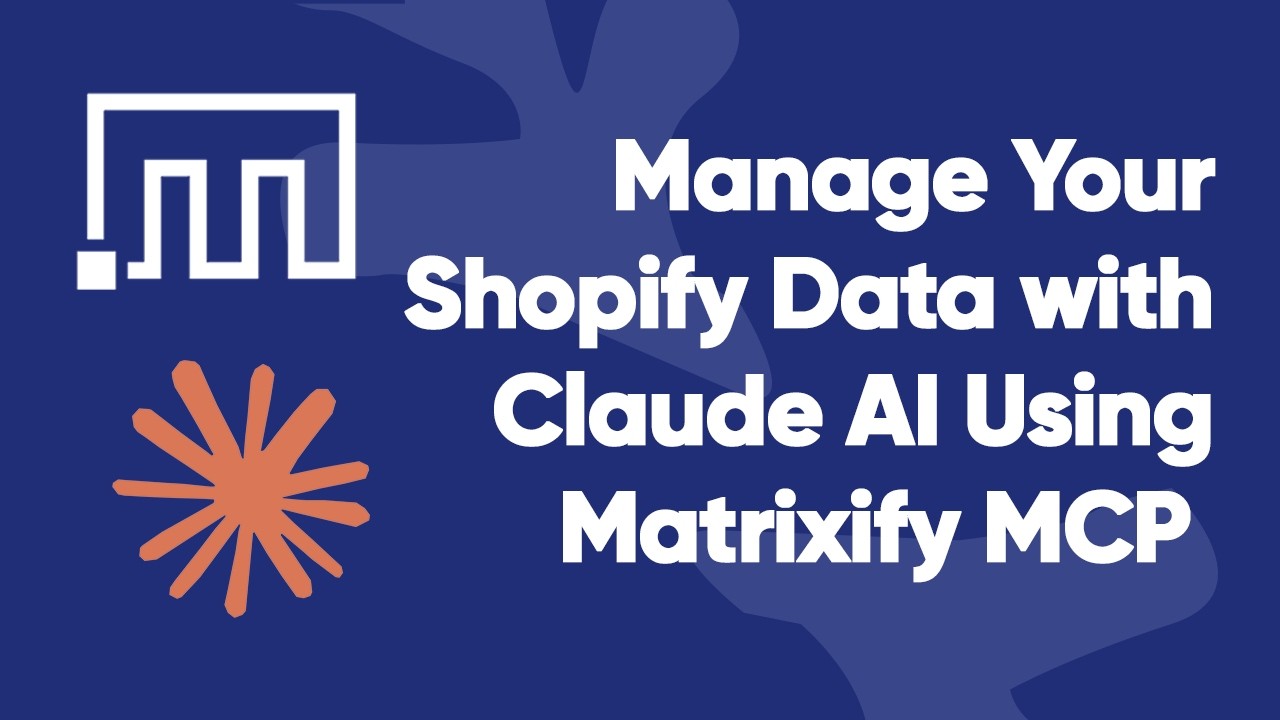
Steps in short
- Add the Matrixify Connector to your Claude Organization using the Matrixify MCP Server URL (Claude organization owner – one-time setup).
- Generate AI Agent MCP Token in the Matrixify app Settings (each Claude user).
- Connect Claude to Matrixify MCP using the Matrixify-generated MCP Token (each Claude user).
- Manage your Shopify store in bulk with the Claude AI connection to the Matrixify app.
1. Add Matrixify Connector to your Claude organization
Before you can use AI to manage Shopify store data through Matrixify, the Matrixify MCP connector needs to be added to your Claude organization.
This is a one-time setup step performed by the organization’s owner.
If your organization’s owner has already added the Matrixify connector, you can skip ahead to the next step.
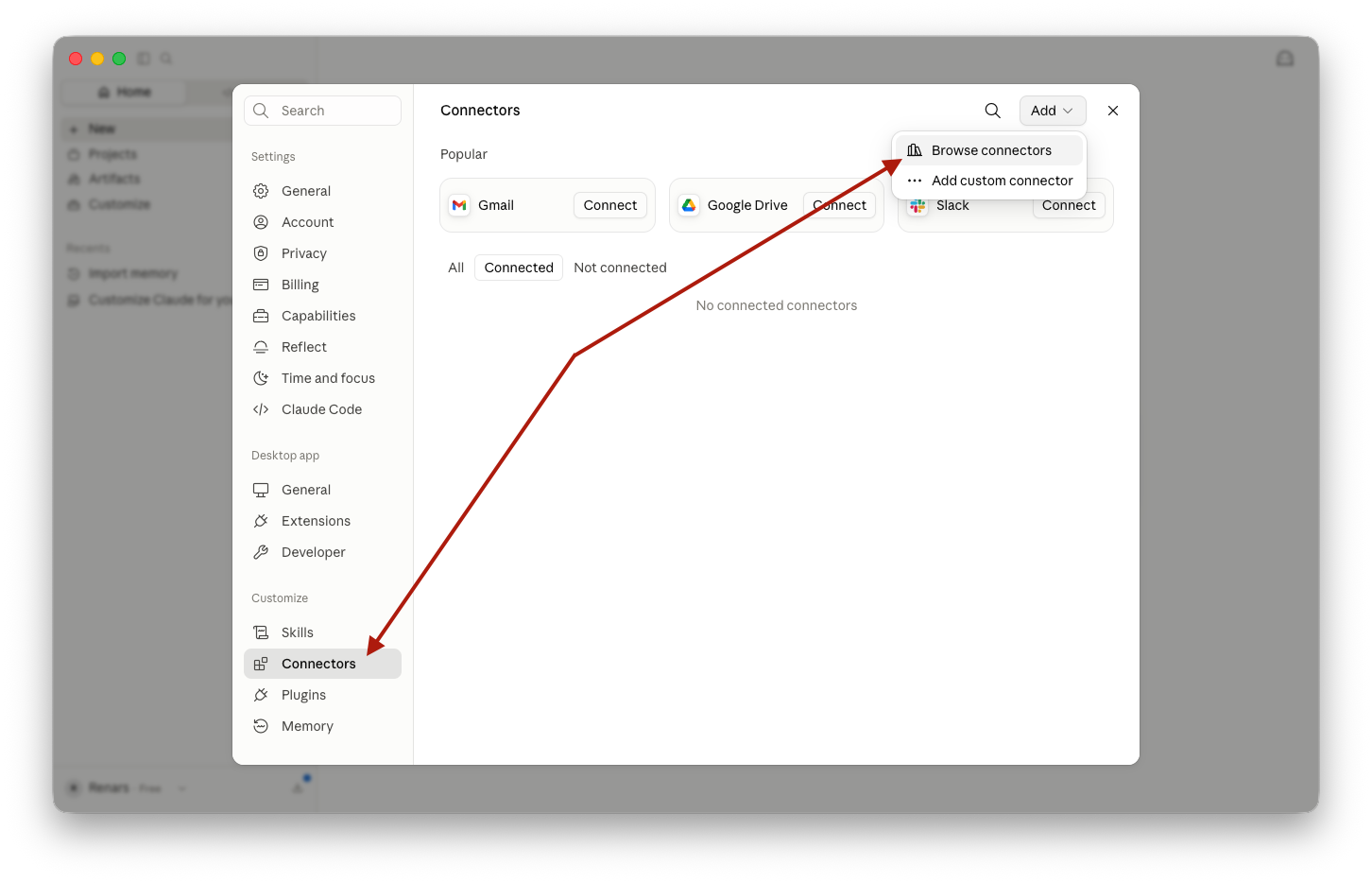
Open the Claude Desktop app or Website and head to Settings -> Connectors -> “Add” button -> Browse connectors and search for the “Matrixify” connector in the directory (or click on the link).
With the Matrixify connector listing open, click the “Connect to Claude” button to add the Matrixify connector to your Claude account.
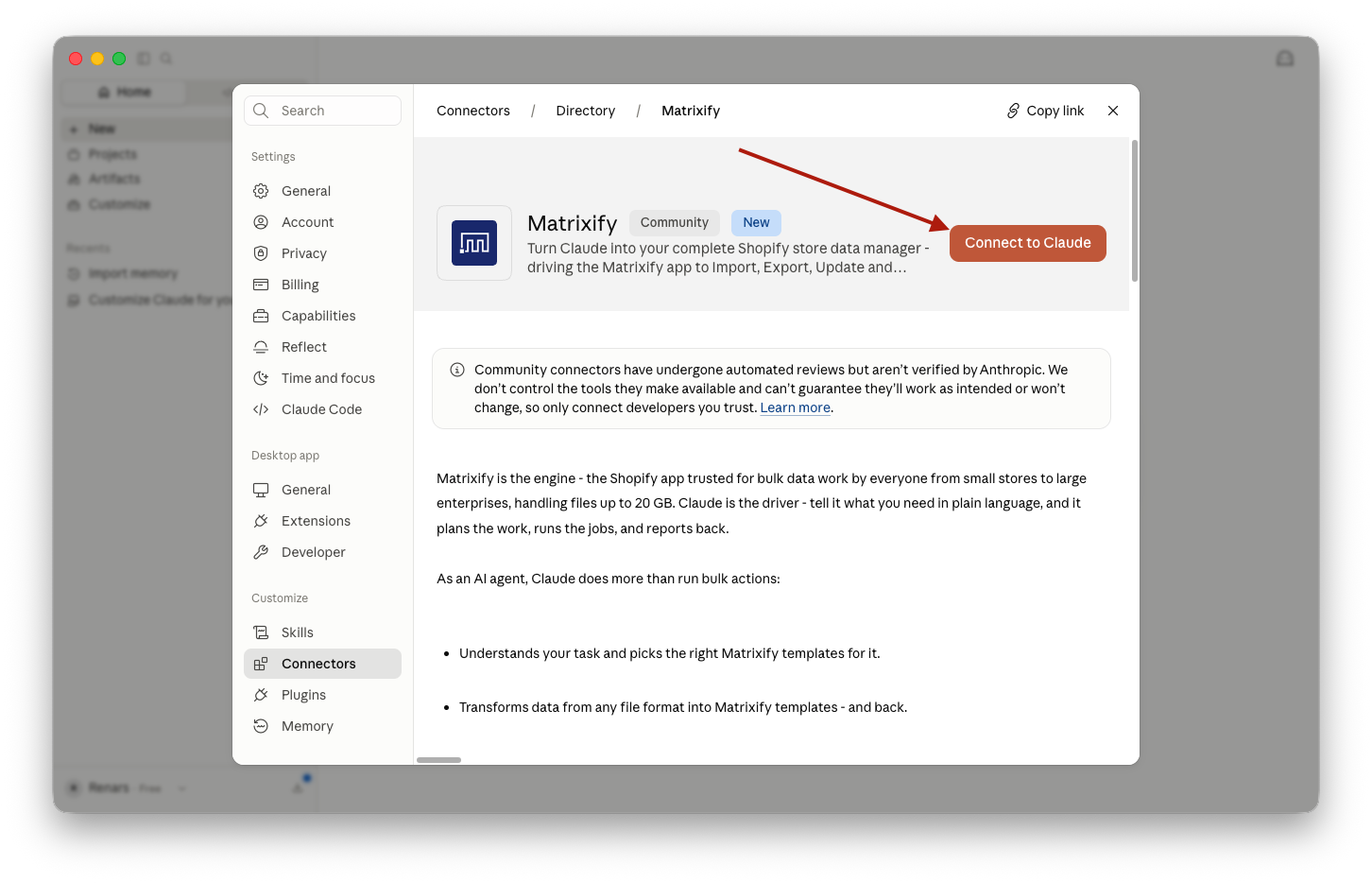
Claude will automatically direct you to a web page where you can enter your Matrixify app token; follow step 2 for token key generation.
Adding multiple Matrixify connectors to manage separate Shopify stores
If you have multiple Shopify stores you wish to connect to the AI agent, you can do so by connecting multiple different custom connectors.
In the Settings -> Connectors page use the “Add” button and add a Custom connector.
Fill in the Name and MCP Server URL with query parameters for each store, for example,
Name–Matrixify - Shirts Only StoreRemote MCP Server URL–https://mcp.matrixify.app/mcp?shop=shirts-only-store
Name–Matrixify - Shirts Only WholesaleRemote MCP Server URL–https://mcp.matrixify.app/mcp?shop=wholesale-store-shirts-only
It does not matter what is put in the query attributes in the MCP Server URL, as long as they are different for each connector, for Claude to allow adding multiple connectors.
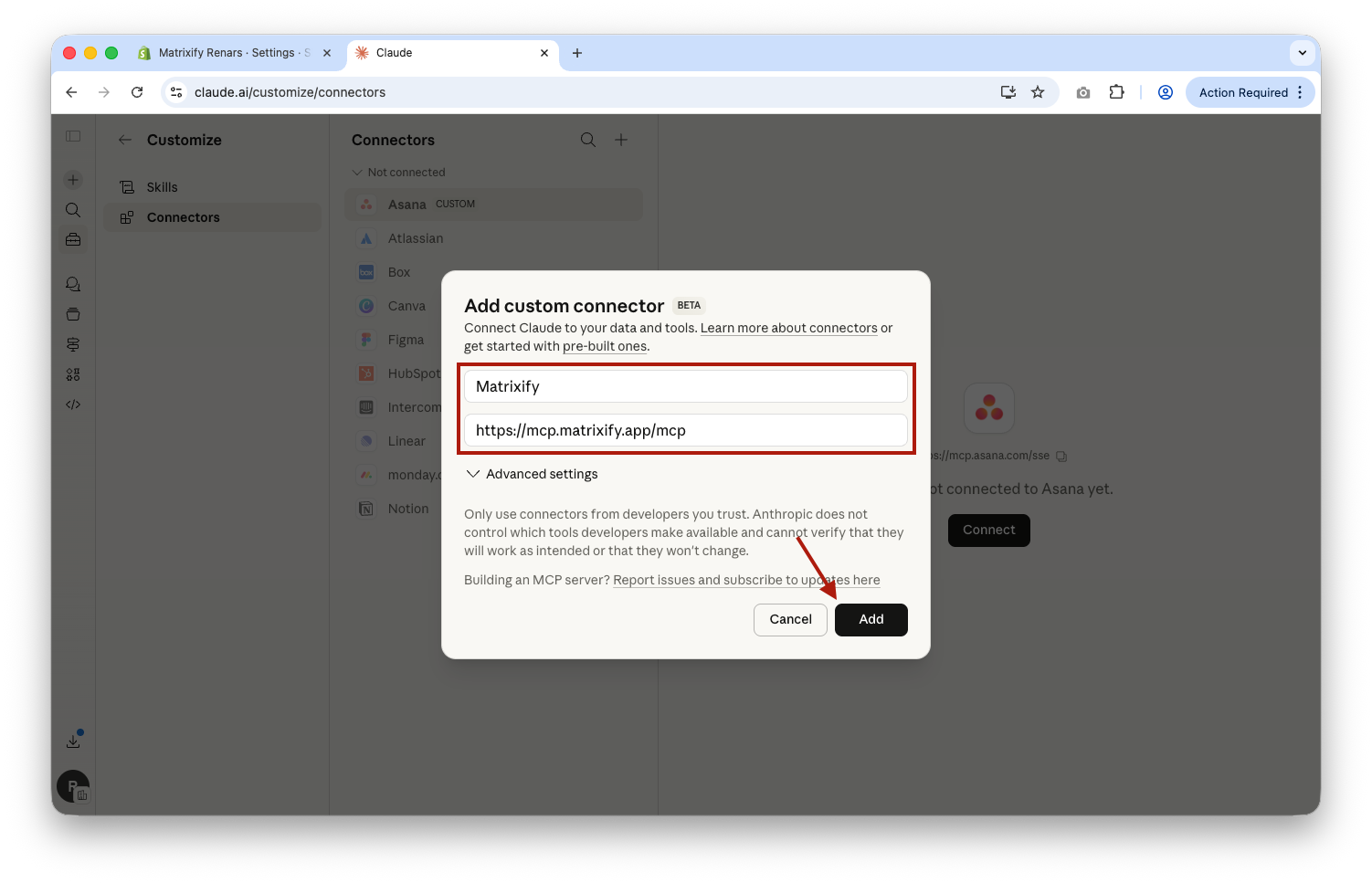
Once added, the Matrixify connector will be available to all members of your Claude organization.
Each user will then need to generate their own MCP token in the Matrixify app Settings and connect individually, which we’ll cover in the next steps.
2. Generate AI Agent MCP Token for Matrixify app
Each user who wants to connect Claude AI to their Shopify store through Matrixify needs their own MCP token.
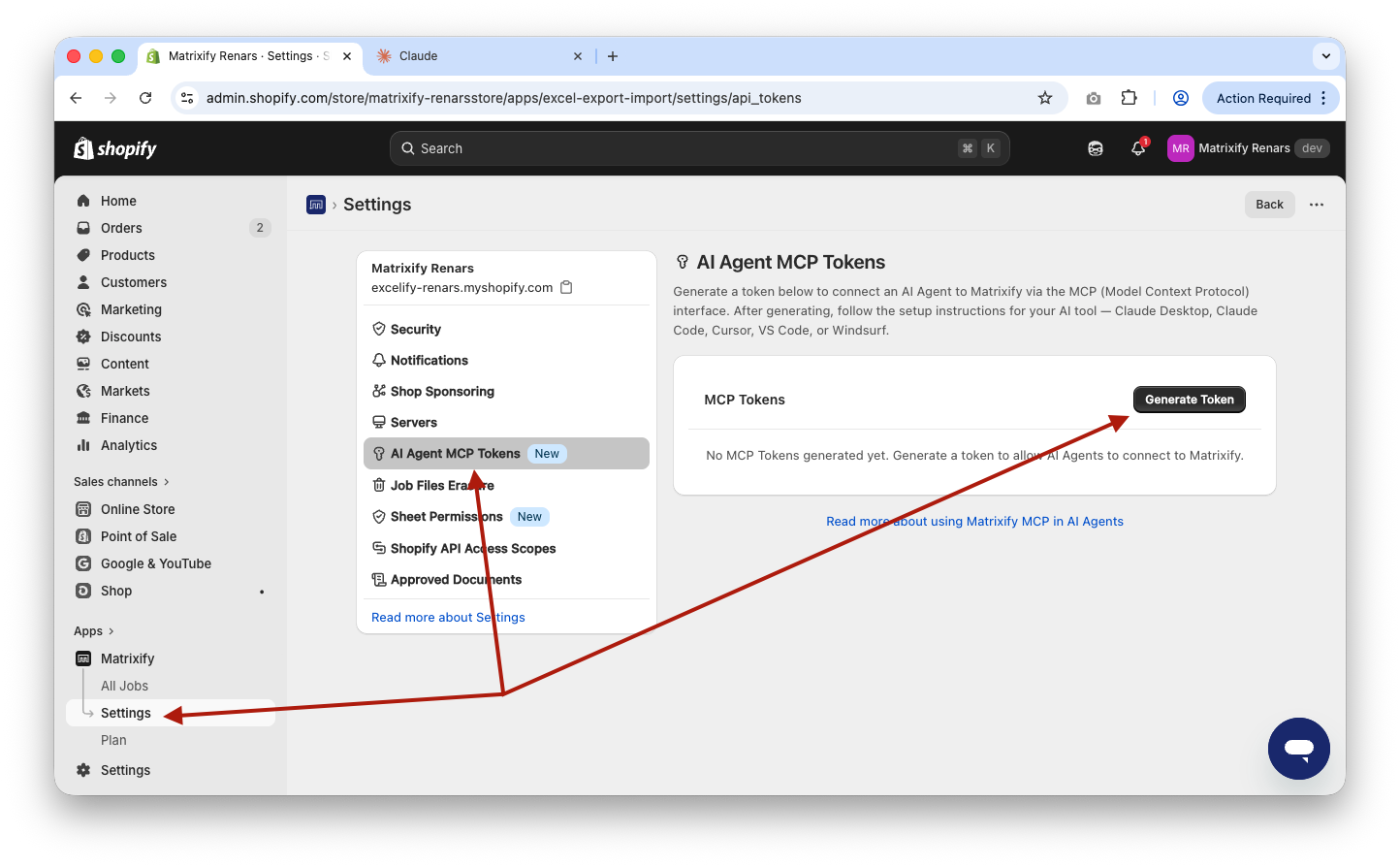
Open the Matrixify app in your Shopify admin and head to Settings -> AI Agent MCP Tokens section and click the Generate Token button.
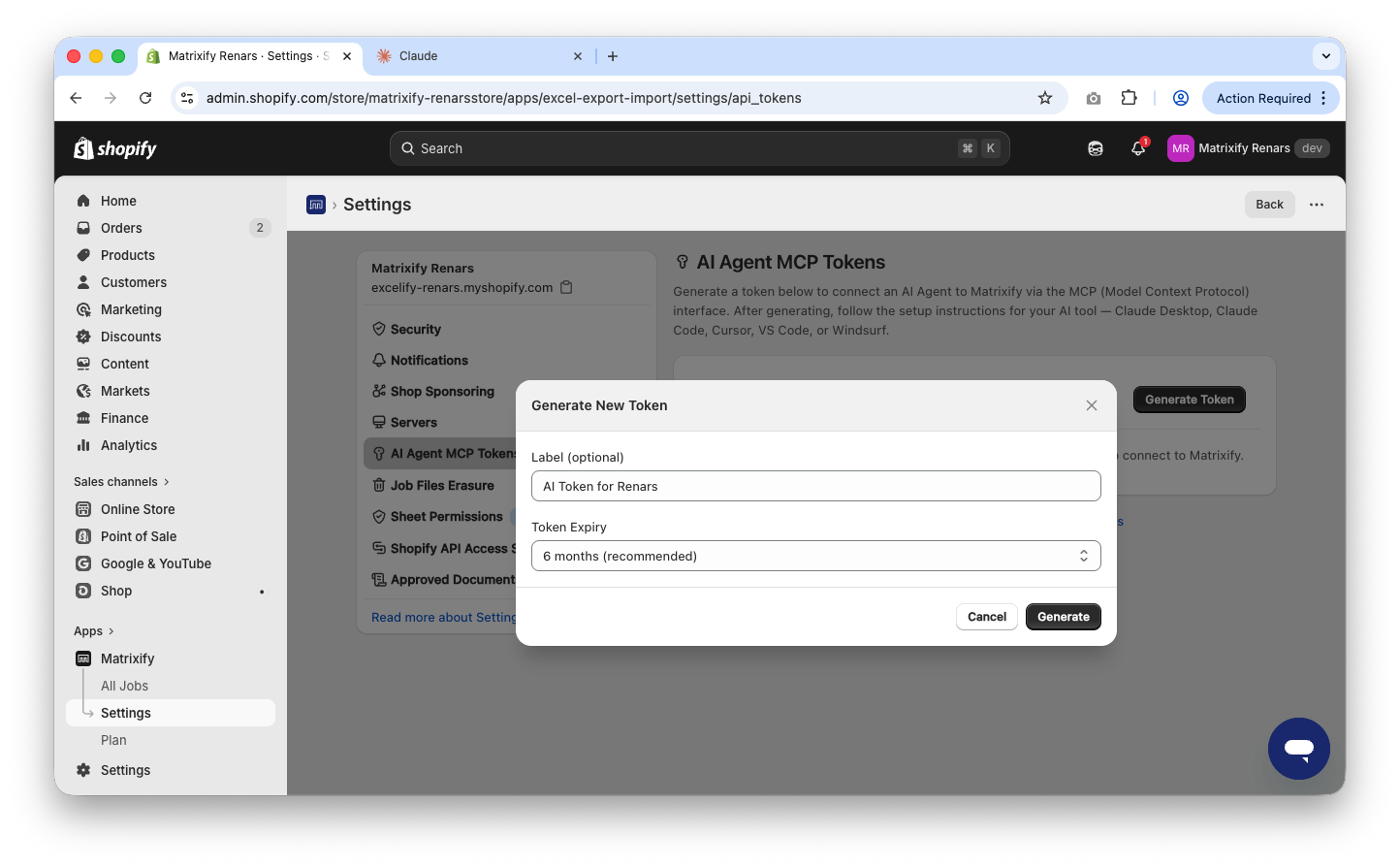
In the pop-up message, you will be able to assign a name to the token, which is optional, and set when the token should expire.
Click on the Generate button to create the MCP Token.
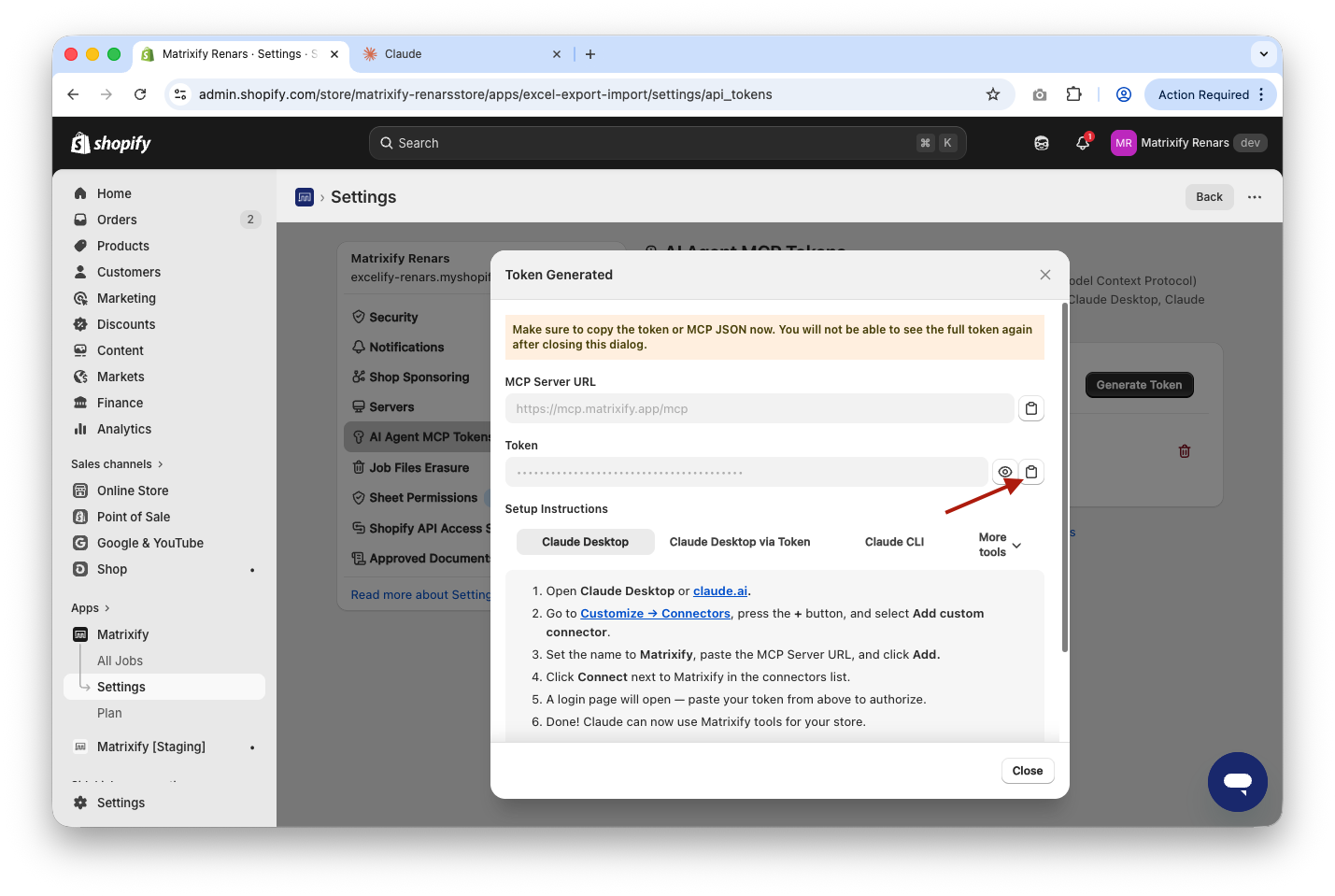
A new modal window will open with your generated MCP token. Copy the token to be used to connect Claude AI with Matrixify MCP.
Treat your MCP token like a password. It grants Claude access to perform Shopify data operations on your behalf through Matrixify, including bulk imports, exports, and updates. Do not share your token with others — each team member should generate their own.
If you need to revoke access later, you can return to the same API Tokens section in Matrixify Settings and delete the token. This will immediately disconnect any Claude sessions using it.
3. Connect the Matrixify MCP Connector in Claude AI
At this point, the Matrixify Connector would already be added to your Claude organization. If you already have the token entry page open, then head to the Connect to Matrixify page and, under “MCP Token” paste the token previously generated in the Matrixify app and press the “Continue” button.
Click the “Authorize” button on the next page to authorize the connection.
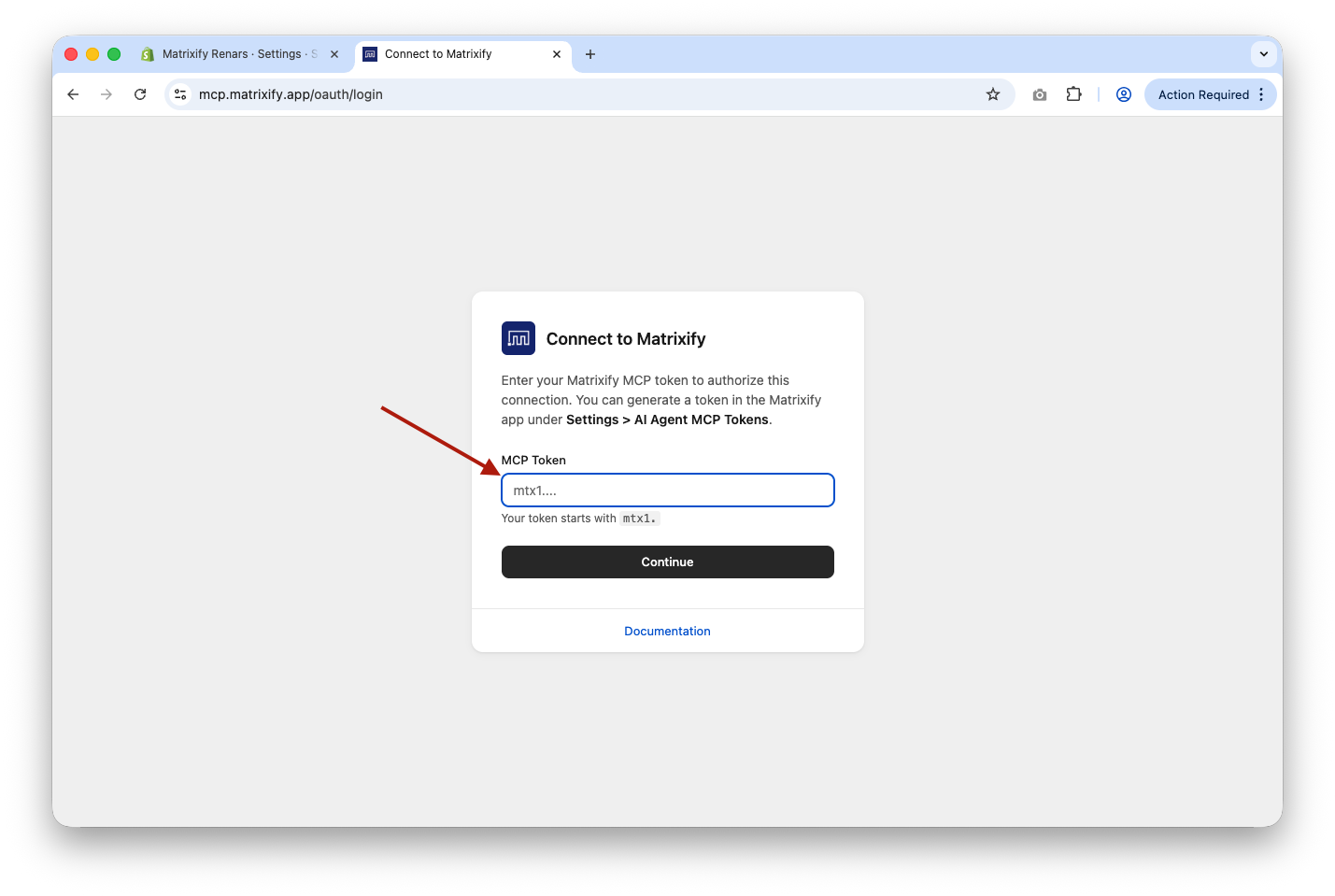
If you connected Matrixify Connector as a Custom Connector, then head to Settings -> Connectors and click the “Connect” button for the Matrixify connector. You will be redirected to the Matrixify authentication authorization page.
After connecting, you should see Matrixify connected in the Claude Connectors list.
Claude now has access to Matrixify tools for managing your Shopify store and improving your workflow automation — including creating exports, running bulk imports, checking job status, searching the Matrixify help documentation, and more.
(Optional) Allow Matrixify actions without approval prompts
By default, Claude AI will ask for your approval each time it wants to use a Matrixify MCP tool action, such as creating an Export or starting an Import. If you prefer a smoother workflow without these repeated confirmation prompts, you can configure the Matrixify Connector to allow all actions automatically.
To do this, go to the Claude app Customize -> Connectors and click on the Matrixify Connector in the list. In the Connector settings, under “Tool permissions”, you will see all the possible MCP Tools that Claude has for the Matrixify app in your Shopify store.
The Tools are grouped into two categories: “Read-only tools” and “Write/delete tools”. By default, each tool will have “Needs approval” permissions selected; this can be changed to “Always allow” for both categories or for individual tools.
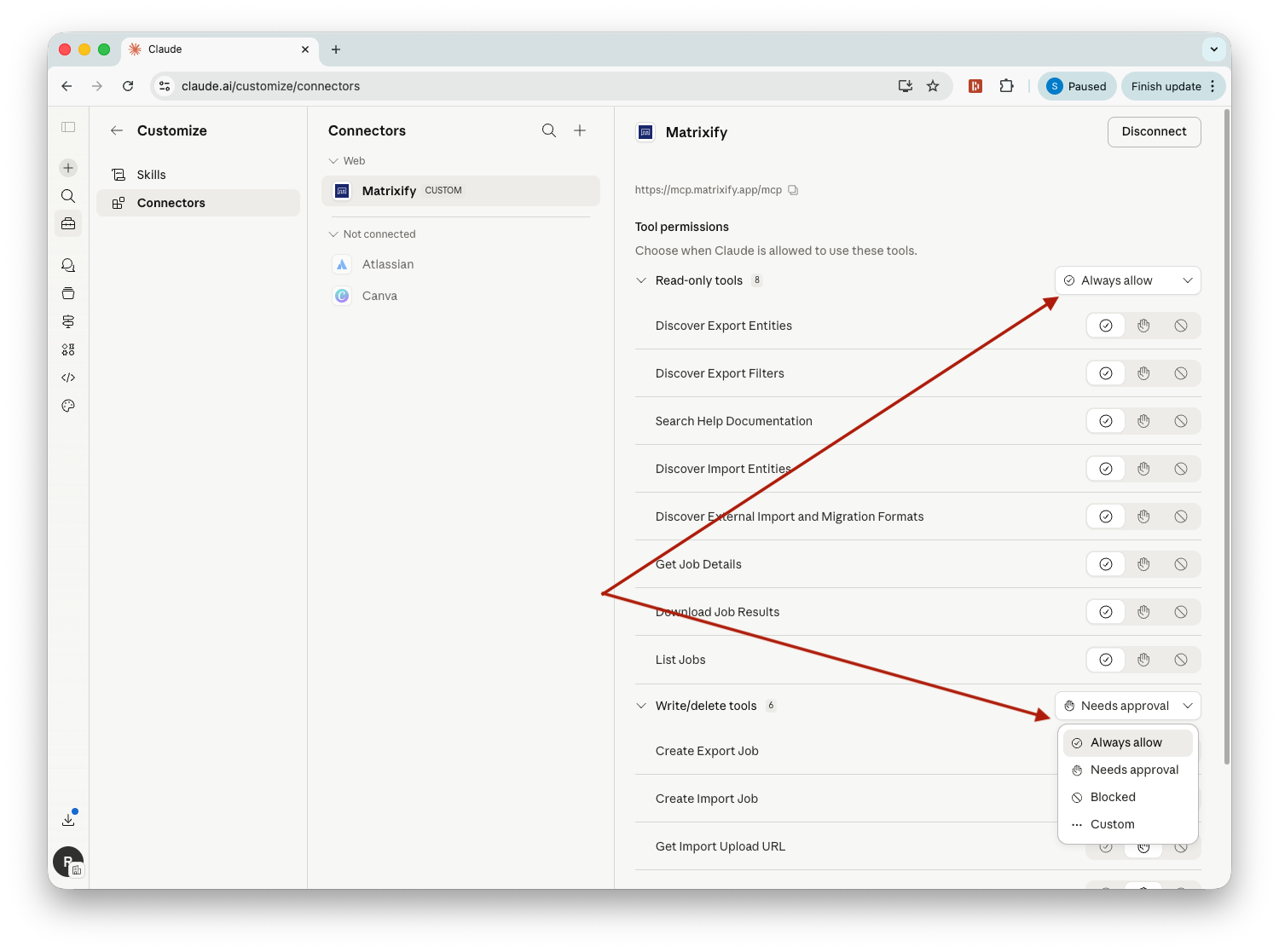
Once they are set to “Always allow”, Claude will execute Matrixify operations directly as you instruct it, without pausing for approval on each individual action. This is especially useful when running multi-step workflows, such as exporting data, transforming it, and importing it back, where constant approval prompts would interrupt the process.
You can change this setting back at any time if you want to review each action before it is executed.
4. Use Matrixify App through the Claude AI
With the Matrixify MCP connector active, you can use natural language in Claude AI to perform Shopify bulk data operations directly through the Matrixify app. Anything you can do in the Matrixify app — exporting, importing, updating, migrating, scheduling jobs — you can now do by describing it to Claude in plain language.
For example, instead of manually converting files and importing data, you can simply ask AI to import data directly from your supplier-provided files while also adjusting prices.