


Supplier catalogs and price lists come in all formats – CSV, Excel, or even PDF files, but most do not match Shopify’s column structure for direct and straightforward imports. Column names differ, data is structured differently, and fields like pricing, inventory, or Product descriptions often need remapping before you can update your store. With the Matrixify MCP connection and Claude Cowork, you can skip that manual work entirely. Hand Claude your supplier file as-is, tell it what you need updated, and let it map the data, build the import file, and push the update to your Shopify store through Matrixify – all in one conversation.
Steps in short:
- Connect your Shopify store to Claude AI via Matrixify MCP.
- Upload the supplier file to Claude Cowork and describe what to update and import.
- Let Claude map the supplier data and create the import via Matrixify MCP.
- Verify and enjoy imported Supplier data in your Shopify store.
1. Connect Matrixify MCP to Claude AI
To use Claude AI for updating your Shopify Products from supplier files, you first need to connect the Matrixify app to your Claude account. Once connected, Claude can use and access the Matrixify app in your Shopify store to run exports and imports as needed, read job details, look up Matrixify documentation, and more.
2. Upload your supplier file to Claude Cowork
Once Matrixify MCP is connected to your Claude account, open the Claude Cowork and upload your supplier file by dragging it into the conversation. The file can be uploaded as is without any adjustments, even the prices, as you will be able to ask Claude AI to do any adjustments for you.
In this tutorial, we will look at one of the most interesting examples where the supplier has provided a PDF file with their data. The example is even in a non-English language, which should not be an issue for the AI.
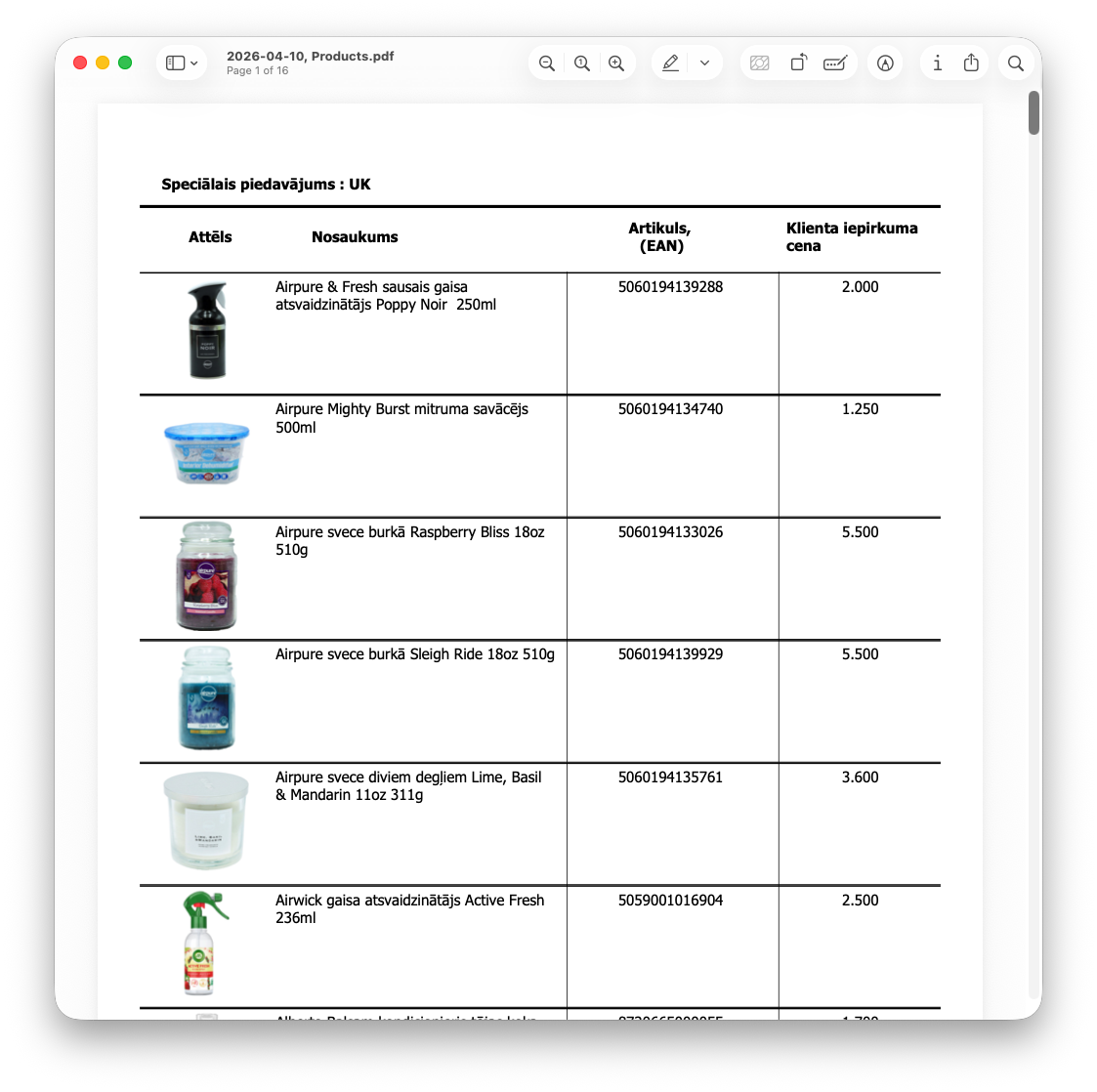
Let’s construct the Claude Cowork instructions prompt message.
In a text message to Claude AI, you need to describe what you wish to achieve. The more information you cover, the better the AI will understand the task. Let’s start with:
Update my Shopify Products from this supplier file using the Matrixify app.
You can also provide more specific adjustments and requirements. For example, specify to update items by the barcode and add your markup for the prices:
Update Products based on the provided barcode and add 20% to the prices.
The Matrixify app also supports adding images using Base64 encoded data, which provides the ability to import images from an actual image within the suppliers’ provided data. Include these instructions in your prompt:
Images in the suppliers file should be imported using Matrixify Base64 image import.
This is how the instructions would look in my example. You can and should add any additional requirements and specifications as you need.
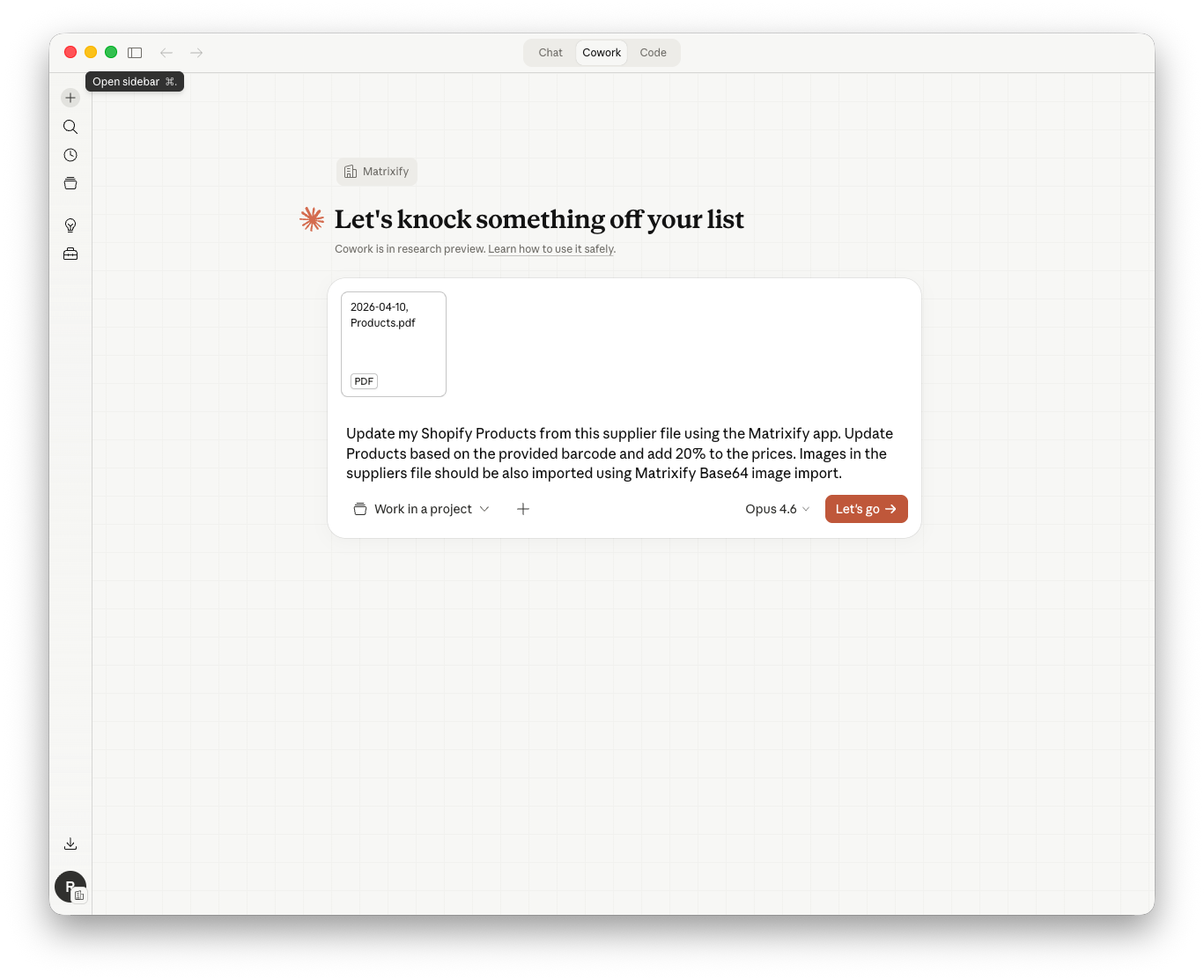
3. Import and map supplier data automatically with Claude AI
We highly recommend selecting and using the AI model marked as “Most capable for ambitious work”, which, as of writing, is Opus 4.6.
Once you have started the chat/task, you will see Claude AI using the Matrixify connector, internal tools, and even browsing the web for to perform the task.
The Matrixify app does not need to be open in your store during this process, as Claude Cowork will connect to our servers and use the app in the background. But you can also open the app and see your latest and in-progress jobs to follow the process in the app.
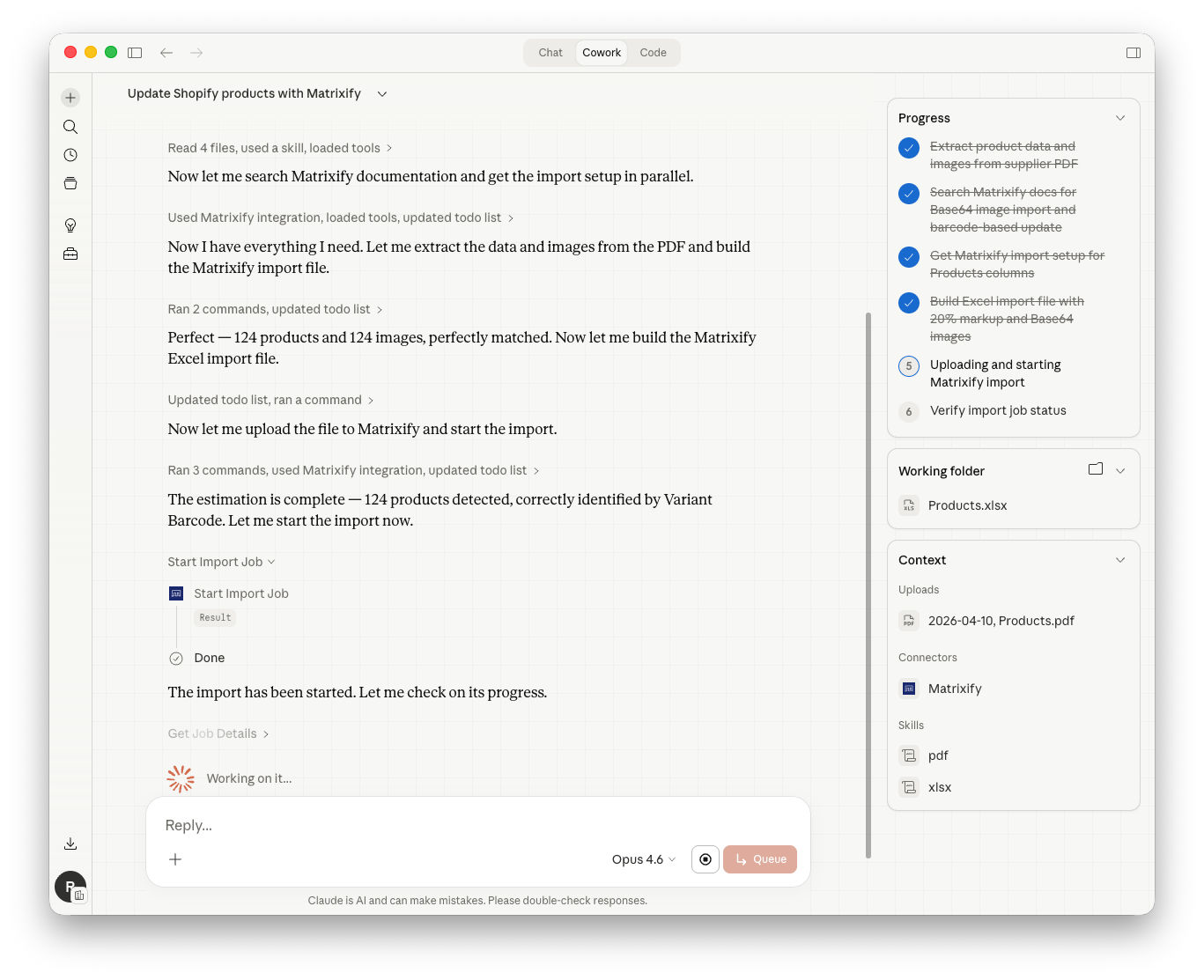
The whole process might take a while for Claude to convert your file and Matrixify to import, and during the process, Claude AI might ask you some specific questions depending on your files and requirements, as well as might need to ask for some permissions. It is best to monitor the process and Claude’s comments, in case Claude requires additional user input.
Once complete, the AI will confirm the import job and provide a summary of what was updated.
4. Enjoy your supplier data in Shopify
Once Claude confirms the import is complete, you can review the results in two places.
In the Matrixify app, you can locate the finished job that was performed by the Claude AI. The job summary shows how many Products were imported, along with any errors or warnings. If anything didn’t import as expected, you can download the results file directly from the app for a detailed row-by-row breakdown. Usually, errors and warnings would already be caught by the Claude AI as it follows the import progress.
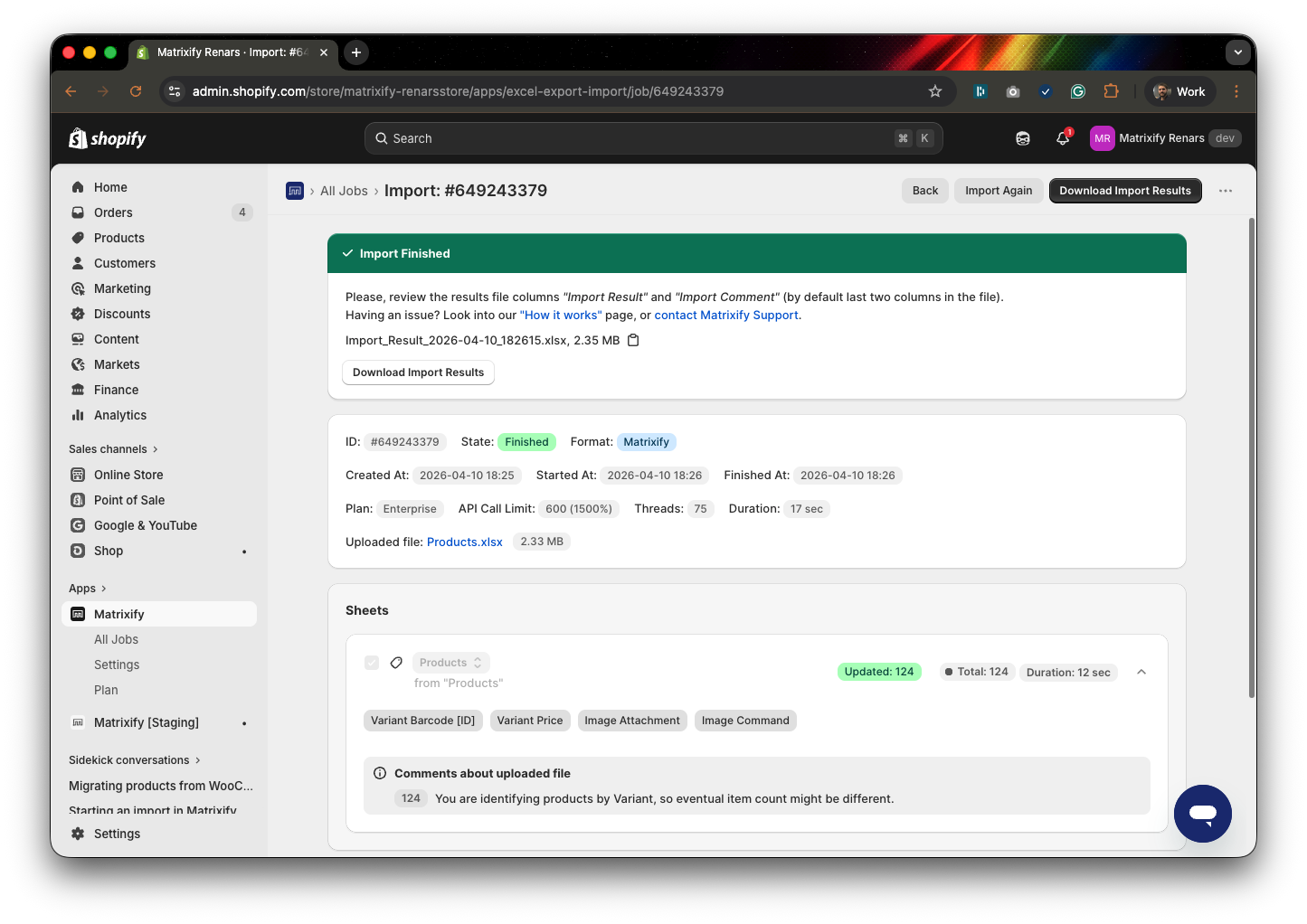
In your Shopify admin, navigate to Products to see the changes reflected — updated prices, inventory quantities, new Products, or whichever fields and actions you requested.
The data from your supplier file is now live in your store, mapped and imported without any manual reformatting. In our test example, even images from the PDF file were uploaded to the store’s Products.
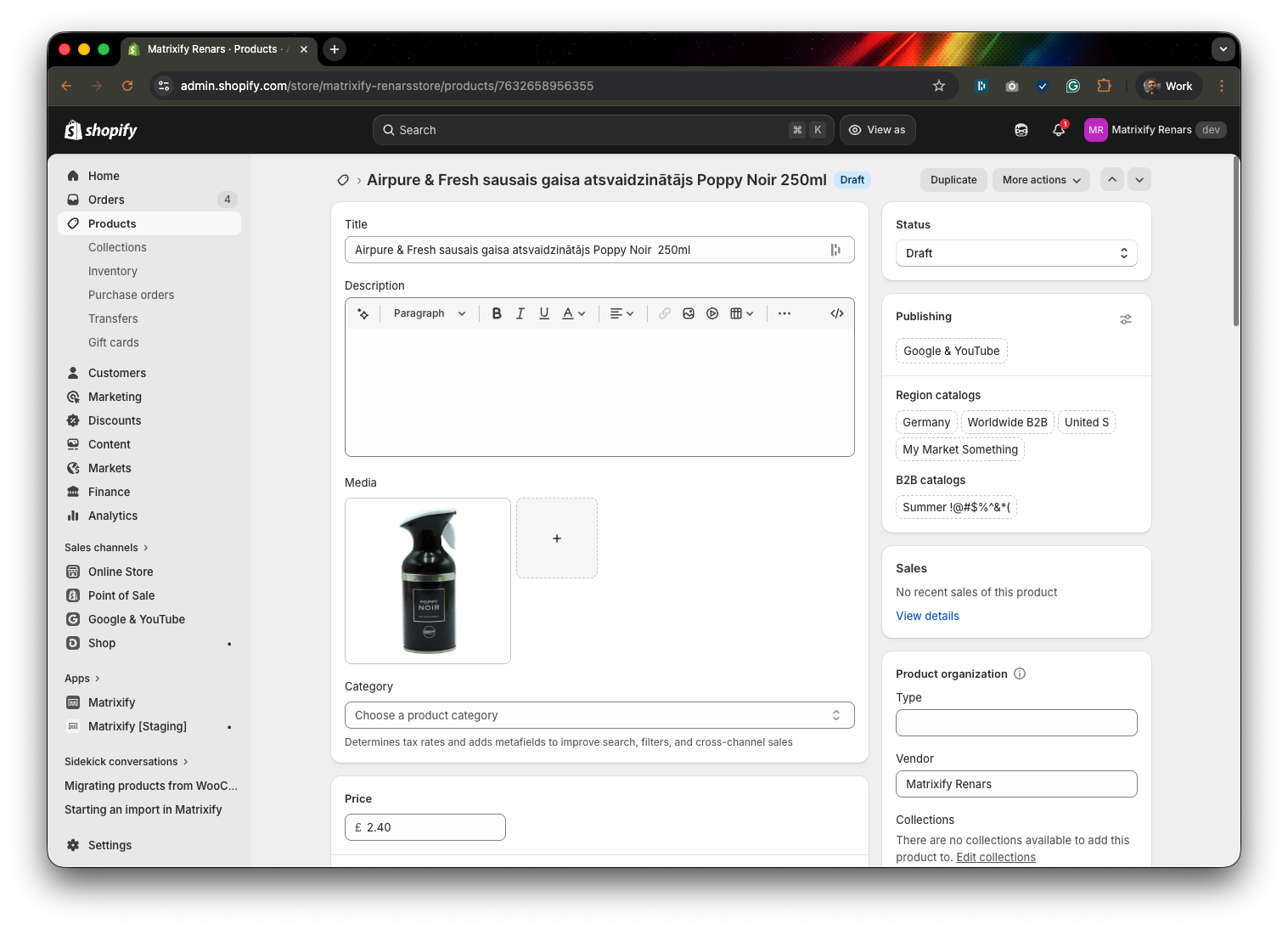
You can also instruct Claude AI to now perform other actions if needed, such as updating other item attributes, generating SEO friendly descriptions for your Products, and much more.
Good to know
- Most, if not all, Matrixify Tutorial use-cases can be performed by AI in a similar manner as this tutorial. You can also give a tutorial link to Claude AI, so it has clearer instructions on how to perform the task correctly.
- Read other Matrixify tutorials on how to use AI with Matrixify.


