

Description
Matrixify MCP is a remote Model Context Protocol (MCP) server that connects AI assistants and agents like Claude Cowork to the Matrixify app installed on a Shopify store.
Export, Import, and manage Shopify store data in bulk through Matrixify with your favorite AI agent. Programmatically creating and monitoring jobs, mapping data, and accessing Matrixify’s documentation – all without requiring the user to open the Matrixify app directly or manually work on the file’s contents.
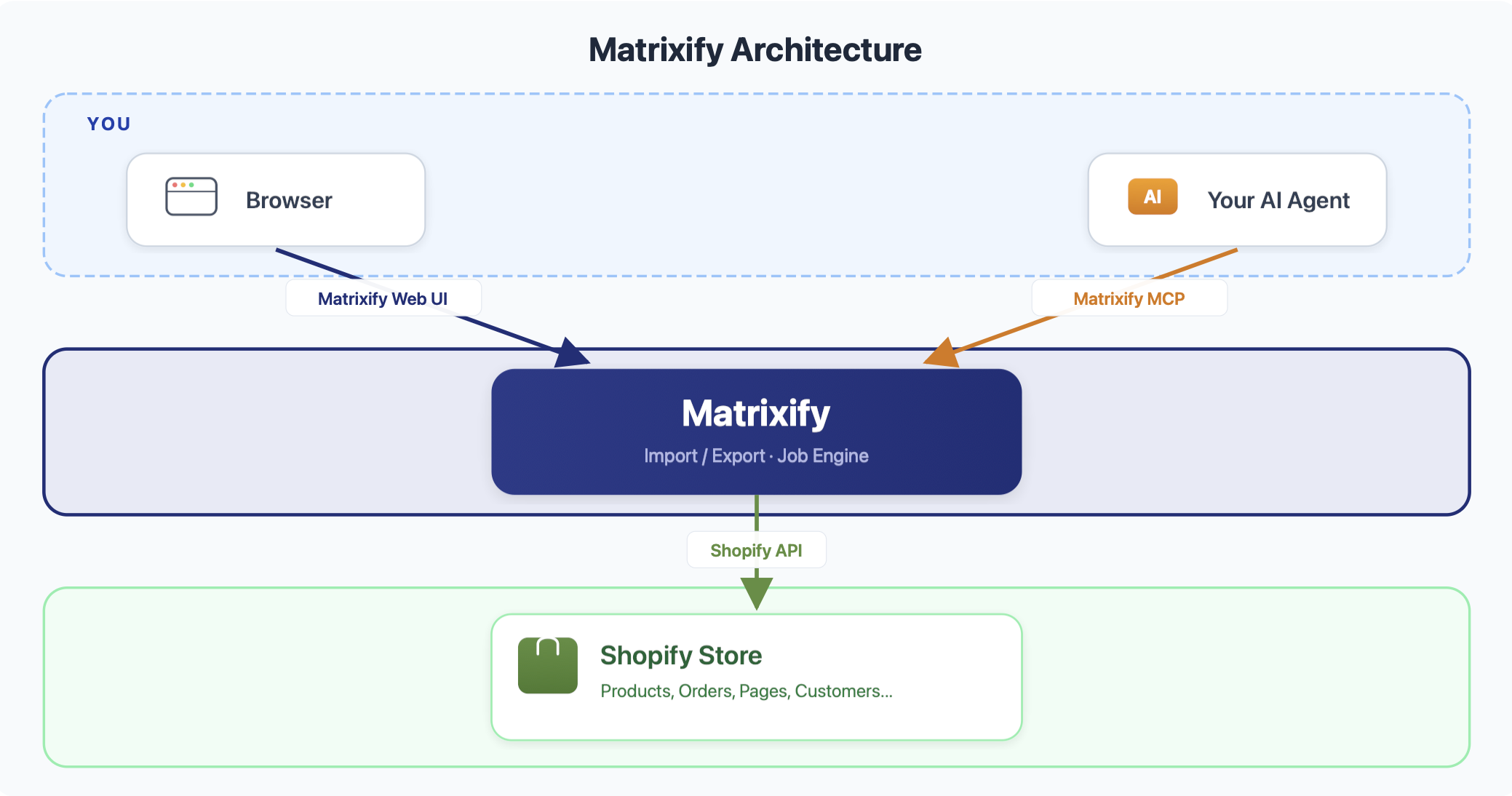
Features
Export Shopify data – Create export jobs for any data entity supported in the Matrixify app. Configure which columns and groups to include, apply filters, and export to Excel or CSV format. Supports scheduled and recurring automated export creation.
Import Shopify data – Import data from local file uploads or remote URLs (HTTP, HTTPS, FTP, SFTP). Matrixify auto-detects entities from file and sheet names. Supports creating new items, updating existing ones, and deleting store data for any importable data entity, such as Products, Collections, Orders, Discounts, Customers, and more.
Migrate to Shopify – Import data from other e-commerce platforms directly into Shopify without manual file conversion. Migrations from WooCommerce, WordPress, BigCommerce, Magento and LightSpeed are supported by the Matrixify app directly, where the Matrixify app will convert other platforms’ files to an importable file structure. Migrate from any other e-commerce platform or supplier-provided files by using your connected AI Agent to convert the source data to the Matrixify import format.
Monitor and manage Import and Export jobs – List all or specific Matrixify app Import/Export jobs. Check job status, setup, and other details. Follow the progress of running exports and imports, download result files, and cancel jobs.
Search Matrixify documentation – Query the Matrixify knowledge base to look up column formats, template structure, import commands, supported values, and other reference information. Used by the AI agent to confirm correct data formatting and to understand Matrixify app features and functionality.
Set up and connection instructions
- Install the Matrixify app on your Shopify store from the Shopify App Store.
- Open the Claude Desktop app or Website and head to Settings -> Connectors -> “Add” button -> Browse connectors and search for the “Matrixify” connector in the directory (or click on the link).
- In the Matrixify app -> Settings -> AI Agent MCP Tokens section, generate a new MCP Token.
- Use the generated Token to connect your AI Agent to the Matrixify MCP.
Usage examples
Example 1: Import Shopify Products from a supplier file
Upload a supplier-provided file to Claude and ask it to update your Shopify products. Claude will read the file, map the supplier columns to Matrixify’s import format, build the import file, and push it to your store.
User prompt:
Update my Shopify Products from my supplier file using the Matrixify app. Update Products based on the provided barcode and add 20% to the prices.
What happens:
Claude AI will read the user-provided file for its contents, such as data structure and column names.
Uses Matrixify MCP to look up the correct import structure and ask specific questions for import logic on how to identify and update Products by Barcode.
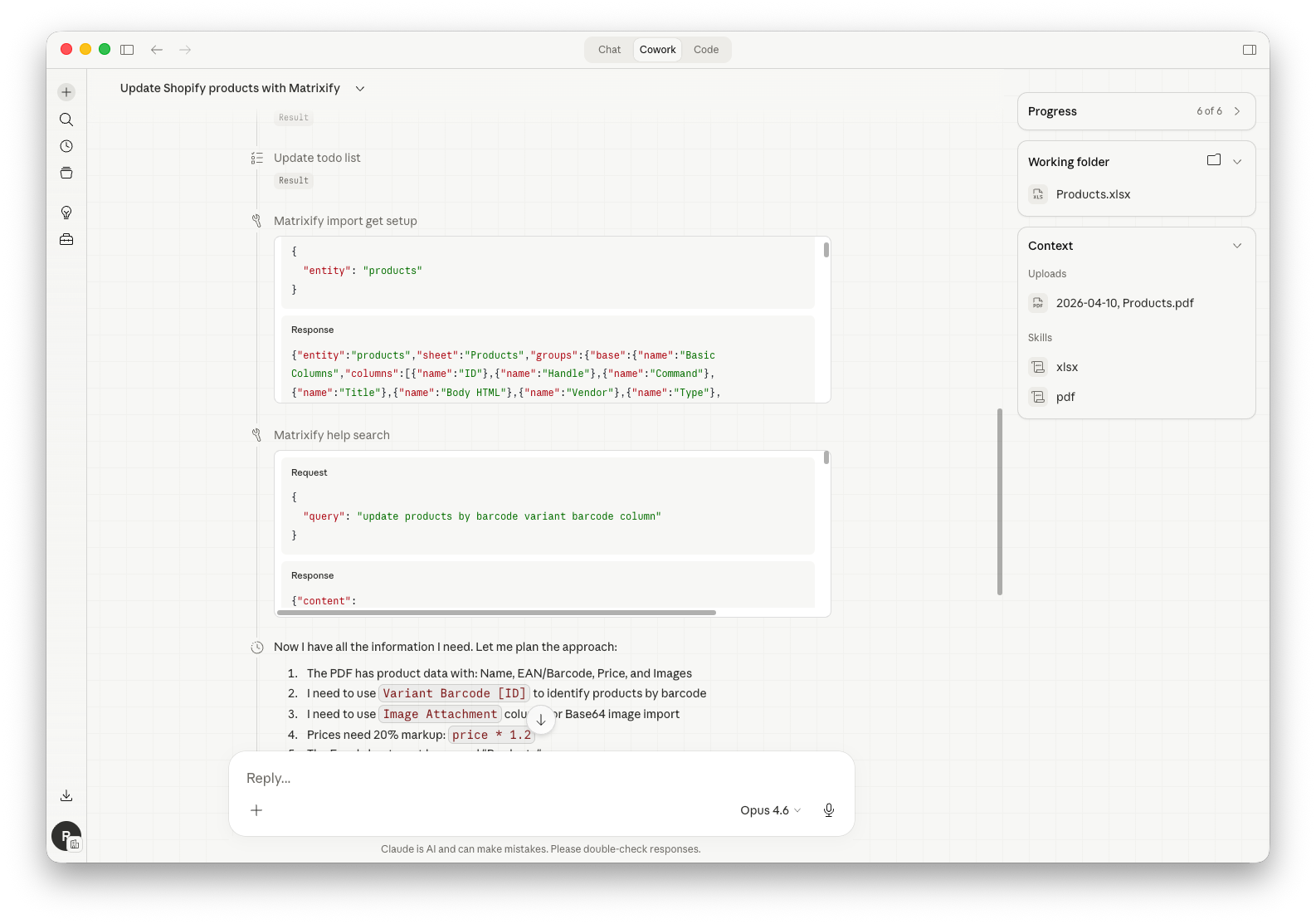
Claude AI writes a Python code to extract data from the user-provided PDF file and write it into a CSV file in the Matrixify import template.
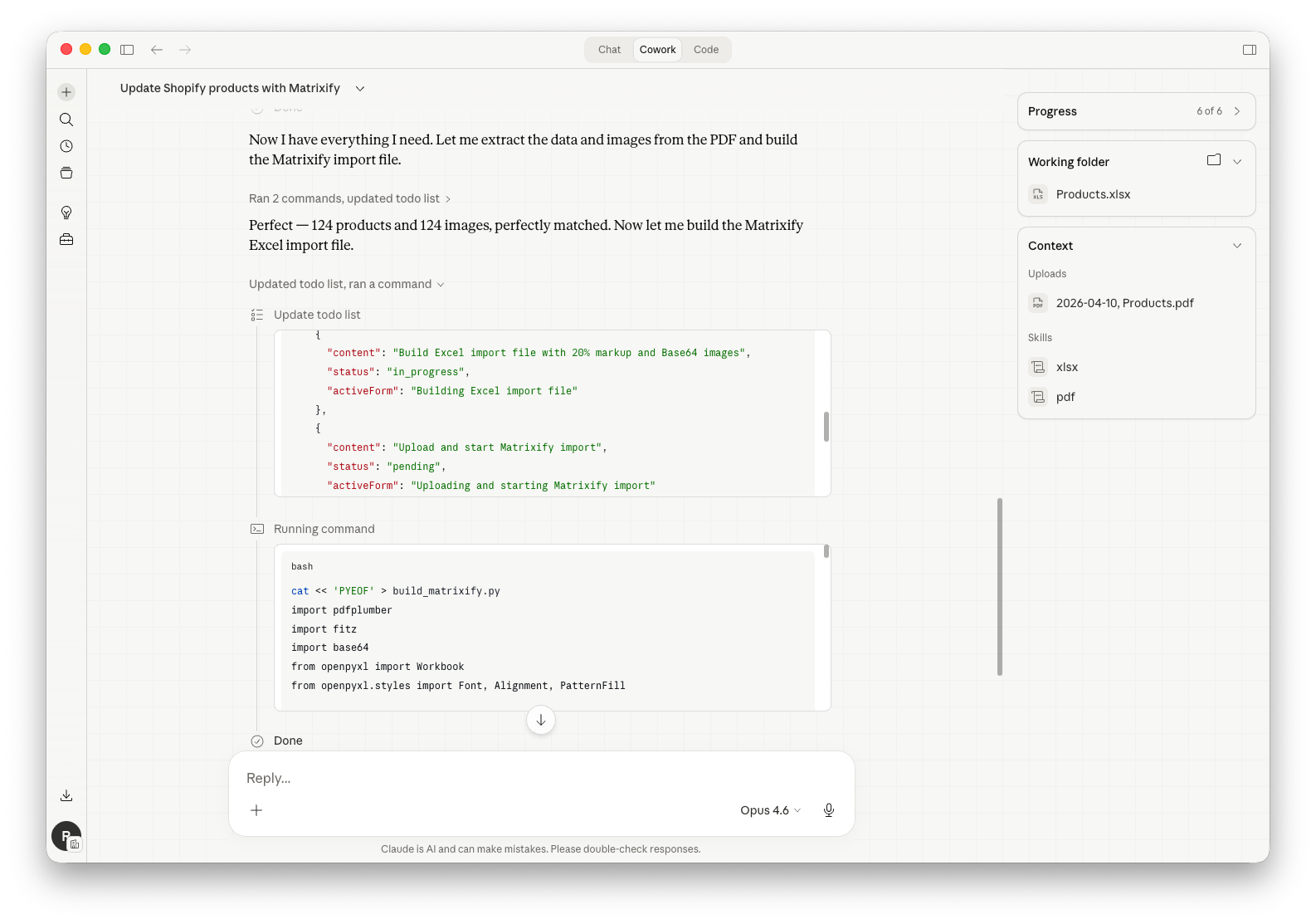
Once the Matrixify template CSV file is ready, the AI uses Matrixify MCP to upload a file to the Matrixify app and create an import job.
After confirming the import job setup, the import is started, and AI polls the job until it completes.
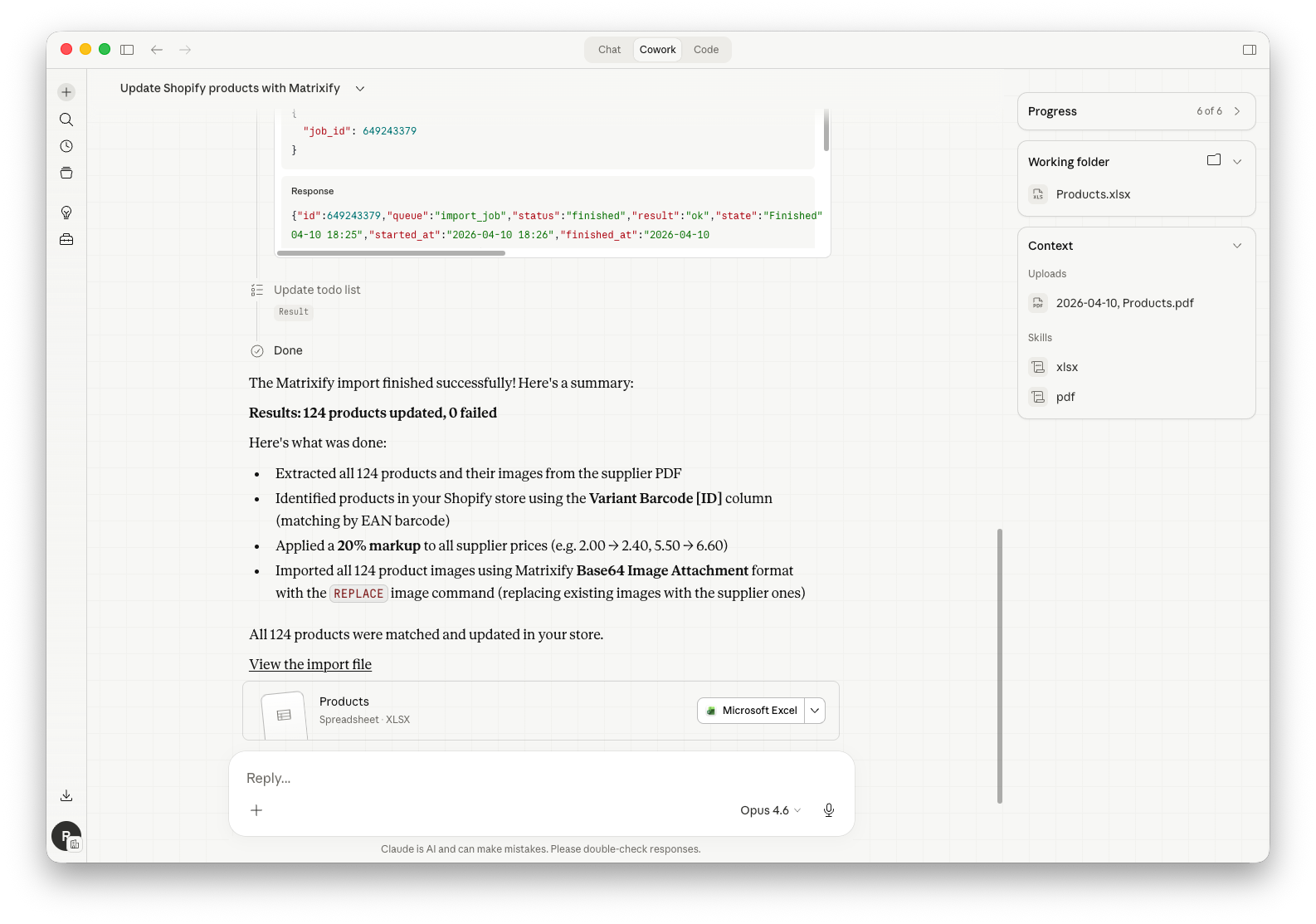
When the import job finishes, a summary is returned on how many products were updated, if there were any failures in the imported and a short description of what actions were done.
Also, the Excel spreadsheet file that was constructed and imported is returned.
Example 2: Generate custom data reports
Generate custom reports based on data from your Shopify store.
User prompt:
Generate a report from my Shopify Orders data on quantity and value sold each month this year for Product “Summer Hat”. Use Orders Processed At date for monthly report.
What happens:
Claude AI uses Matrixify MCP to understand the Export setup and available data filters.
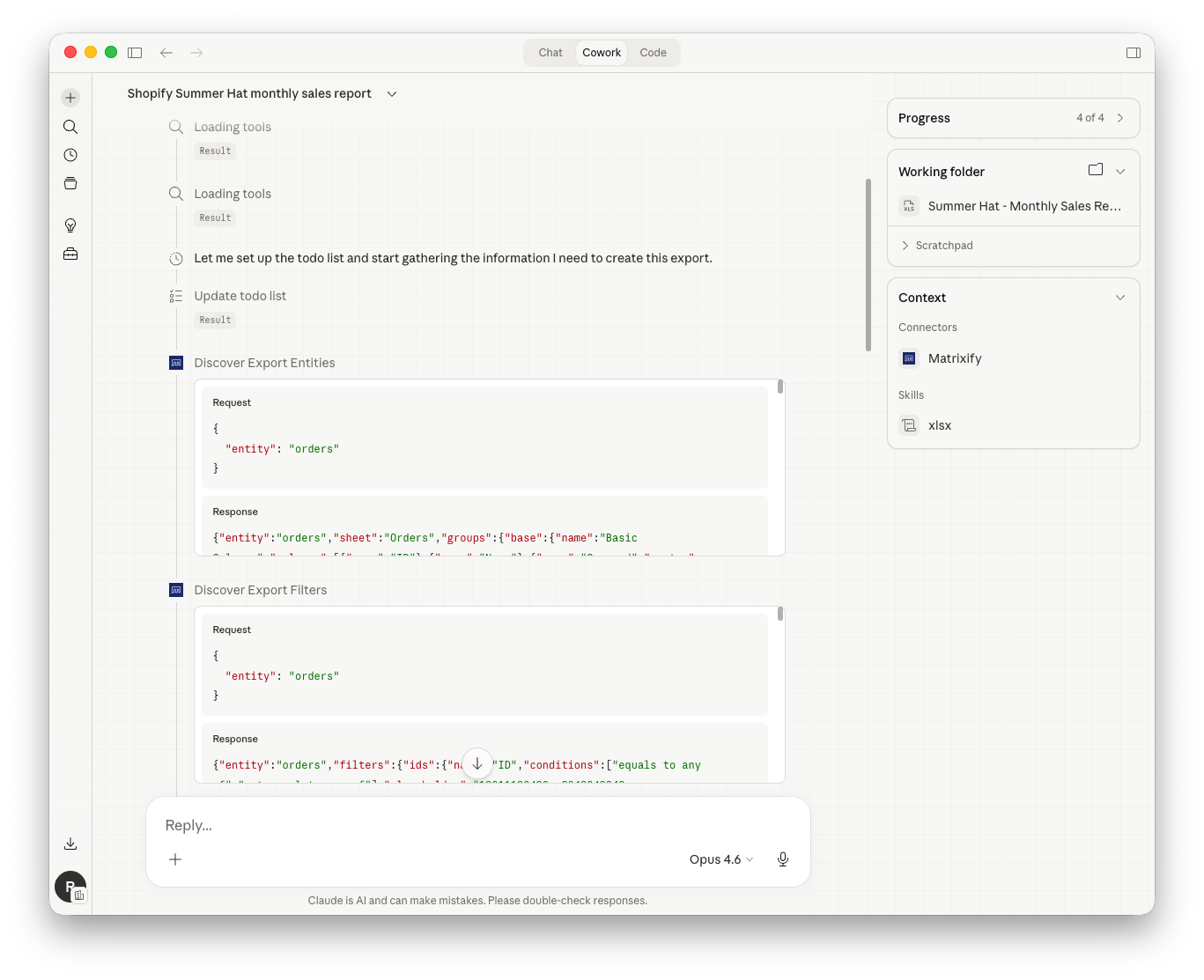
Creates the Export job with the specified columns, filters, and CSV format. Once the job finishes, the exported file is downloaded.
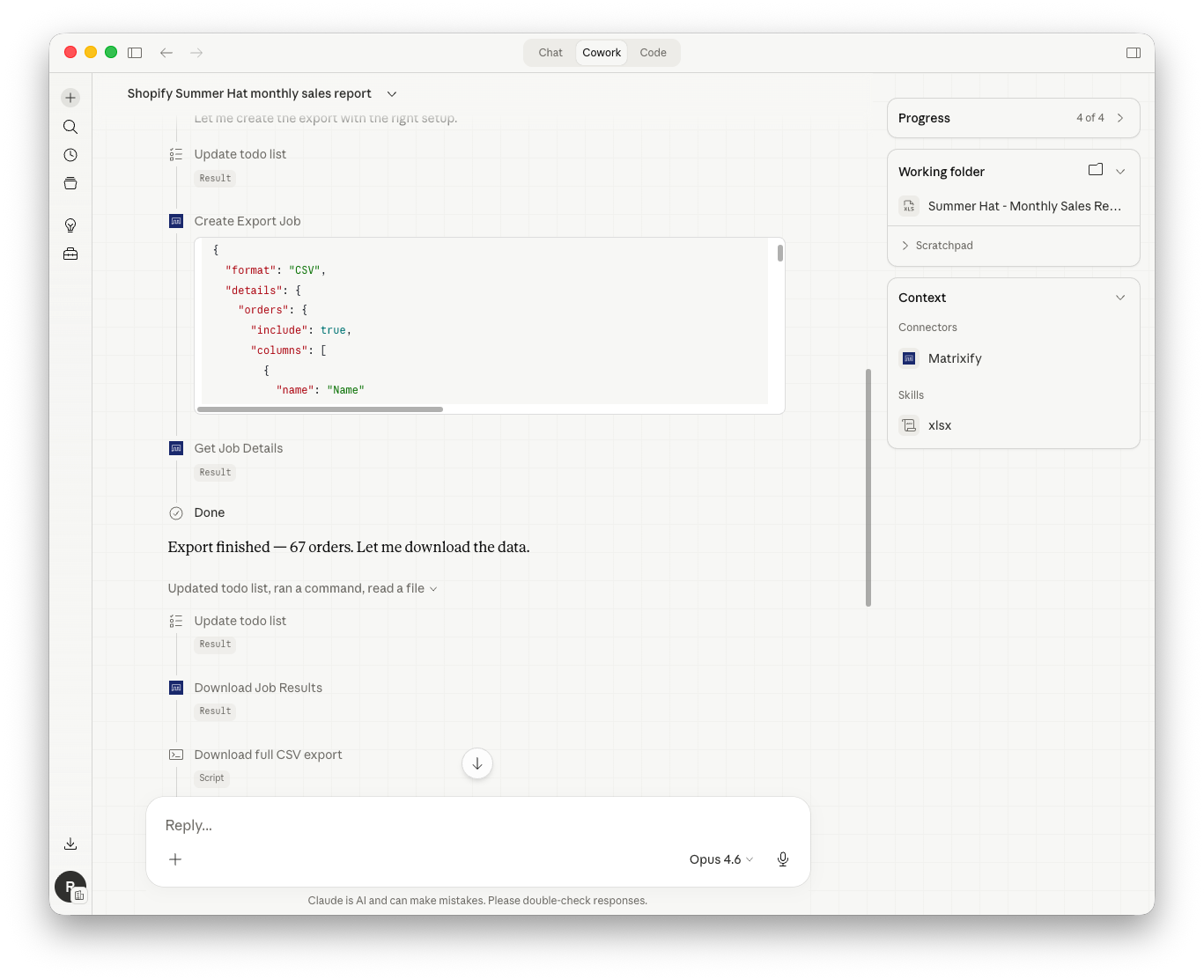
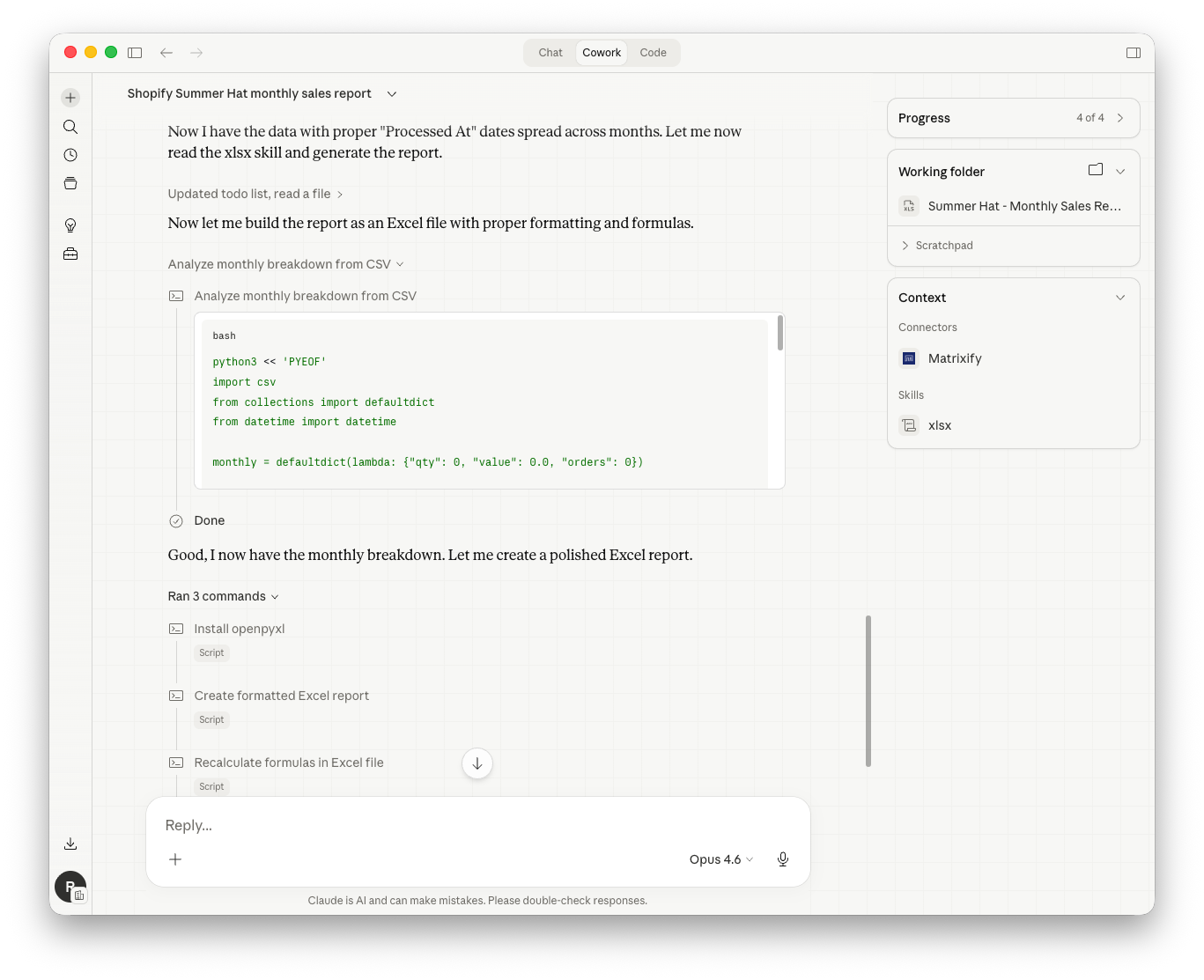
The exported file is analyzed and processed with Python code to generate the custom data report.
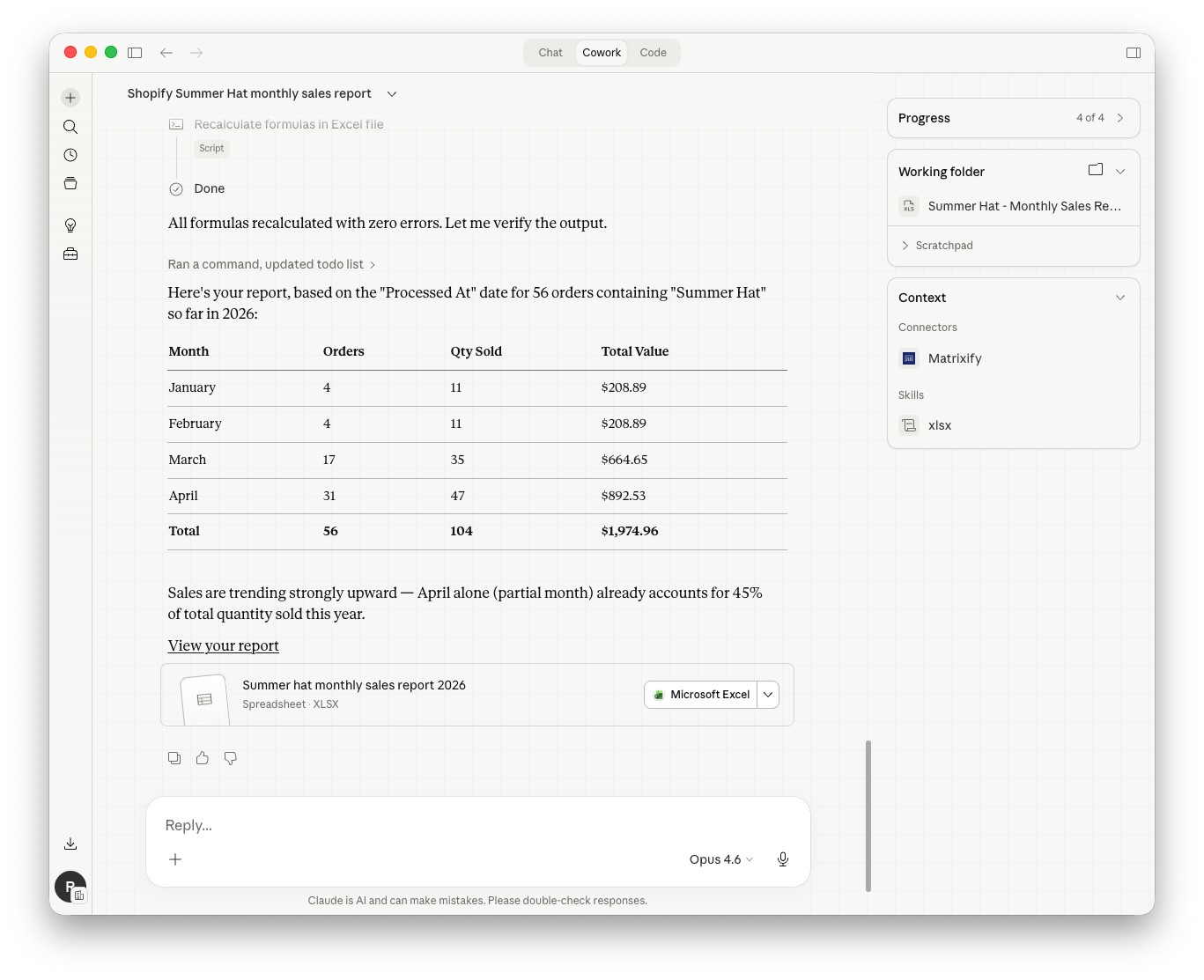
The generated report is returned as a summary in the Claude Cowork thread and as a downloadable Excel XLSX file.
Example 3: Bulk update Product data using export-edit-import workflow
Bulk edit existing data in your Shopify store. Claude can run an export to get the current data, modify it, and import the edited file with Matrixify.
User prompt:
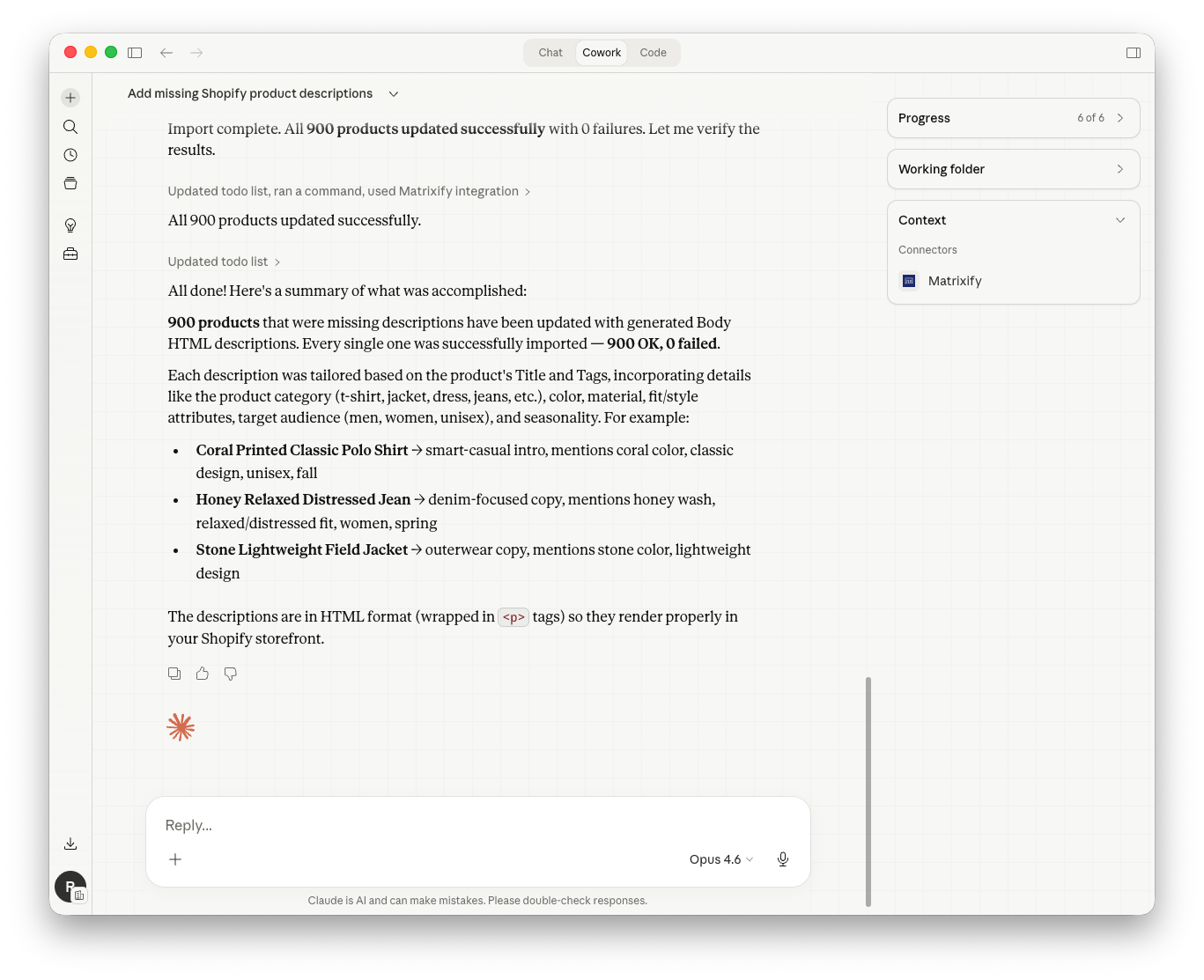
Some Products in my Shopify store do not have descriptions. Update those Products with realistic descriptions generated based on their Titles and Tags.
What happens:
Connects to the Matrixify MCP, looks up the export job setup, and uses help search to learn Matrixify functionality.
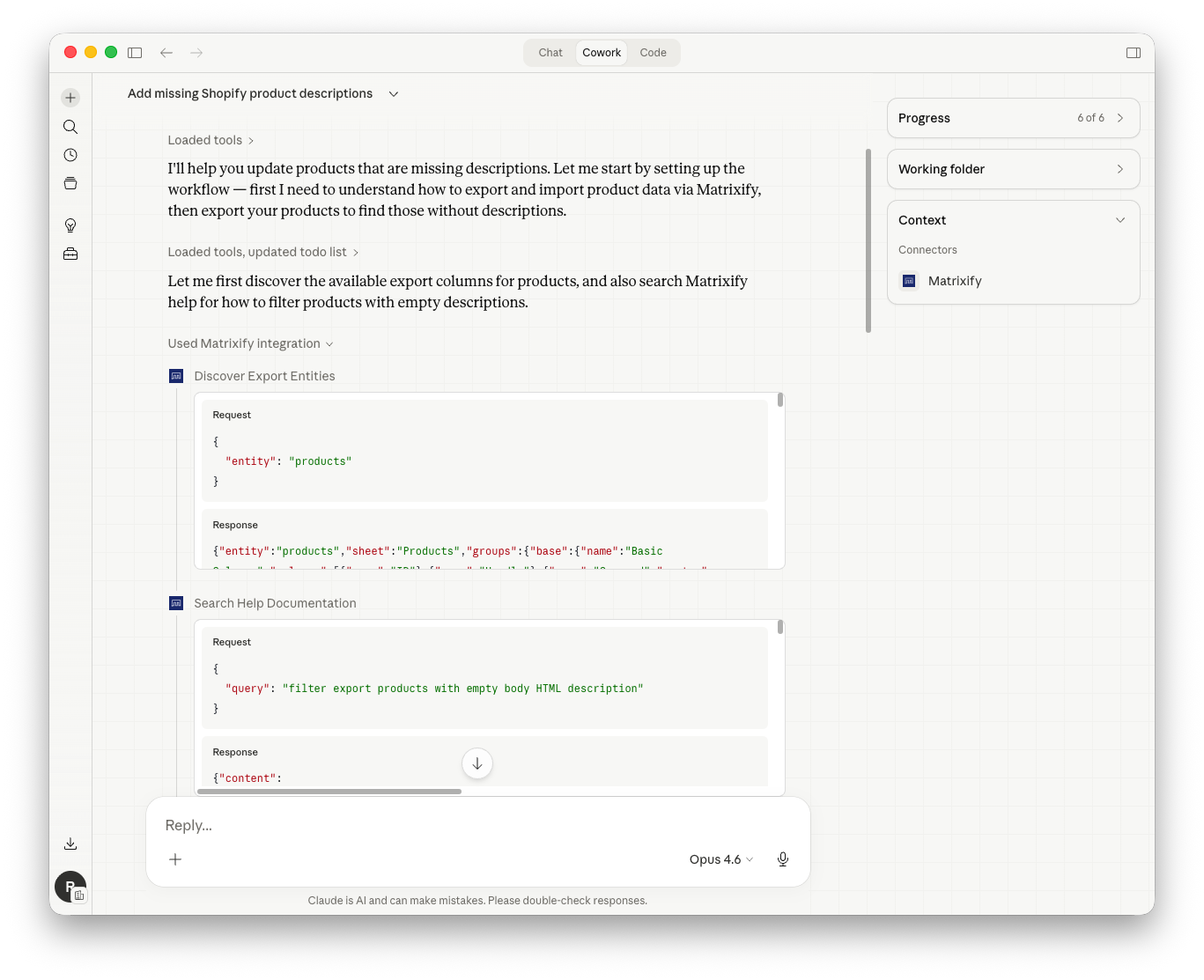
Creates a Matrixify Export job with a “Body HTML is empty” filter. Once the export finishes, the file is downloaded and processed.
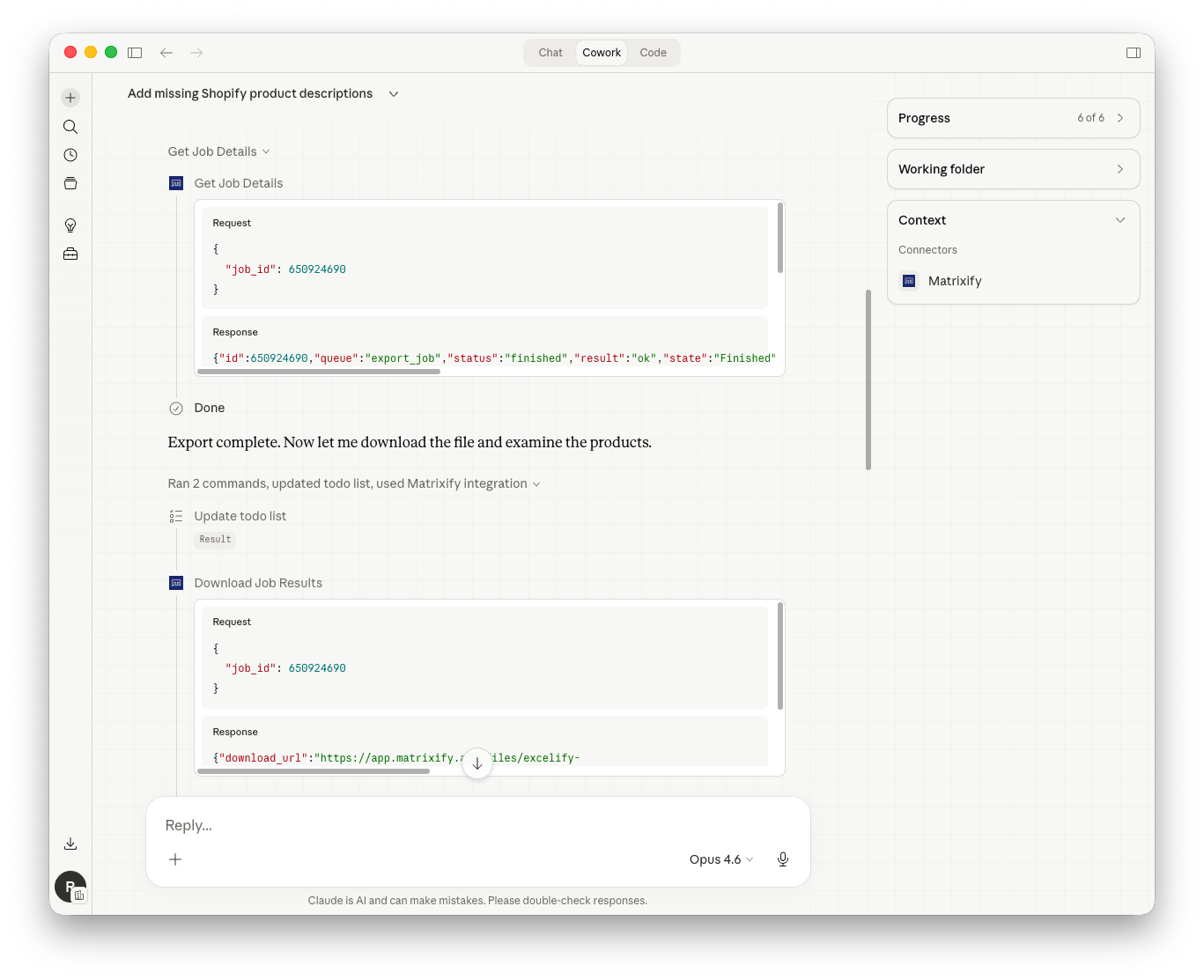
Reads the exported data and generates new descriptions in the Body HTML column based on each Product’s Title and Tags.
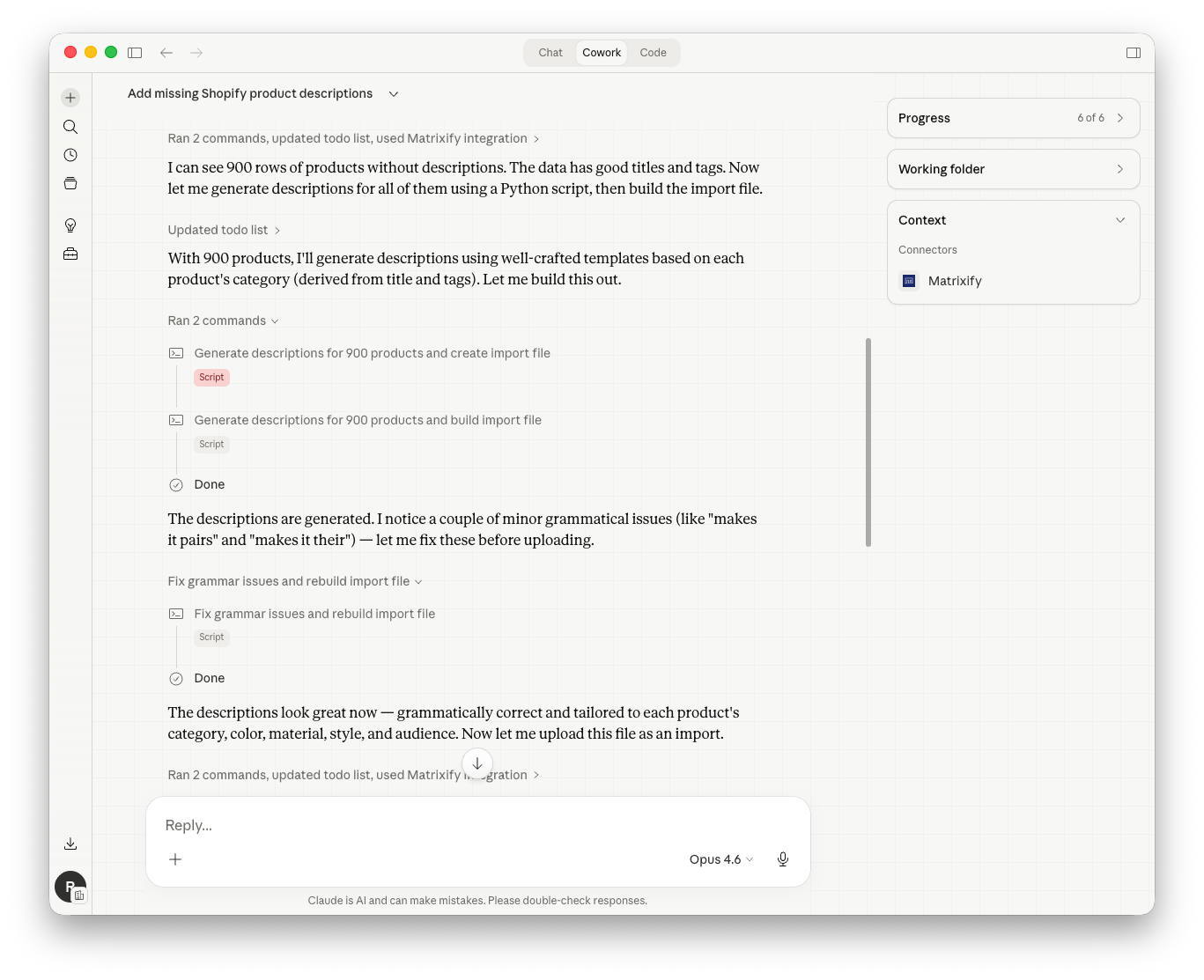
Uploads the file to Matrixify, creates an Import job, and starts the import.
The import job is monitored to get real-time feedback on the job progress.
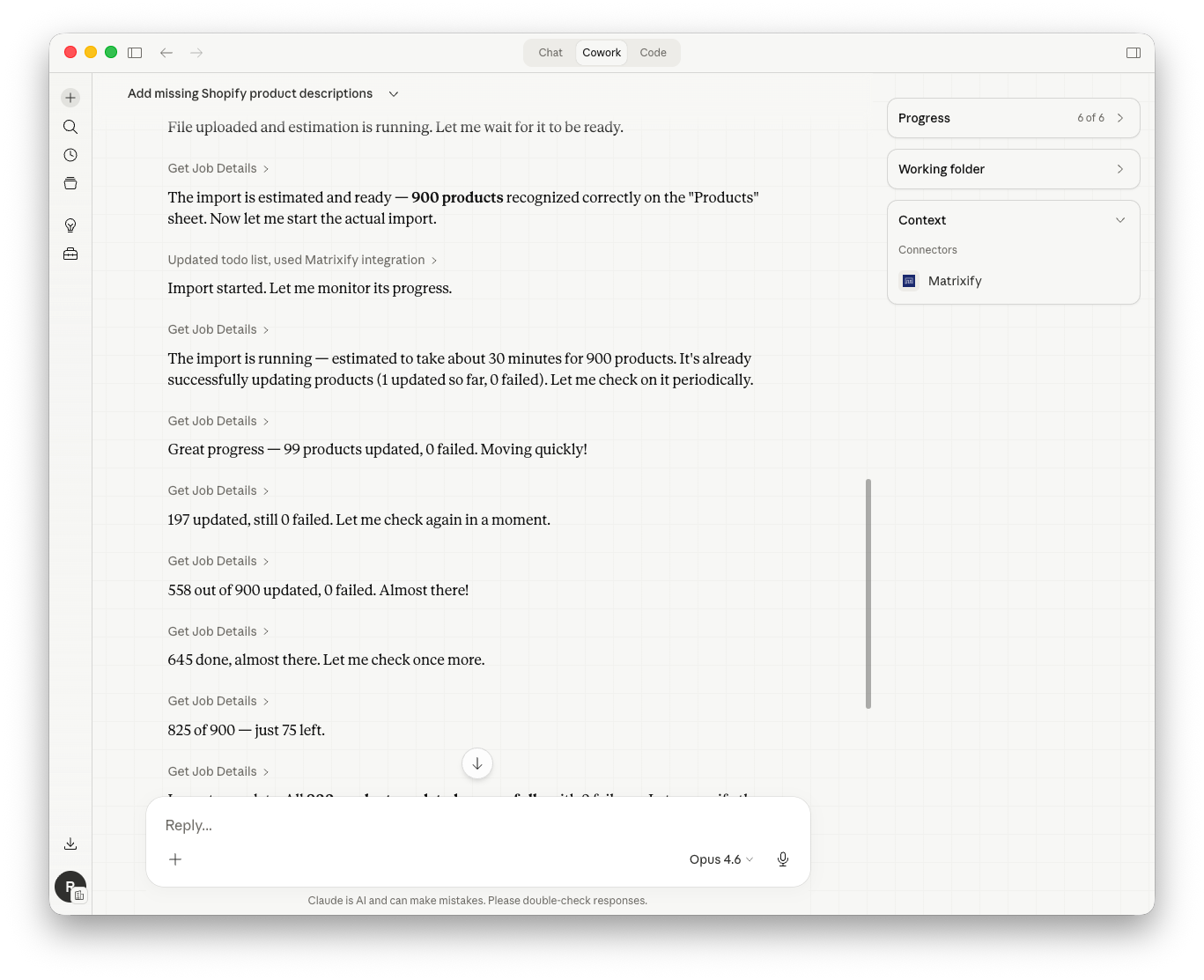
Final confirmation with the Import job status and completed task is returned once the import has finished.
Tool descriptions
The tools listed below are the MCP server endpoints available to the connected AI agent. They are the underlying operations that Claude (or any other MCP-compatible AI agent) calls automatically when processing your requests.
You do not need to use or reference these tools directly; they are documented here for technical transparency.
| Matrixify MCP Tool | Description |
|---|---|
| matrixify_connection_identify | Shows which Shopify store the connection is linked to. It returns the store’s name, ID, myshopify.com domain and primary domain, plus the Matrixify plan. It also returns the API token’s name and expiry date, and the Shopify user who created the token, since imports and exports run under that user’s name.
Useful to confirm you’re working in the right store before running your Imports or Exports. |
| matrixify_export_create | Create an Export job – format, entities, columns, filters, and job options (scheduling, recurrence, file naming, FTP/SFTP destination, etc.). |
| matrixify_export_get_setup | Discover what can be exported – entities, column groups, columns, and the job options schema. Pass an entity to get its column-level detail. |
| matrixify_export_get_setup_filters | Discover the Export filters available for one entity – filter names, types, conditions, and value formats. The entity is required. |
| matrixify_import_create_from_url | Create an Import job from a remote file (HTTP/HTTPS/FTP/SFTP), or re-run a previous Import (“Import Again”) by its job ID. |
| matrixify_import_create_from_csv_data | Create a quick and small Import from the CSV data directly in the tool payload, without the need to upload file separately to a pre-signed S3 URL.
Useful for AI Agents that don’t have the capability to upload/PUT files to S3. Max data payload size: 1 MB. If larger limits are needed, please contact Matrixify Support. |
| matrixify_import_get_setup | Discover what can be imported – entities, columns, job options, plus row-grouping and item-lookup rules. Pass an entity for column-level detail. |
| matrixify_import_get_external_formats | Discover the supported external import and migration formats – BigCommerce, Magento, WooCommerce, Lightspeed, WordPress, Amazon FBA, Shopify Transporter, and more. All of them are converted to the Matrixify format on import. |
| matrixify_import_get_supported_formats | Deprecated – renamed to matrixify_import_get_external_formats. Kept for older MCP clients and will be removed in a future release. |
| matrixify_import_get_upload_url | Get a pre-signed secure URL to upload a file for Import, and the URL to call after uploading to start the Import estimate. External formats are detected from the file name. |
| matrixify_import_update | Update an estimated Import job – remap a sheet to another entity, include or exclude sheets, and change job options. Changing the mapping re-estimates the job. |
| matrixify_import_start | Start an Import job after the estimate and all updates on it are done. A dry run validates and converts the file without writing anything to Shopify. |
| matrixify_job_get | Get details about a specific Import or Export job by its ID – status, per-sheet entity mapping for estimated Imports, entity counts, selected options and estimated time for Exports, and child job IDs for batch jobs. |
| matrixify_job_cancel | Cancel a specific job by its ID. |
| matrixify_job_results_download | Download the result file from a job – the export file for Exports, the Import Results file for Imports. |
| matrixify_jobs_list | List recent jobs in the Matrixify app, with pagination and filtering by job type and state. |
| matrixify_help_search | Search the Matrixify help documentation by sending specific questions in plain language. |


