


Adding products to Shopify Collections can be a time-consuming task; that is why Matrixify has developed a tool to do it quickly and simply!
Add Include and Exclude Manual Selection Conditions
1. Prepare a list of Products to include or exclude
To add and remove Products from a Collection in bulk, you will need to have a list of the Product Handles.
If you already have a list of such products and can format it in a spreadsheet column, then you can jump to step #2.
To get a spreadsheet list of your Shopify Product Handles, you can make and Export in the Matrixify app of your store Products with only those columns selected.
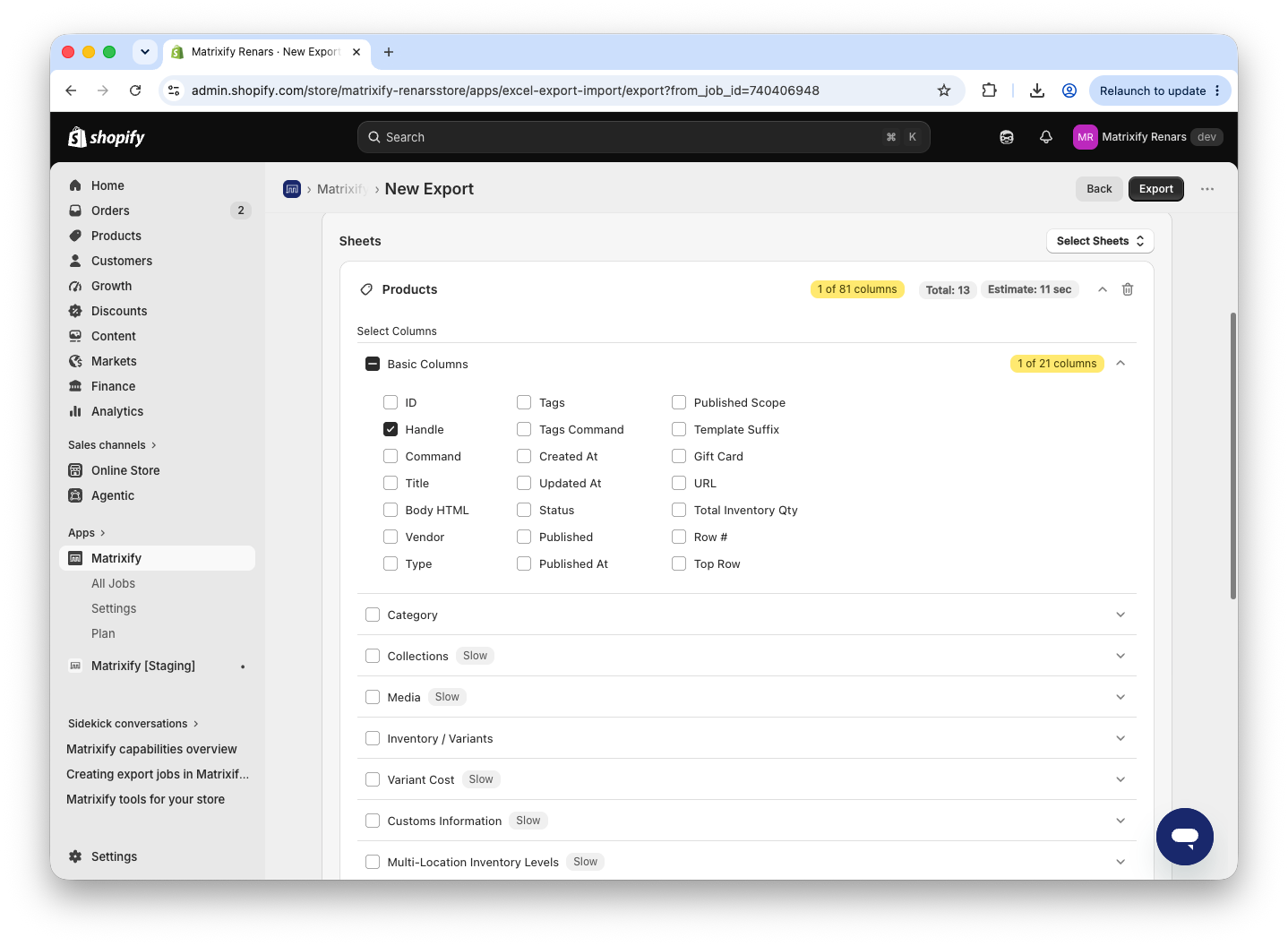
As you likely will need to add specific Products not all then you can also use Export filters to limit what list of Products are exported.

Once you have configured the Export job in the app, press the Export button to start the Export, and when finished, download the exported file via Download Exported File button.
Now you should have a spreadsheet file with a column of Product Handles to include or exclude from your collection.
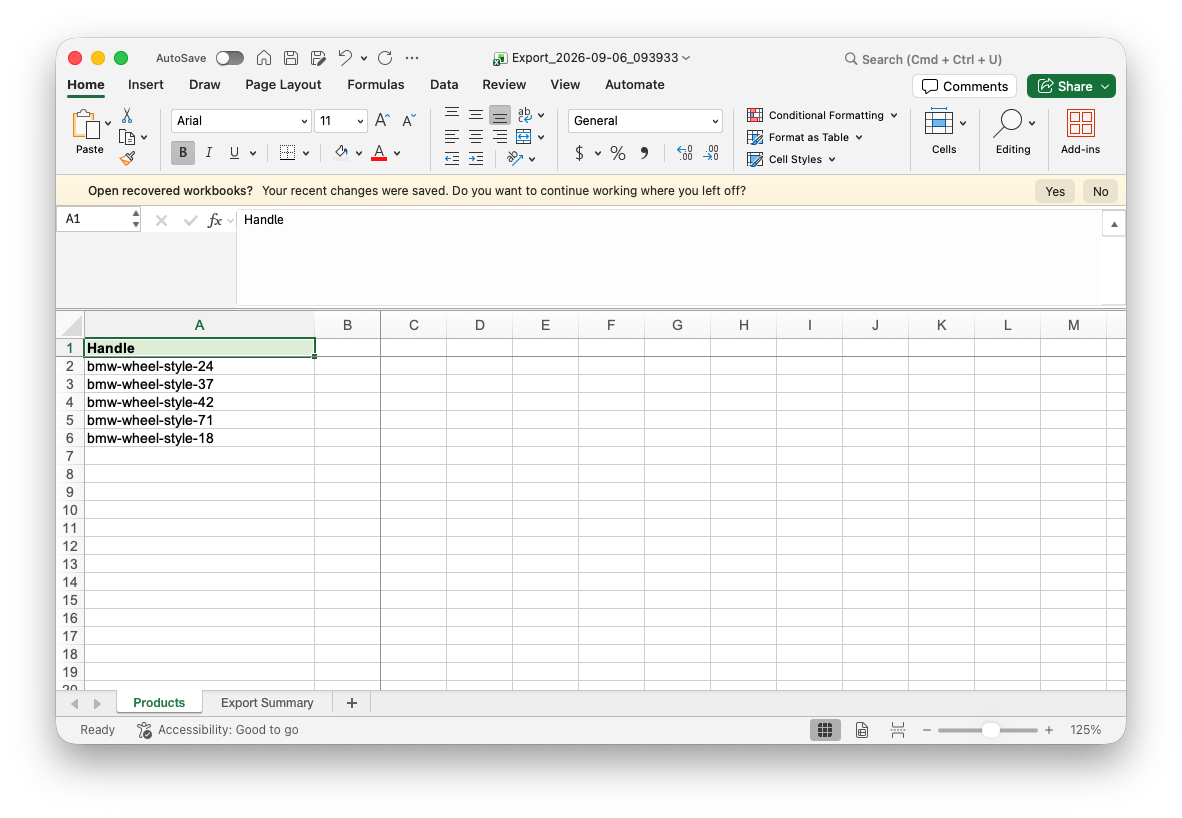
2. Construct a Collections sheet to bulk add or remove Products
In your spreadsheet file, you will need to make a few manual adjustments to specify which Collection you wish to work.
For both actions to Include and Exclude Products, your import file will need to have the following changes:
- Rename the
Handlecolumn header toCondition: Value. - Add column headers:
Condition: Field– set this column to the same value in all rows –Manual Selection,Inclusion: Type– this column will manage if you wish to add or remove products from the collection by using the valueIncludeorExclude,Source: Type– fill with same value in all rows –Products,Handle– In this column, write the Collection Handle. It will be the main column app uses to identify the existing collection to update. You can find your collection Handle by opening the Collection in Shopify Admin, opening to edit Search engine listing section and copying value from URL Handle field.
- The sheet within the file needs to be renamed from
ProductstoCollections.
The Order of the columns in your Import file does not matter; the Matrixify app will find columns based on their column headers in the first row.
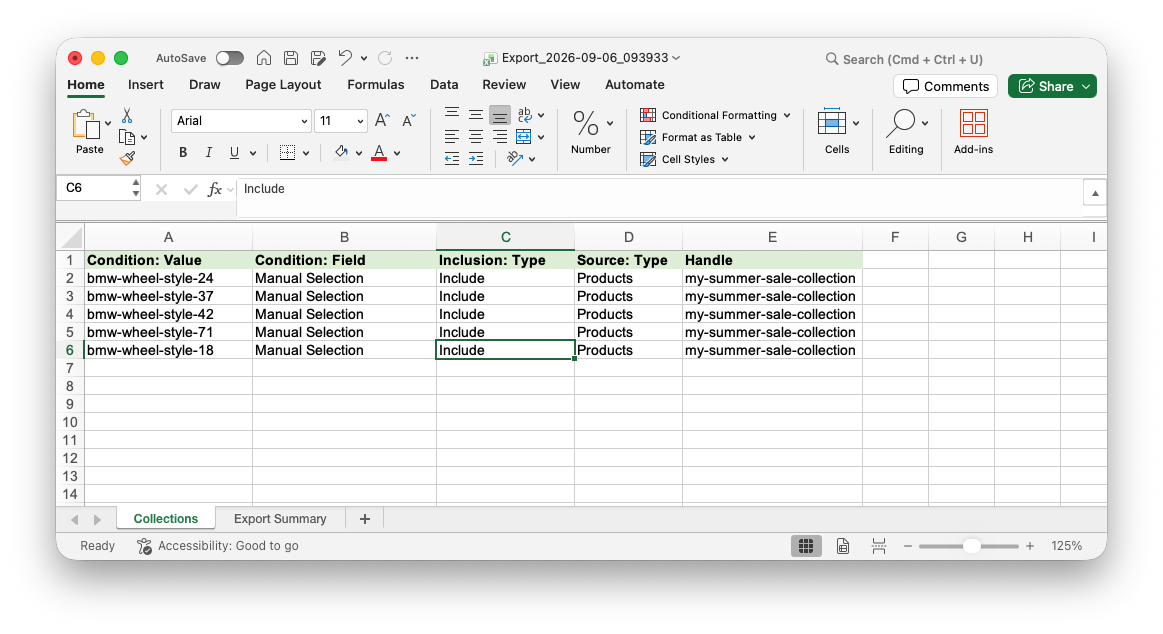
This example updates one collection by adding or removing Products from it. You can also manage multiple collections this way by duplicating the rows in your Import file and filling the other collection rows with their respective collection handles in the Handle column. Just make sure that all rows from the same collection are next to each other/adjecent in the spreadsheet file.
3. Import your prepared Collections sheet
Now that the file is ready, we can head back into the Matrixify app and in the Home page Import section, upload your prepared spreadsheet file.
Matrixify app will first analyze the file and once it is finished, you can use the Import button to start your Import job.
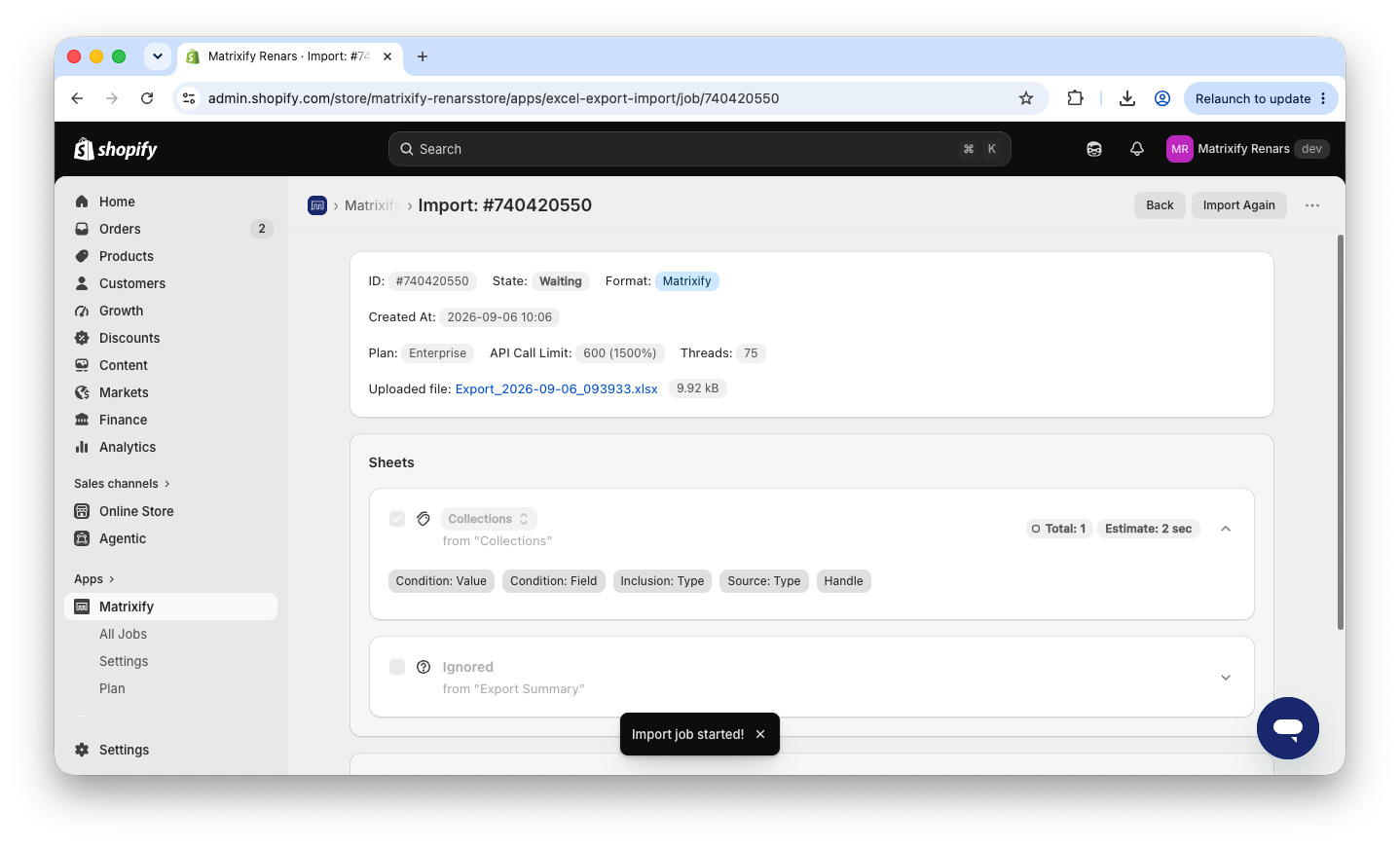
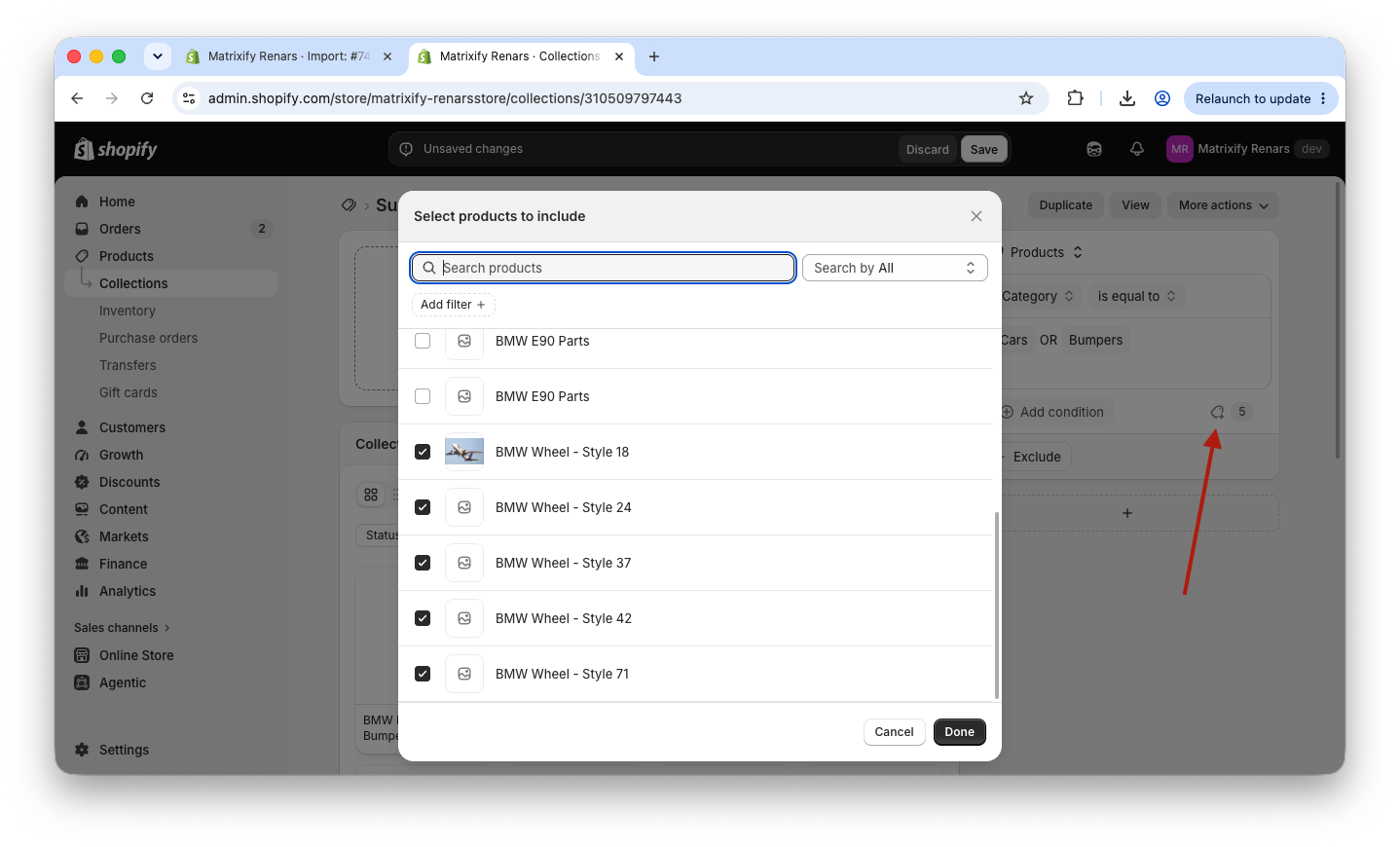
After it finishes, your Collections are bulk updated! Open the Collection in the Shopify admin and see your new manual selection Include and Exclude conditions added in bulk!
Bulk remove existing Manual selection sources
When you have Products already Included in a collection by being manually selected, then to specifically remove them, those manual selections must be deleted. You can do this in bulk with the Matrixify app!
1. Export your Collections with sources and conditions
Using the Matrixify app, create a New Export for the Collections sheet.
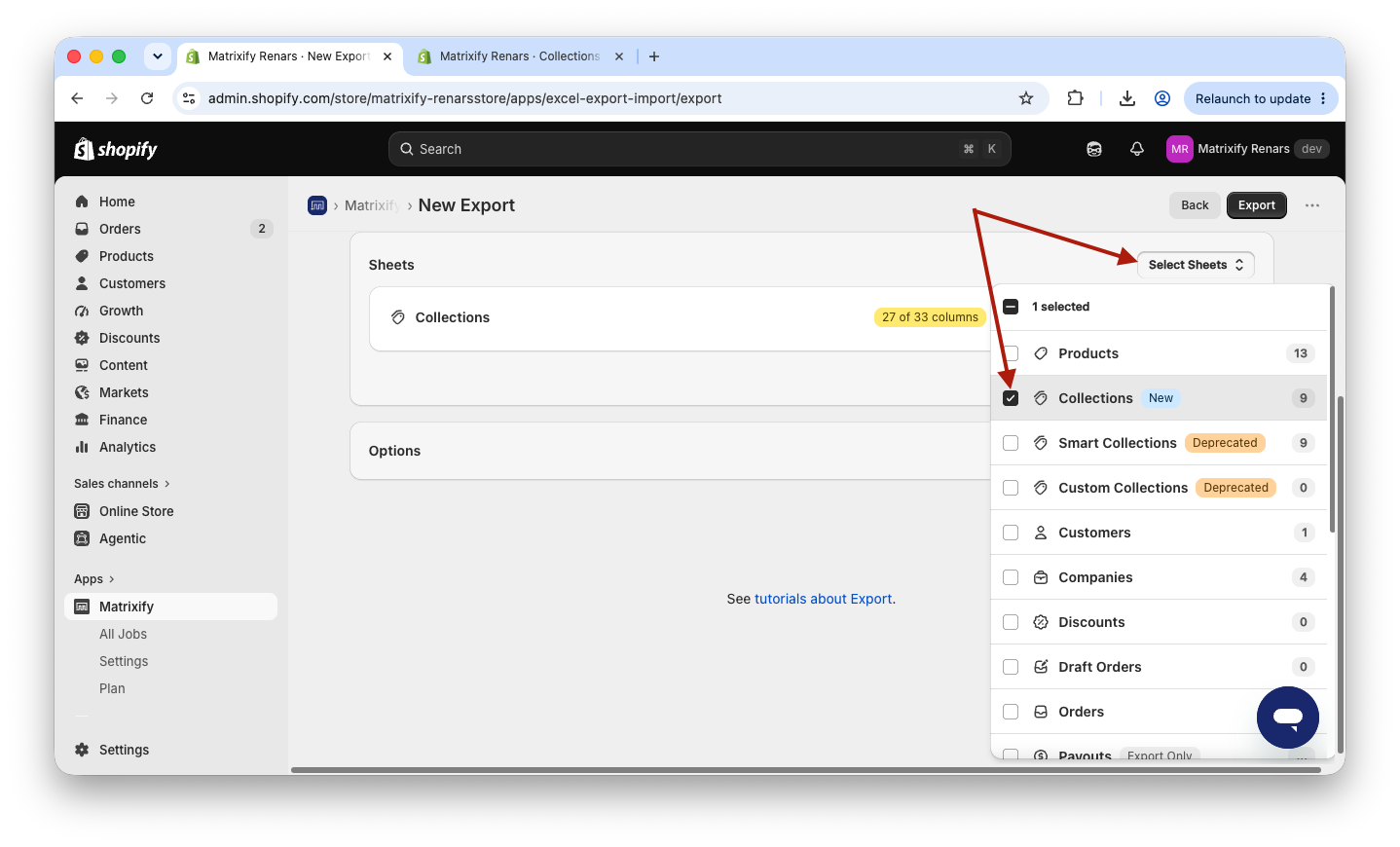
Within the sheet, you need to select and include Basic Columns and Sources & Conditions columns.
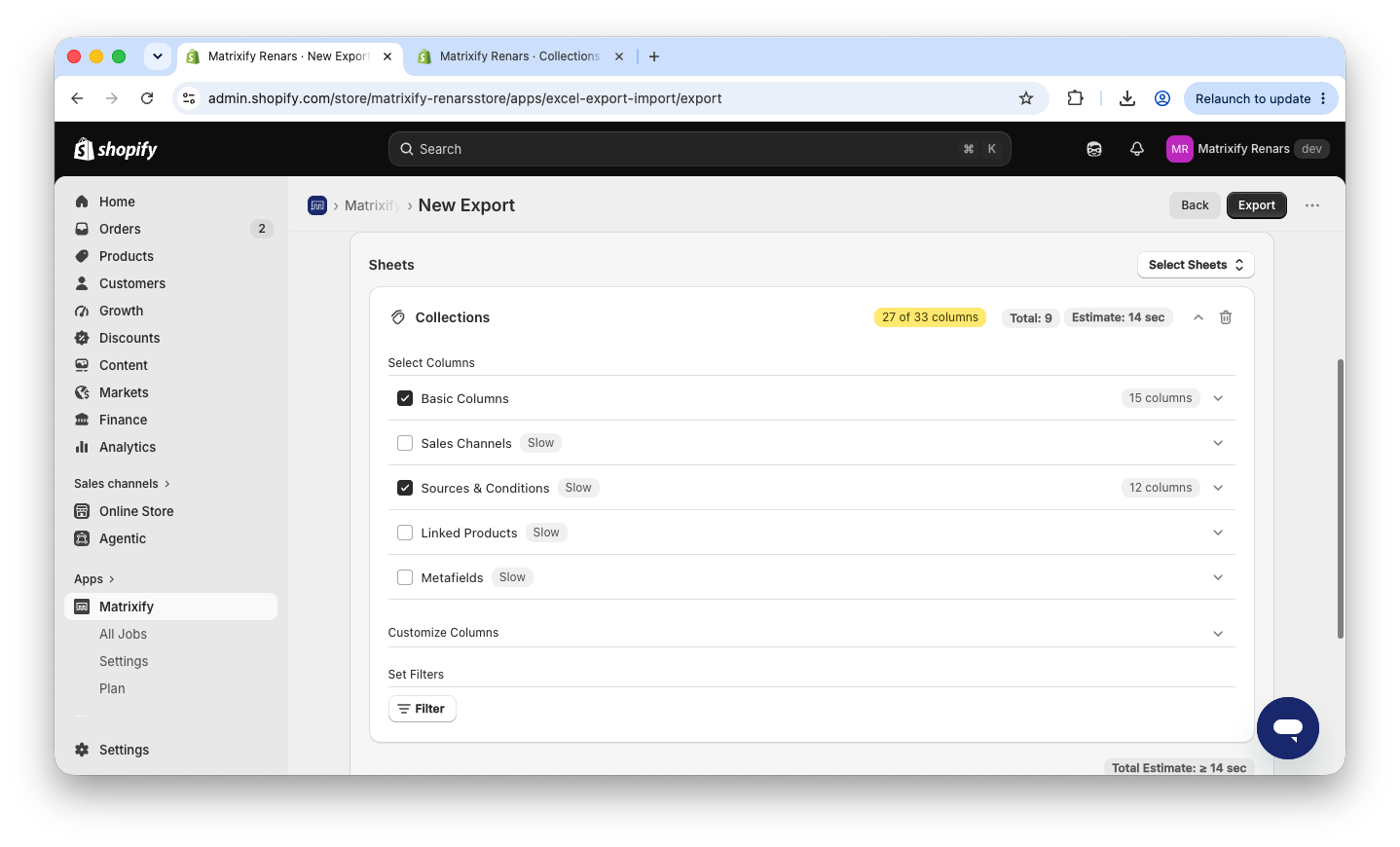
You can also use the Filters button to apply various filters and export only specific Collection/s.
Read more about Export Filters in the Matrixify Filter documentation page.
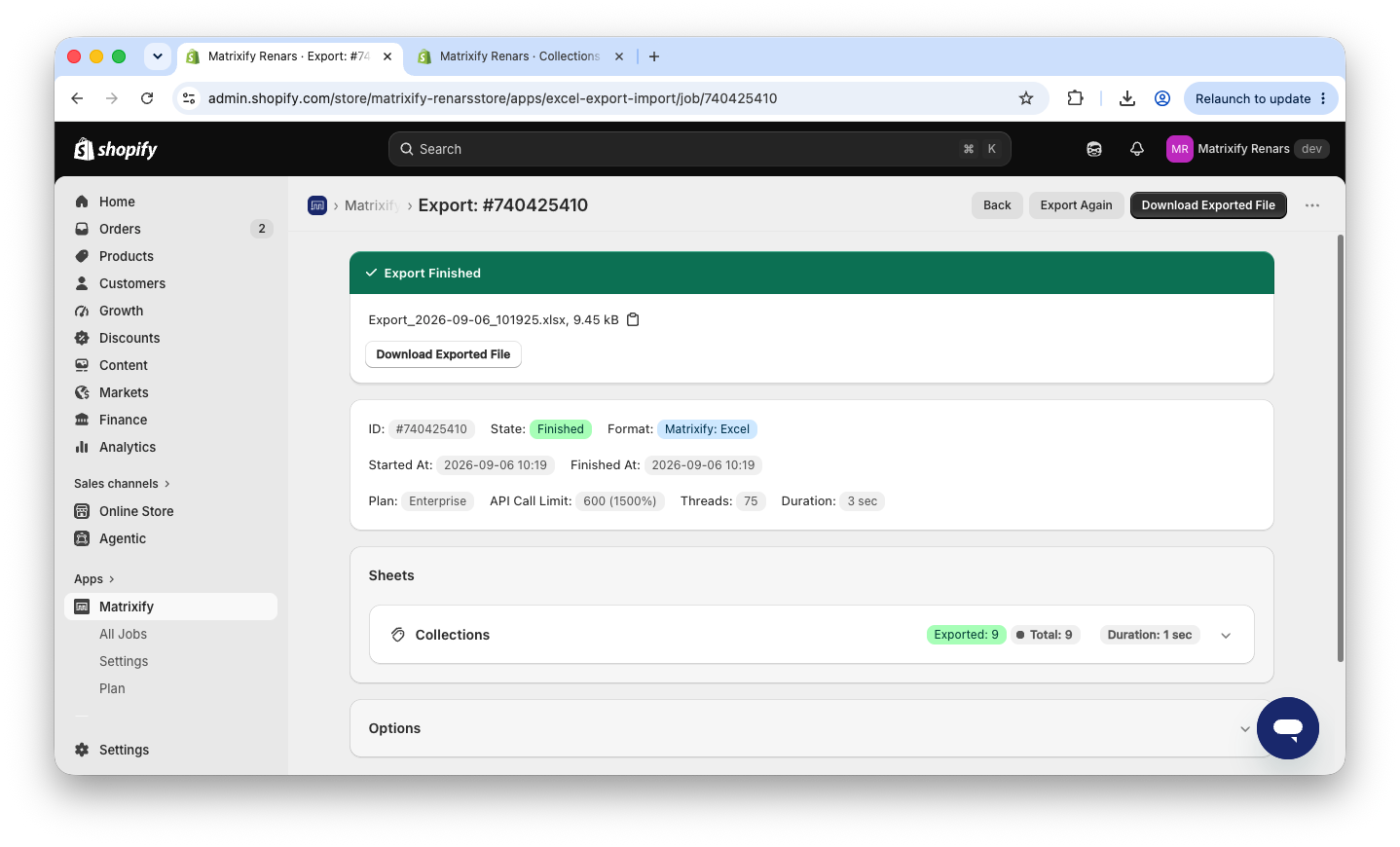
Use the Export button to start the Export job, and once it finishes, download your exported file.
2. Keep only the conditions you wish to delete
In your exported file, you will see multiple rows for each Collection – each row represents one condition of the Collection product source data.
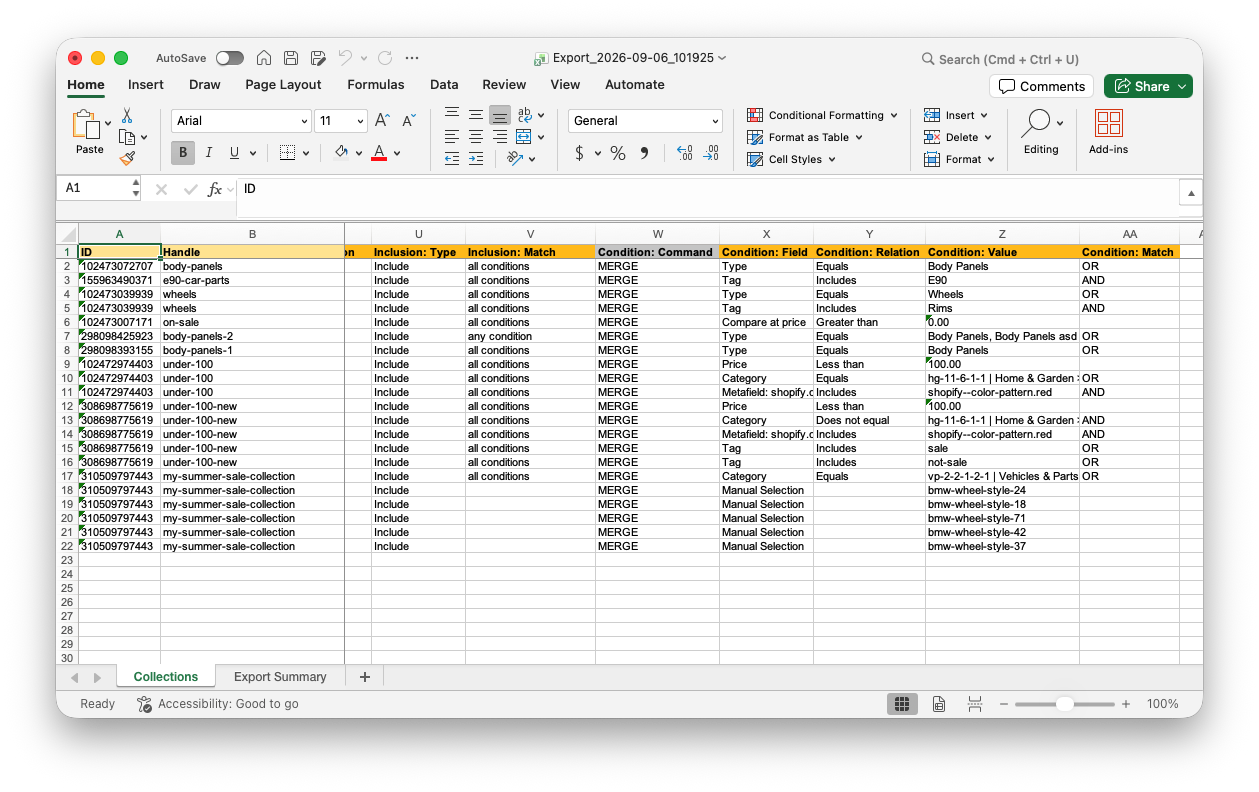
As our task here is to delete unwanted Manual Selection conditions, then we can remove all rows that do not have a value Manual Selection in the Condition: Field column. And from the remaining manual selection rows you can also remove rows of manual selection conditions that you wish to keep in your file.
The exact same approach would work to bulk remove any individual Condition, so you can also keep other conditions that you will need to delete.
The idea here is that your spreadsheet file should contain rows of conditions that you wish to remove from your collections.
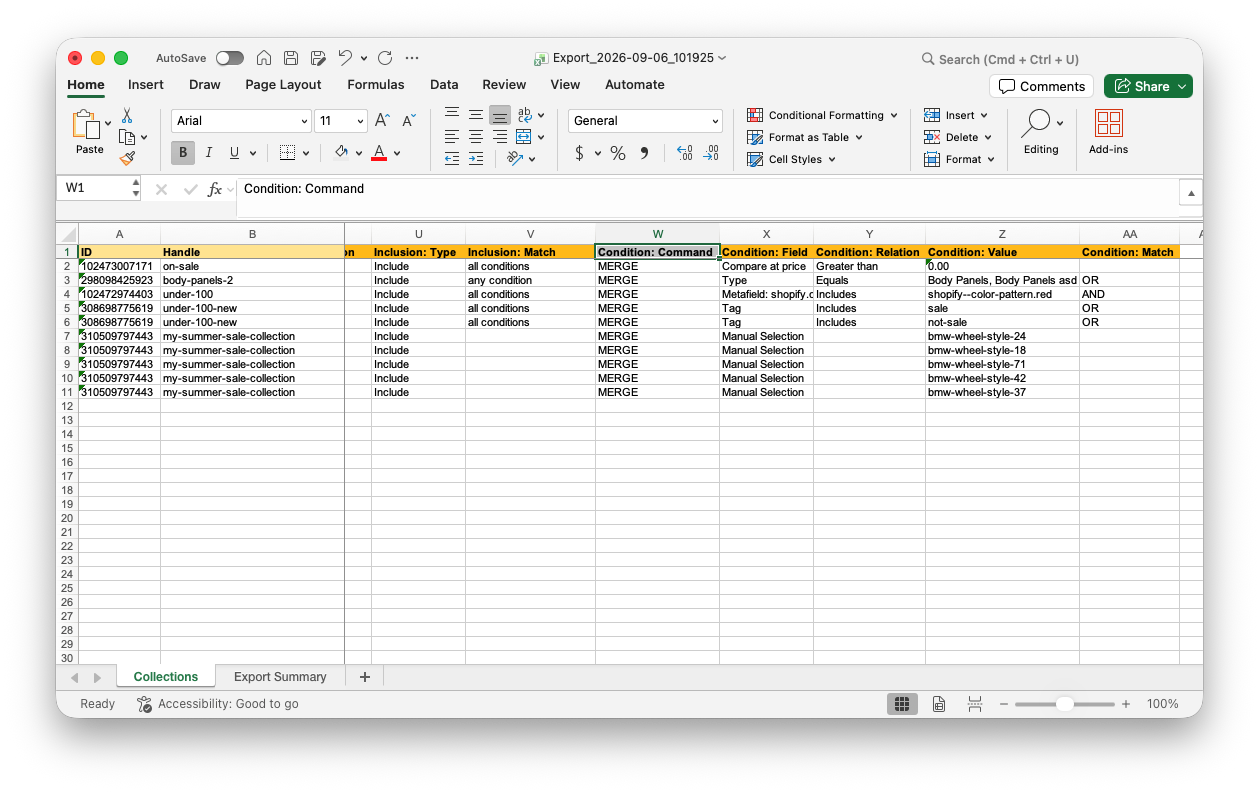
3. Set the Condition Command to value DELETE
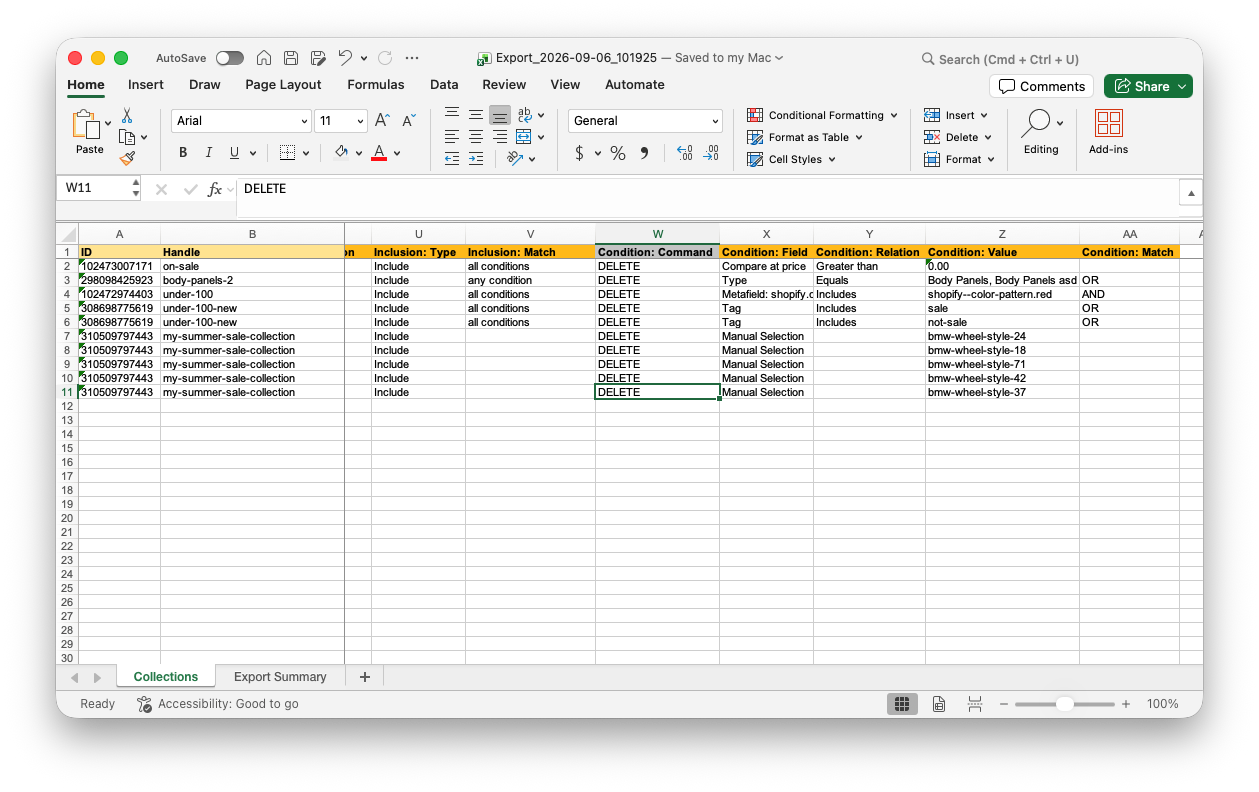
Now last remaining edit in the file – we need to instruct Matrixify app that those conditions need to be deleted.
In your file, change the Condition: Command columns value from MERGE to DELETE.
Make sure that any other Command columns you might have in the file keep their default exported values.
4. Import your spreadsheet with Matrixify
Now that the file is ready, save it on your computer and head back into the Matrixify app.
Upload your edited spreadsheet file in the Matrixify app Home page Import section.
Matrixify app will analyze the spreadsheet, and once finished, you can use the Import button to start your Import job.
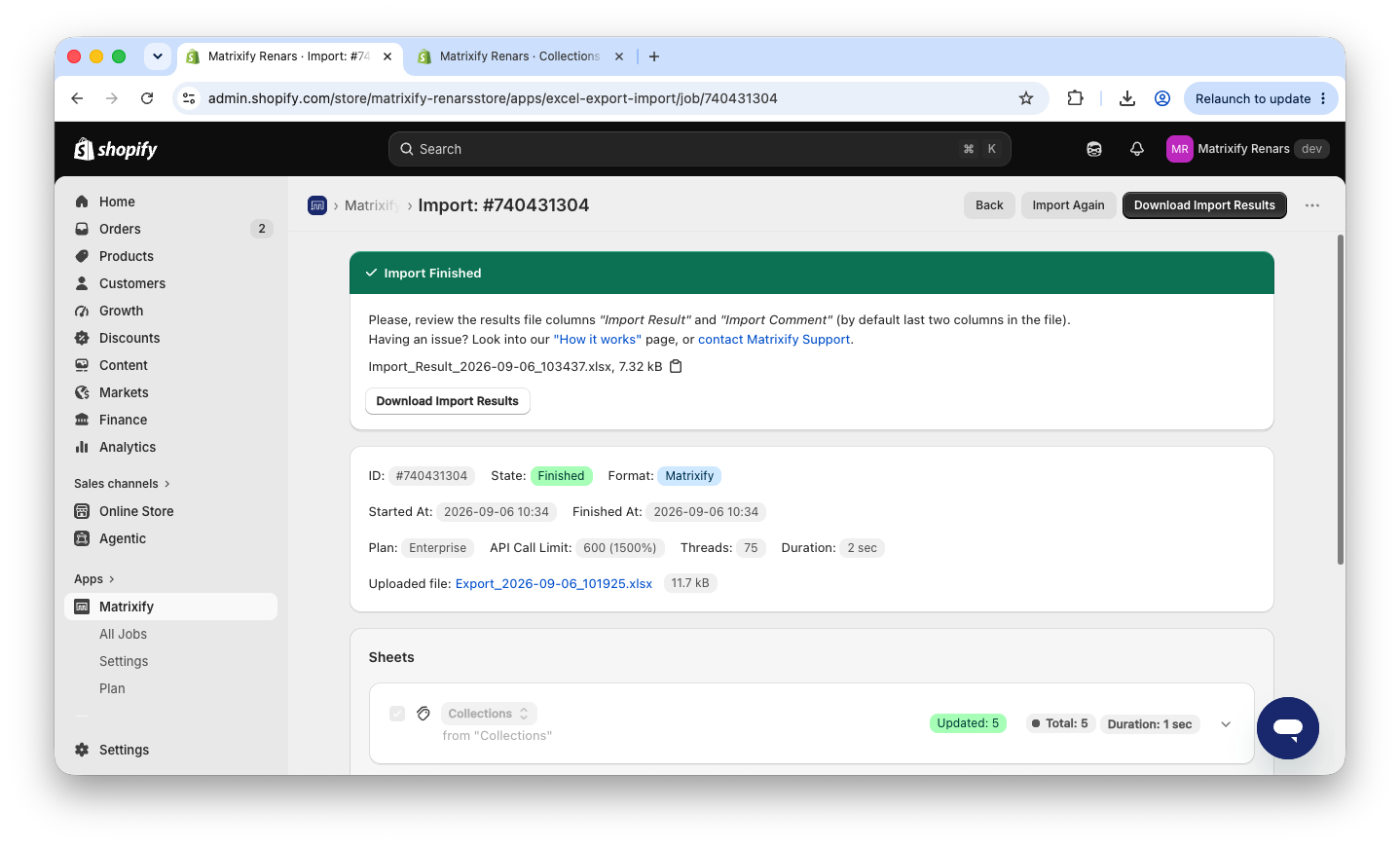
When the Import is finished, your Collections are bulk updated and the unwanted Conditions removed from your Shopify Collection sources!


