

In the Matrixify app Settings, Shopify Store Owners can configure Sheet Permissions to control which data Entity Sheets are allowed for Export and Import in their Shopify store. This tutorial explains what Sheet Permissions are, where to find them, how to configure them, and what happens when a sheet is restricted.
What are Sheet Permissions in Matrixify
Sheet Permissions is a section in the Matrixify app Settings that allows Shopify Store Owners to select which Entity Sheets can be exported or imported. Each data Entity in the Matrixify app – such as Products, Collections, Customers, Orders, Draft Orders, Discounts, Pages, Blogs, Redirects, and others — can individually be allowed or restricted for Export, Import, or both.
When a sheet is restricted, the Matrixify app will not allow starting an Export or Import job with that Entity Sheet selected. This gives the Store Owners a way to protect sensitive data or limit which types of data can be moved in and out of the store through the app.
Where to Find Sheet Permissions in Matrixify Settings
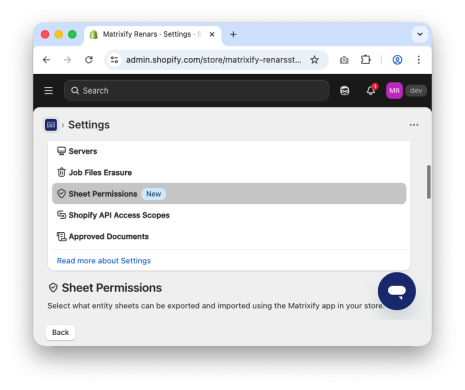
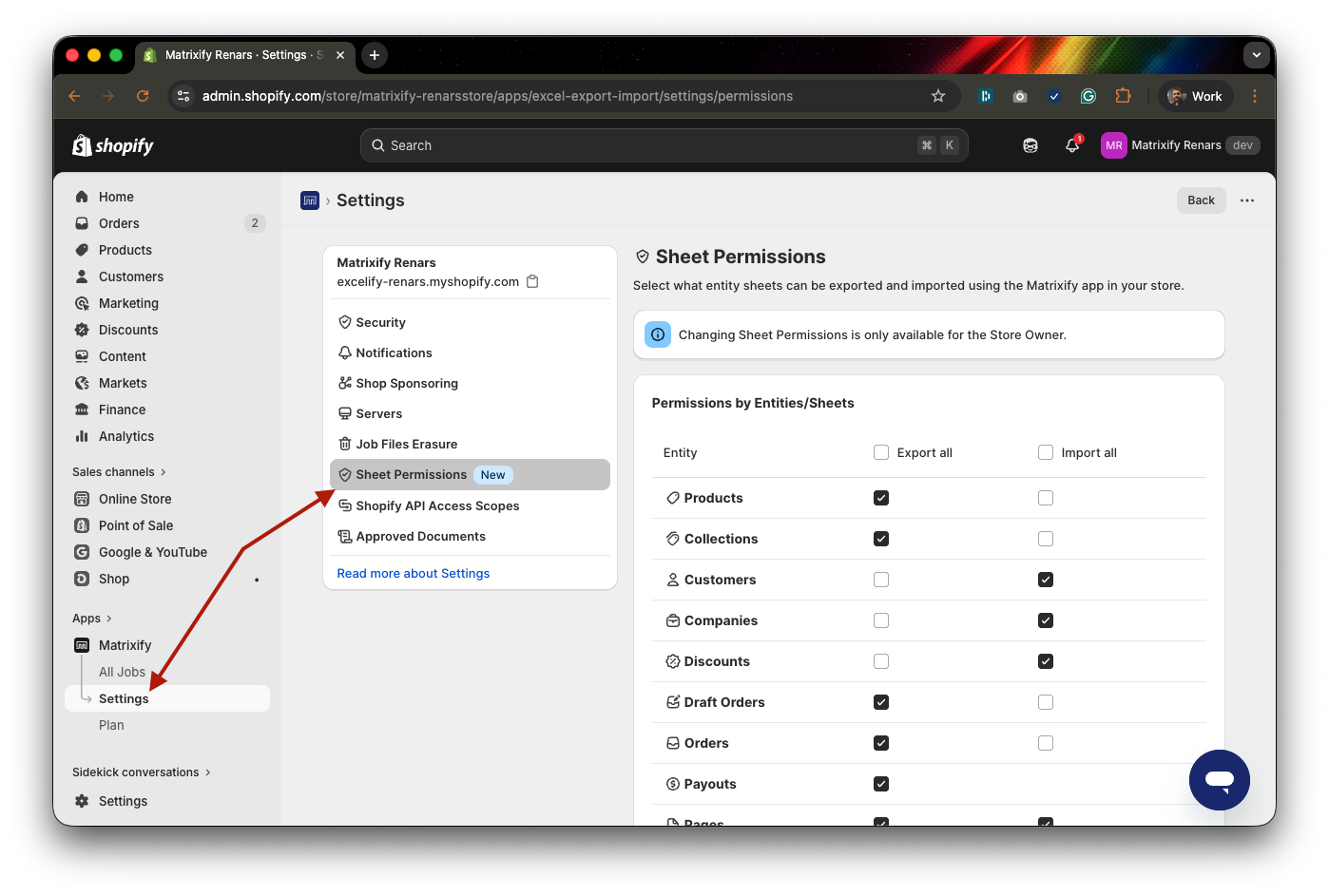
To access the Sheet Permissions Setting, open the Matrixify app in your Shopify Admin and navigate to the Settings page from the app menu. In the Settings page, scroll down to the Sheet Permissions section.
In this section, you will see a list of all Entity Sheets that the Matrixify app supports for Export and Import – Products, Collections, Customers, Companies, Discounts, Draft Orders, Orders, Payouts, Pages, Blog Posts, Redirects, Activity, Files, Metaobjects, Menus and Shop. Each Entity Sheet has a separate checkbox toggle for Export and Import, allowing you to control each direction independently.
Who Can Edit Sheet Permissions
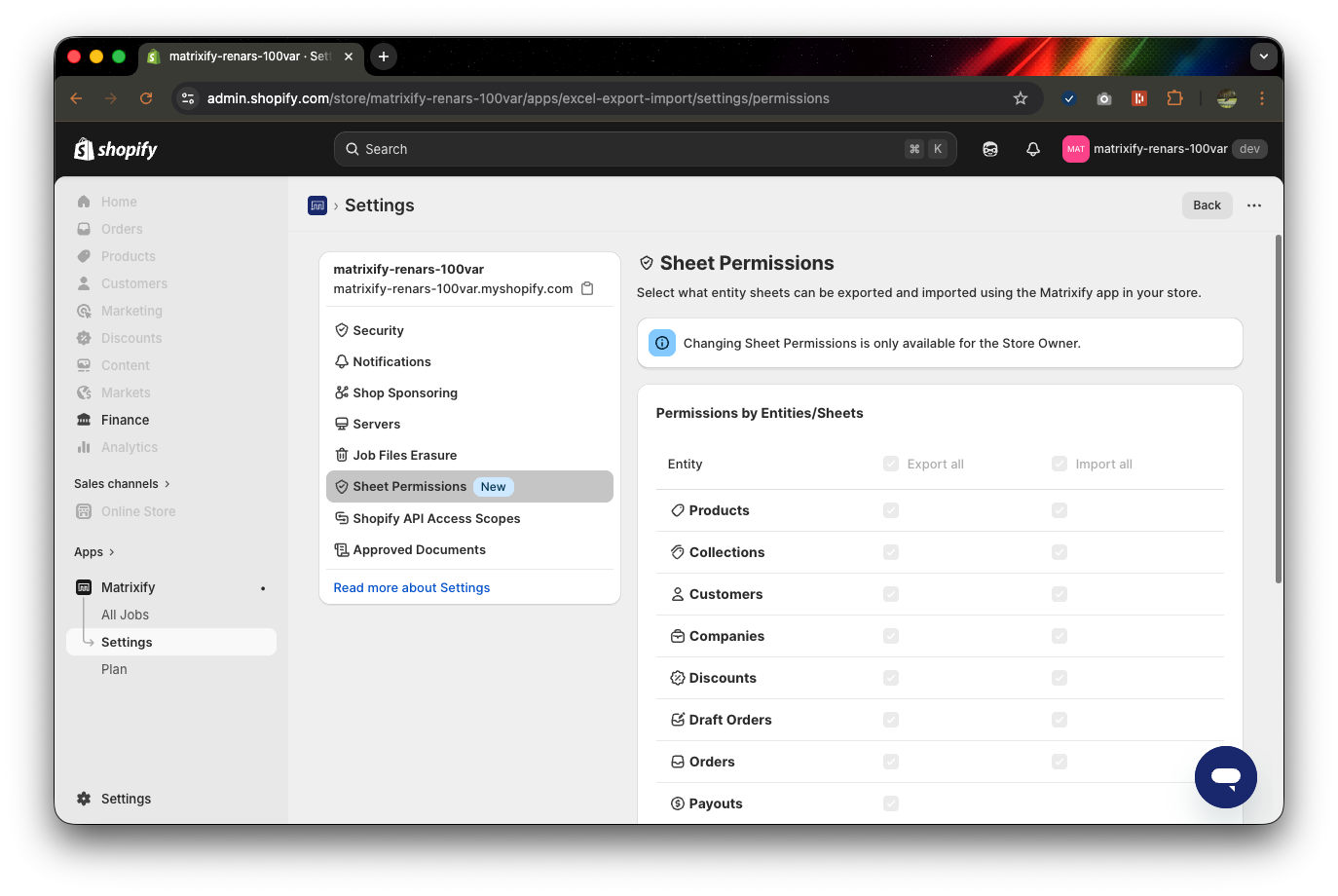
Only the Shopify Store Owner can edit the Sheet Permissions setting in the Matrixify app. All other users – including staff members and collaborators – can see the Sheet Permissions section in the Matrixify Settings page, but it is disabled and displayed as read-only.
This means that as a Store Owner, you have full control over which Entity Sheets your team can work with through the Matrixify app. When you restrict an Entity/Sheet, the restriction applies to everyone who uses the Matrixify app in your store.
It is important to note that Matrixify Sheet Permissions are separate from the Shopify staff permissions that you configure in your Shopify Admin Users and permissions settings. Any staff member with access to the Matrixify app can use it to perform all allowed sheet Exports and Imports, regardless of their staff account permissions in the Shopify store.
How to Allow or Restrict Matrixify Sheets for Export and Import
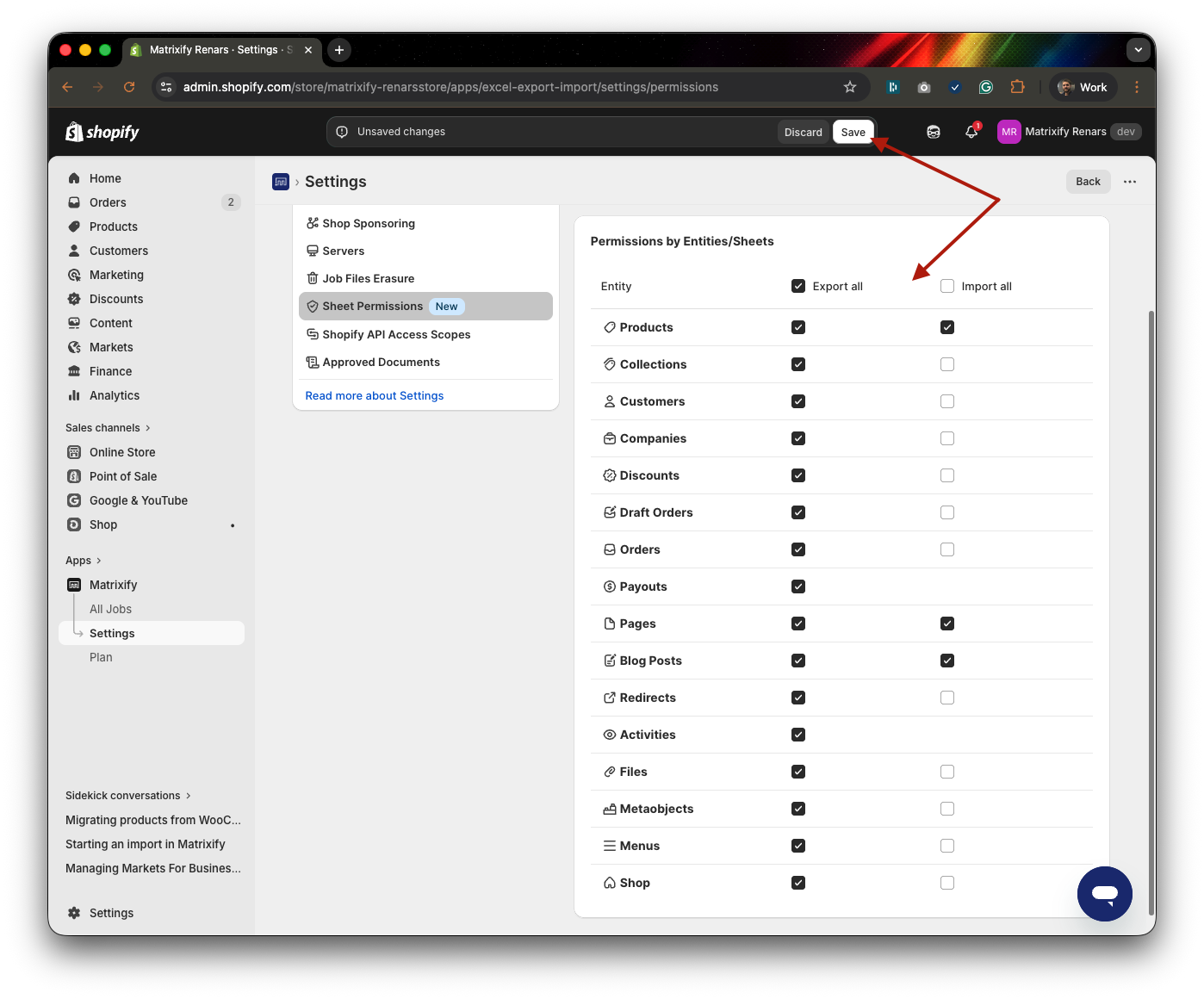
In the Sheet Permissions section of Matrixify Settings, each Entity Sheet is listed with two separate checkboxes — one for Export and one for Import. This allows you to control each direction independently. For example, you could allow a sheet to be exported for reporting purposes, but restrict it from being imported to prevent any data changes.
To restrict a sheet, uncheck the Export or Import checkbox next to the Entity Sheet you want to restrict. To allow a sheet, make sure the corresponding checkbox is checked.
After making your changes, press the Save button to apply the new Sheet Permissions configuration.
By default, all Entity Sheets are allowed for both Export and Import. This means that if you have not changed any Sheet Permissions, all users with access to the Matrixify app can Export and Import all available Entity Sheets.
Some Entity Sheets that do not have an Import functionality, such as Payouts and Activities, will only have a checkbox in the Export column, as there is no Import to restrict.
What Happens When a Sheet is Restricted in Matrixify
When a Sheet is restricted in the Sheet Permissions settings, the Matrixify app will prevent users from starting the Export or Import job that includes that restricted Entity Sheet.
Restricted Sheet in Export
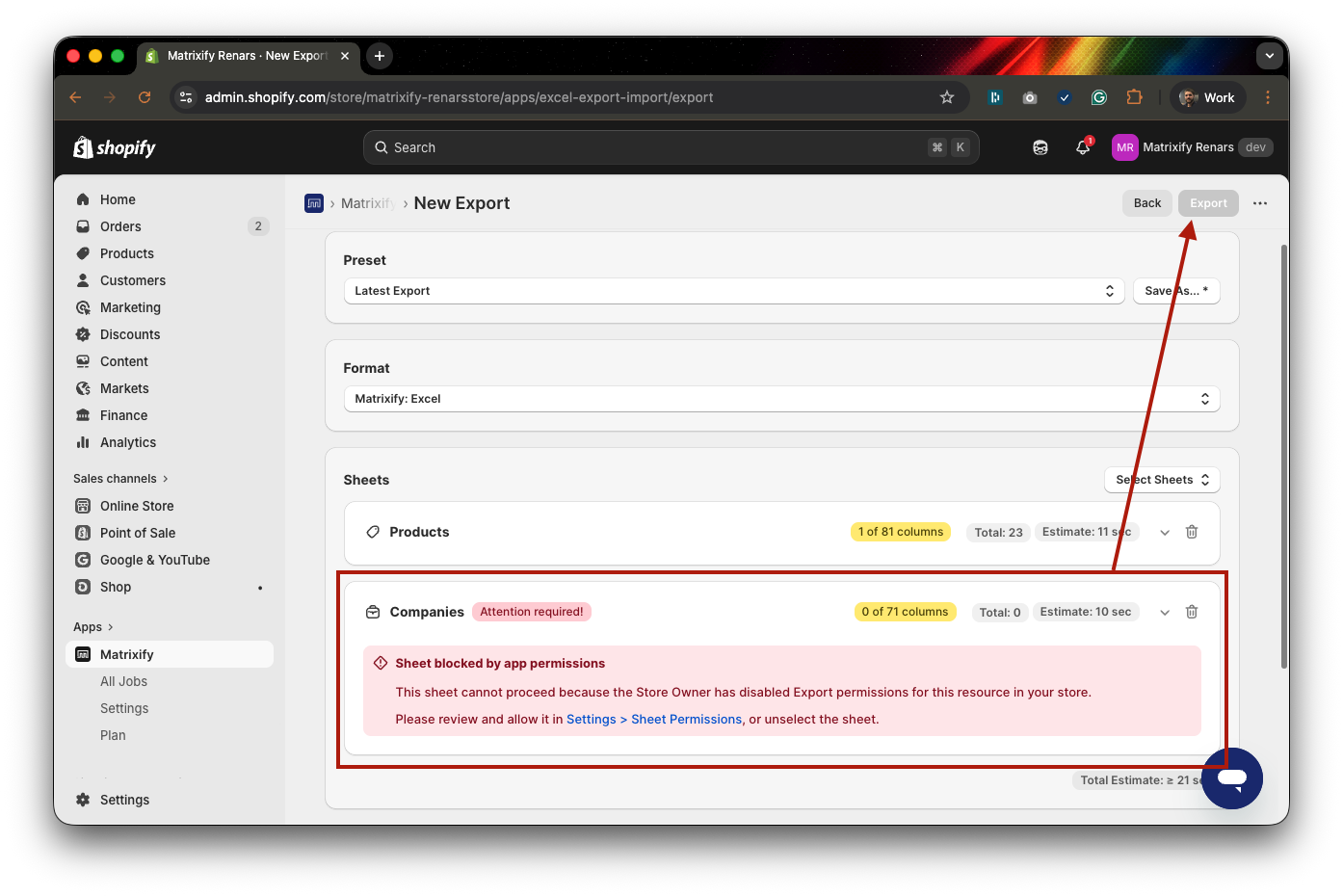
When an Entity Sheet is restricted for Export, the sheet will still appear in the Select Sheets list and can be selected by the user. However, once a restricted sheet is selected, the Export button will be disabled, and the sheet will display an error message indicating that it is not allowed to be exported by the Sheet Permissions set by the Store Owner. To proceed with the Export, the user must either deselect the restricted sheet or ask the Store Owner to update the Sheet Permissions.
Restricted Sheet in Import
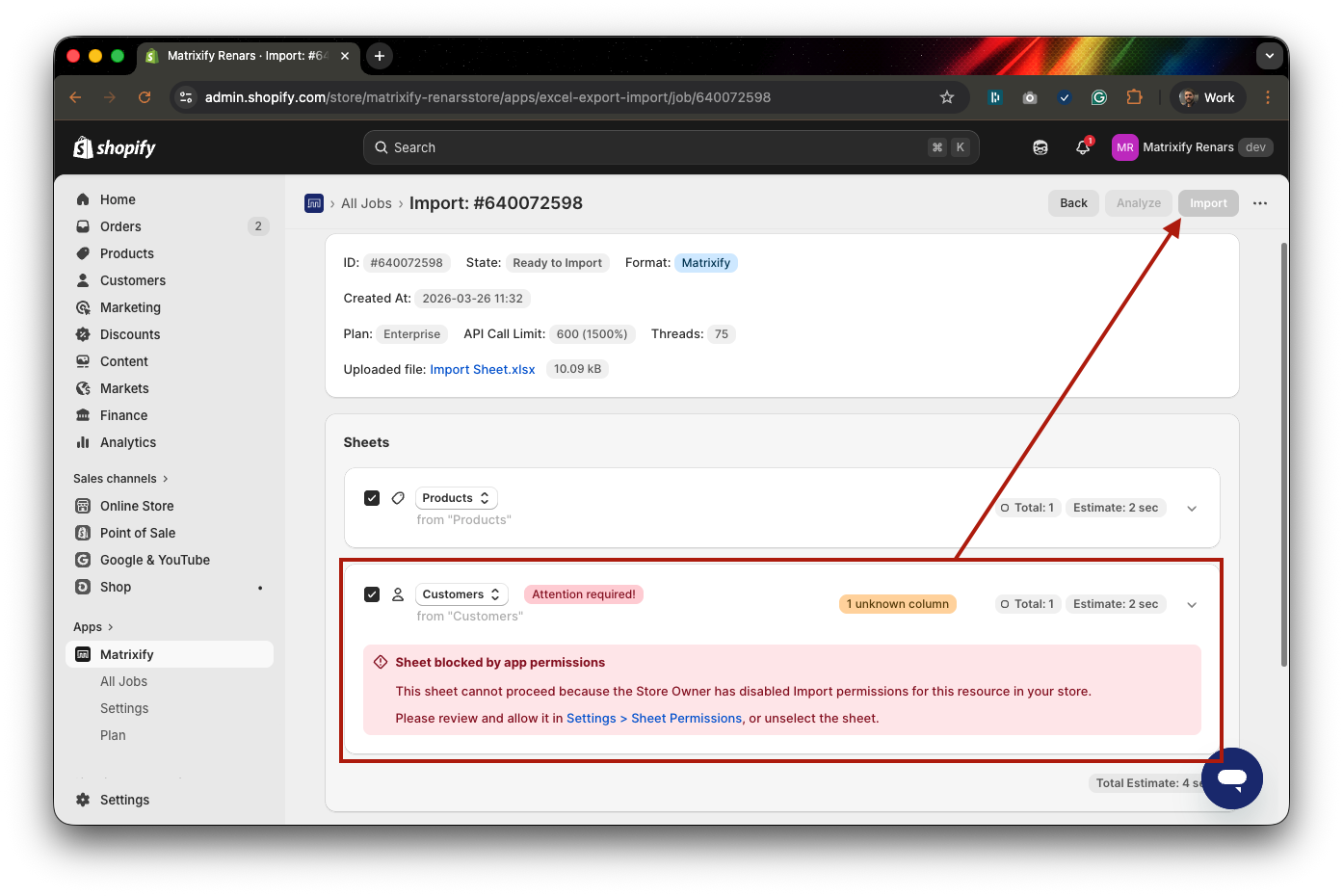
When an Entity Sheet is restricted for Import, the Matrixify app will detect the restricted sheet during file analysis. If the uploaded file contains a restricted Entity Sheet, the Import button will be disabled, and the restricted sheet will display an error message.
To proceed with the Import, the user can either unselect the restricted sheet from the import setup so that it is ignored, change the detected Entity to a different one if the sheet was meant to be imported as a different Entity, or ask the Store Owner to update the Sheet Permissions.
Use Cases for Sheet Permissions
Managing the Matrixify Sheet Permissions in your Shopify store can be useful in a variety of scenarios where the Store Owner wants to control how data flows in and out of the Shopify store through the Matrixify app.
Protecting sensitive data from export – If not needed for the Matrixify app usage, you can restrict the Customers or Orders sheets from being exported or imported. This prevents staff members from downloading this data through the Matrixify app, adding an extra layer of data protection for your store.
Limiting app usage to specific workflows – If your team uses the Matrixify app primarily for one type of task, such as updating product data, you can restrict all other sheets and keep only the relevant ones allowed. This reduces the chance of accidental Exports or Imports of unrelated data.
Restricting Export for reporting control – If you want to control what types of data reports can be generated from the Matrixify app, you can restrict Export for sheets that are not relevant to your team’s reporting needs while keeping Import open for data updates.
Protecting order and financial data – Stores that handle high volumes of orders or sensitive financial information may want to restrict Export for these sheets to prevent staff from downloading detailed transaction records.
These are just some of the most common scenarios where Sheet Permissions can be useful. Every store has its own unique team structure, workflows, and data sensitivity requirements, so the right configuration will depend on your specific situation. The flexibility of being able to allow or restrict each Entity Sheet independently for Export and Import means you can tailor the permissions to match exactly how your team works with store data.
Frequently Asked Questions
Do Sheet Permissions affect scheduled or automated jobs?
Yes. Sheet Permissions apply to all Export and Import jobs, including scheduled, repeated, and automated jobs. If an Entity Sheet is restricted, any scheduled or automated job that includes that sheet will that specific sheet will not be able to run.
Do Sheet Permissions apply to Imports from URL or server?
Yes. Sheet Permissions apply regardless of the file source. Whether you are importing a file uploaded from your computer, from a URL, from Google Sheets, or from an FTP/SFTP server, the same restrictions apply. If a sheet is restricted for Import, it will be blocked no matter how the file is provided to the app.
Can regular staff members or collaborators change Sheet Permissions?
No. Only the Shopify Store Owner can edit Sheet Permissions. Staff members and collaborators can see the Sheet Permissions section in the Matrixify Settings page, but it is displayed as read-only and disabled. If a staff member or collaborator needs a sheet to be allowed, they must ask the Store Owner to update the settings.
What is the default state of Sheet Permissions?
By default, all Entity Sheets are allowed for both Export and Import. If you have not made any changes to the Sheet Permissions setting, all users with access to the Matrixify app can Export and Import all available Entity Sheets.
Do Sheet Permissions affect migrations from other platforms?
Yes. Migrations from other platforms, such as BigCommerce, WooCommerce, Magento, or Lightspeed, use the Matrixify Import functionality just like any other Import. If a sheet required for the migration is restricted in the Sheet Permissions, the migration Import will not be able to proceed for that sheet. Before starting a migration, make sure that all Entity Sheets involved in the migration are allowed for Import.
Can I allow Export but restrict Import for the same sheet?
Yes. Export and Import permissions for each Entity Sheet are handled independently. You can allow a sheet to be exported while restricting it from being imported, or vice versa. This gives you granular control over the direction of data flow for each Sheet type.
Will restricted sheets still appear in the Matrixify app?
Yes. Restricted sheets are not hidden from the app. When creating an Export, restricted sheets will still appear in the sheet selection list, but selecting a restricted sheet will disable the Export button and display a message about the restriction. Similarly, when importing a file that contains a restricted sheet, the app will detect it and display an error message for that sheet while disabling the Import button.


