

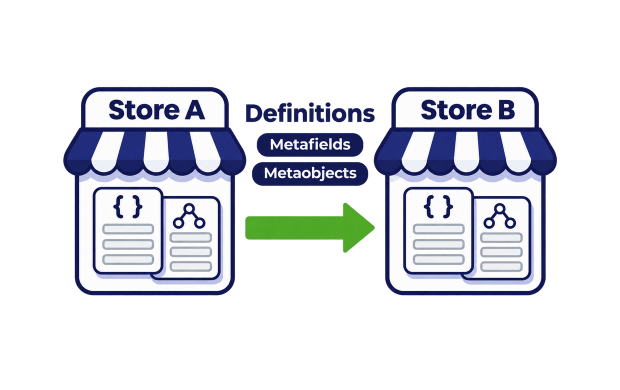
Metafield and Metaobject definitions set the structure of your custom data in Shopify Admin -> Settings -> Metafields and metaobjects, and in Shopify Admin they are set up one by one. With Matrixify you can Export the definitions of one store to an Excel file and Import that file into another store. Here we will copy both kinds of definitions in one file, so the Metafields that reference Metaobjects work in the new store too.
Steps in short
- In the store you copy from, Export the Metafield Definitions and Metaobject Definitions sheets with all their column groups to one Excel file.
- In the other store, Import the downloaded file as it is, and the app creates the Metaobject Definitions first and the Metafield Definitions after them.
- Check the Import Results file and the copied definitions in Shopify Admin -> Settings -> Metafields and metaobjects.
1. Export Metafield and Metaobject Definitions
Both sheets go into the same file, because a Metafield Definition can point to a Metaobject Definition, for example a Product custom.designer Metafield that references the designer Metaobject Definition.
In the Matrixify app Home of the store you copy from create a new Export by using the New Export button.
- In the
Formatsection selectMatrixify: Excel. The Excel file keeps both sheets in one file. - Press
Select Sheetsand selectMetafield DefinitionsandMetaobject Definitions. - Click on the Metafield Definitions sheet card to expand it and select the column groups
Basic Columns,OptionsandValidations. - Click on the Metaobject Definitions sheet card and select
Basic Columns,Options,FieldsandField Validations.
The settings are copied only if their columns are in the file, so keep all groups. Columns marked Export Only, such as Usage Count, are skipped by the Import.
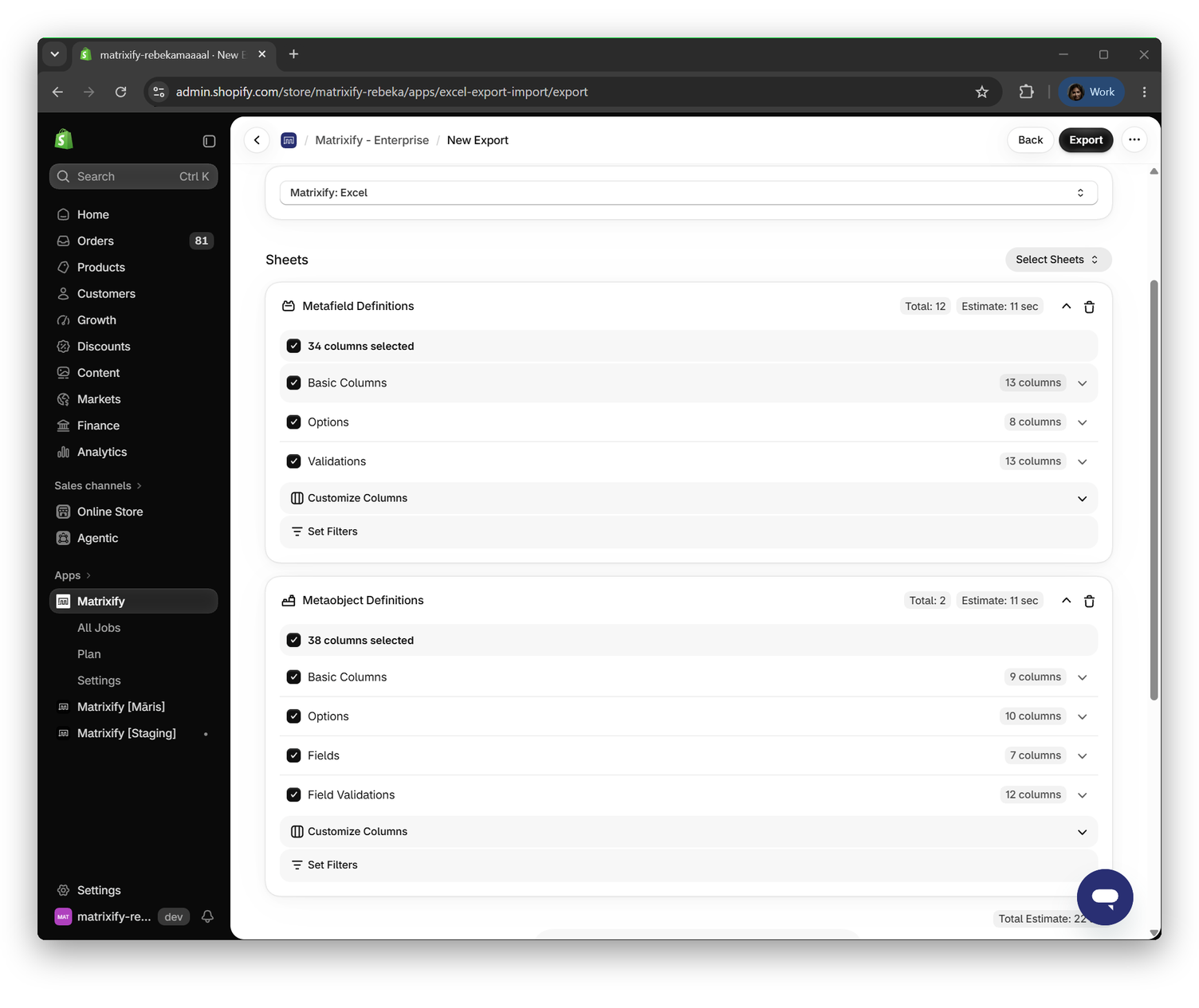
Press Export and wait for the job to finish. Then press Download Exported File.
Filter the definitions to copy
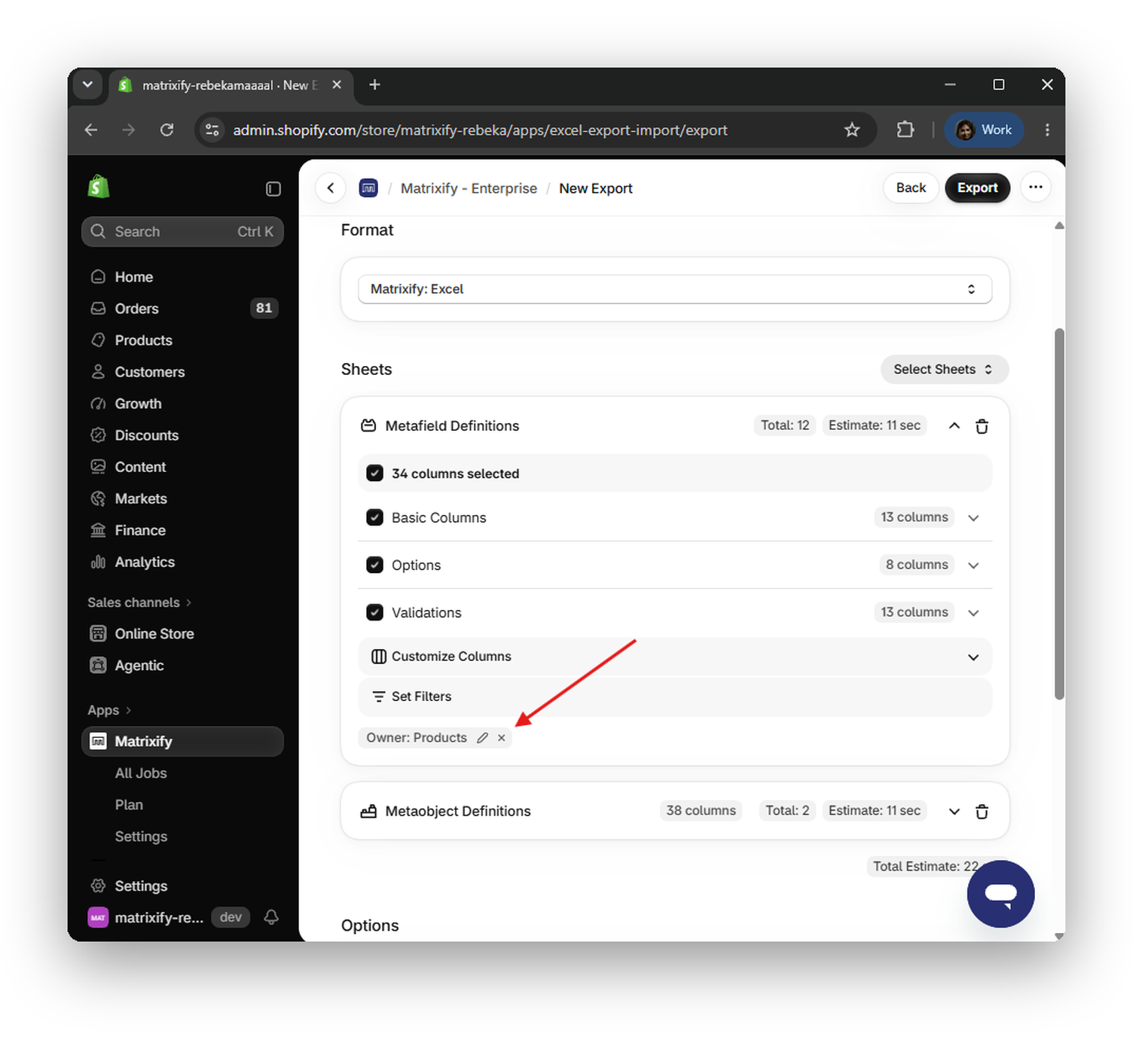
To copy only some definitions, press Set Filters under the sheet. Metafield Definitions can be filtered by Owner, for example only Products, and by Namespace, Key or Name. Metaobject Definitions can be filtered by Type or Name. Keep the Metaobject Definitions that your Metafield Definitions reference.
2. Import the definitions into the other store
The file needs no changes. Every row has MERGE in the Command column, so the app creates the definitions the other store does not have and updates the ones it has. The ID values belong to the old store, so the app finds a Metafield Definition by Owner and Handle, and a Metaobject Definition by Type.
The app Imports the Metaobject Definitions sheet first, whatever the order of the sheets. References are written by Type, for example designer in Validation: Metaobject Definitions, so custom.designer points to the new store’s designer definition even though its ID is different there.
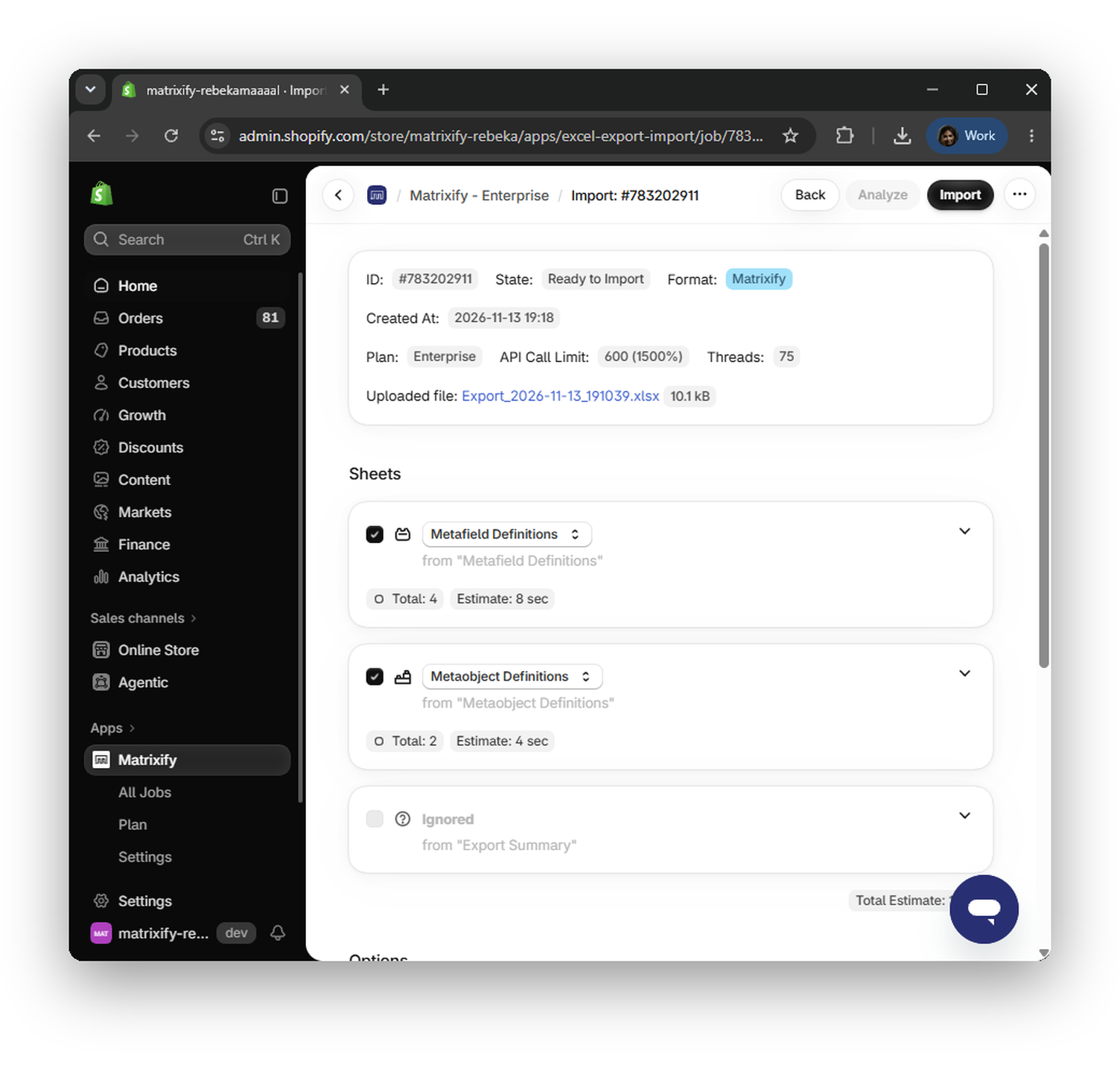
In the Matrixify app Home of the other store upload the file in the Import section with the Add file button. The analyzed file shows both definition sheets with their row counts, and the Export Summary sheet is left out. Press Import to start.
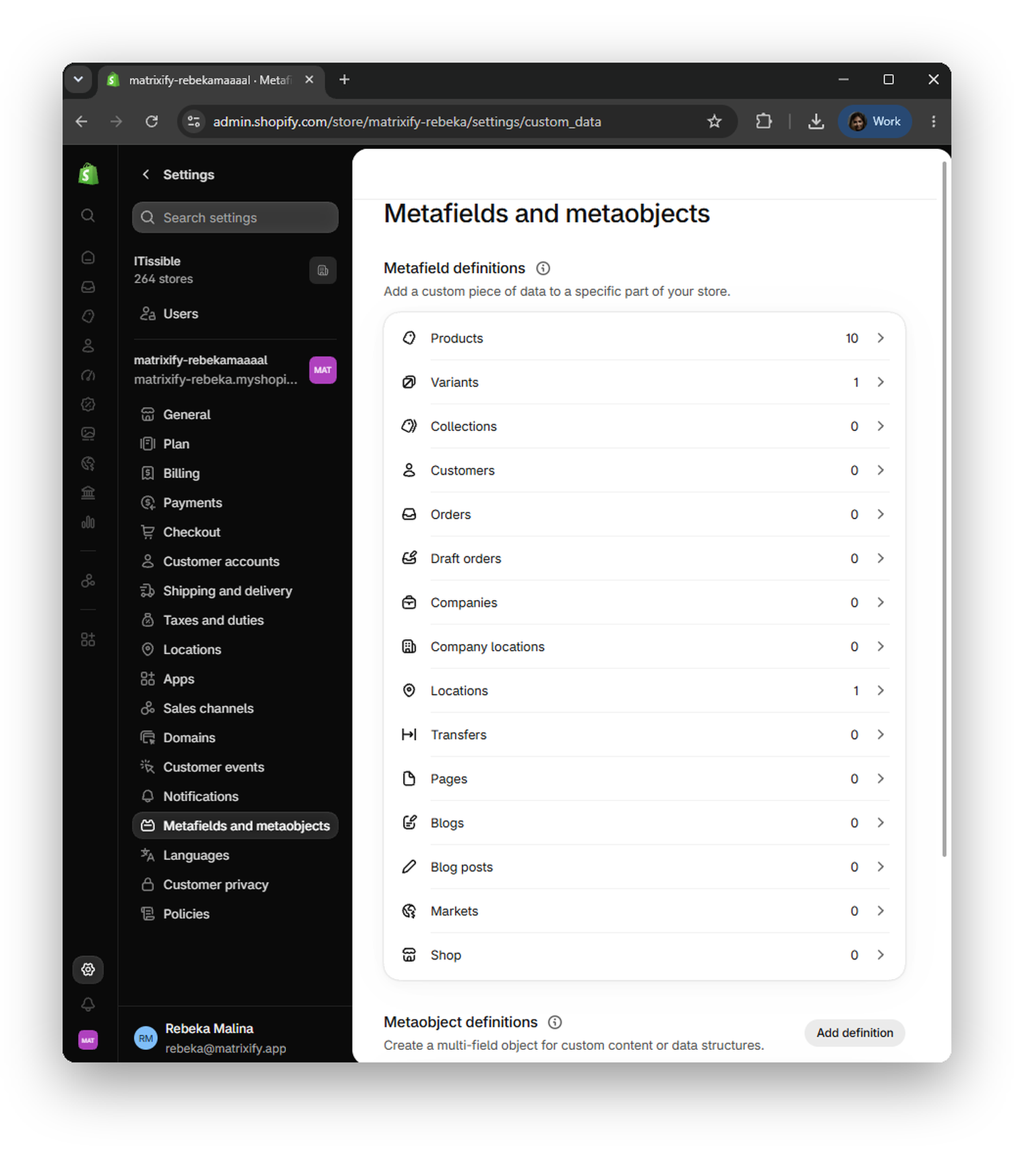
3. Check copied definitions in Shopify Admin
When the Import has finished, press Download Import Results. The Import Comment column shows NEW for a created definition, and UPDATE: Found by Handle or UPDATE: Found by Type for one the store already had.
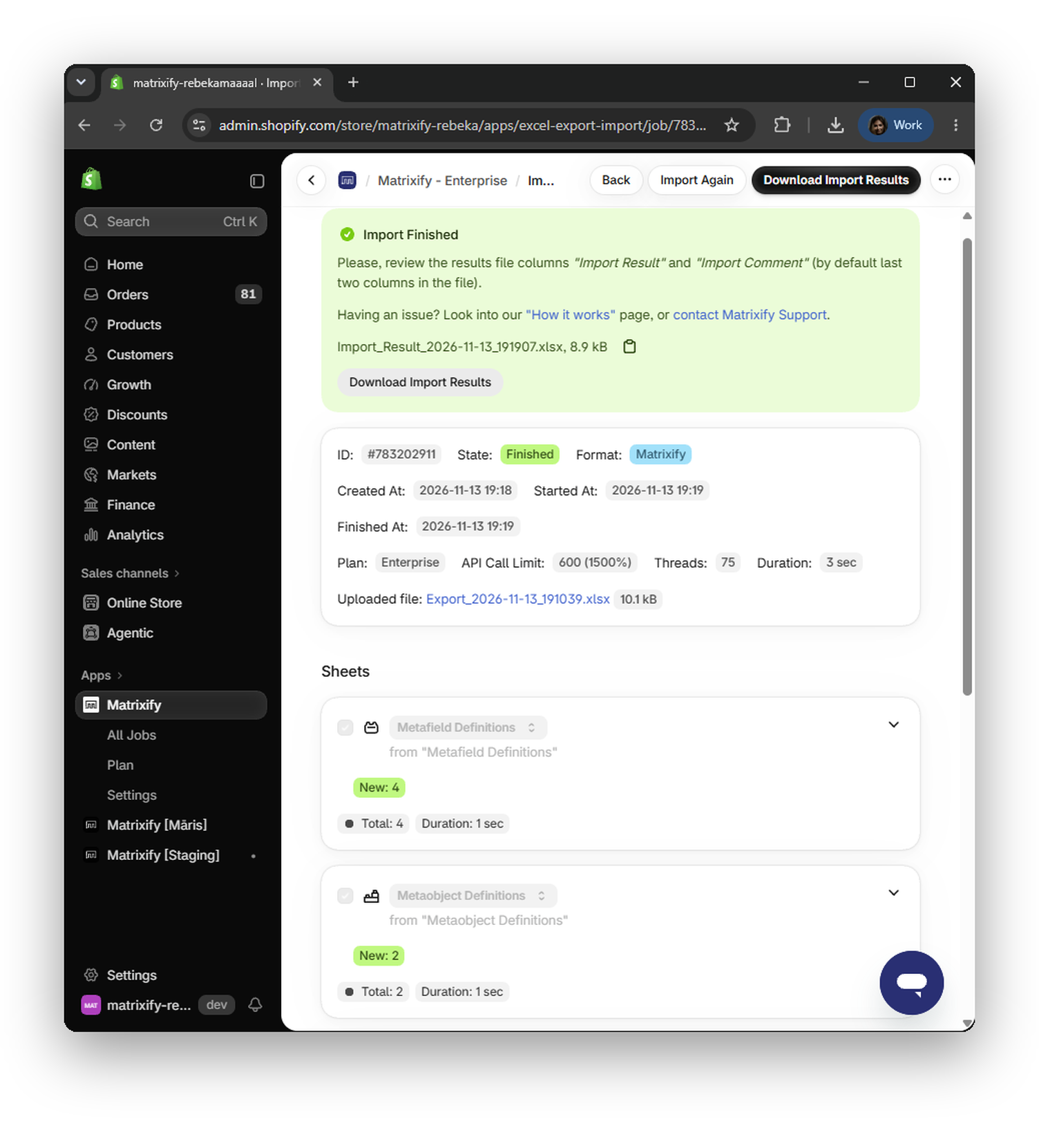
This is it. Open Shopify Admin -> Settings -> Metafields and metaobjects in the new store to see the copied definitions.
Good to know
- A row of a Shopify standard definition, for example
descriptors.subtitle, enables it in the new store, with the commentNEW: Enabled Shopify's standard definition. - Definitions created by other apps are exported for reference only. Their rows fail on Import and still count towards the plan limit.
- The
TRUE/FALSEoption columns are always exported, so the Import also turns off in the new store what is off in the old one. - Importing Metaobject Definitions needs the
write_metaobject_definitionsaccess scope. If the app shows theUpdate Shopify API Permissionsbanner, approve it. Option: Assigned Categoriescan be longer than the 32,767 characters of an Excel cell. Do not save the file in Excel before importing it, or those values are cut.- Each Export or Import job can have up to 10 definitions of each sheet on the Demo plan, 50 on Basic, 500 on Big and any number on Enterprise – see Pricing.
- If your store has customized Sheet Permissions, enable both definition sheets there.
- Importing the same file again updates the definitions, it does not create duplicates.
What to do next?
- Copy Metafield values, Metaobject entries or the whole store – How to clone / duplicate a Shopify store.
- Import Metaobject entries in bulk – How to bulk import Shopify Metaobject Entries.
- Update Metafield values in bulk – How to manage Shopify Metafields.
- See all columns in the Metafield Definitions and Metaobject Definitions documentation.
- Read what a definition is in the Shopify Help Center – Adding metafield definitions.
- Contact Matrixify support if you have questions.


