

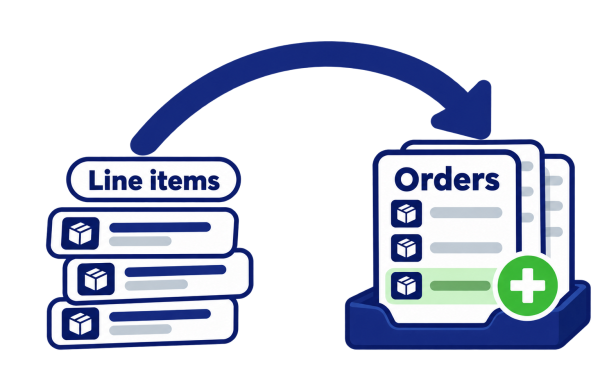
Shopify allows you to edit an Order and add Products to it, but in the Shopify Admin it is one Order at a time. If the same Product has to be added to hundreds of Orders, that takes a long time.
With Matrixify, you can bulk add Line Items to existing Shopify Orders with one Import! Simply Export your Shopify Orders, add a row for each new Line Item with the MERGE command and Import the file back.
Steps in short
- Export the Orders you want to add Line Items to, with only the ID, Name and Command columns.
- Add the Line Item columns, fill in the SKU and quantity of the Product to add, and set Line: Command to MERGE.
- Set Command to UPDATE in all rows and Import the file.
- Check the Import Results and the added Line Items in the Shopify Admin.
1. Export Orders you wish to edit
The app needs to know which Orders to update. If you already have a list of Order names, you can type them in a file yourself. Otherwise, the simplest way is to Export the Orders with a filter.
In the Matrixify app Home create a New Export by using the New Export button.
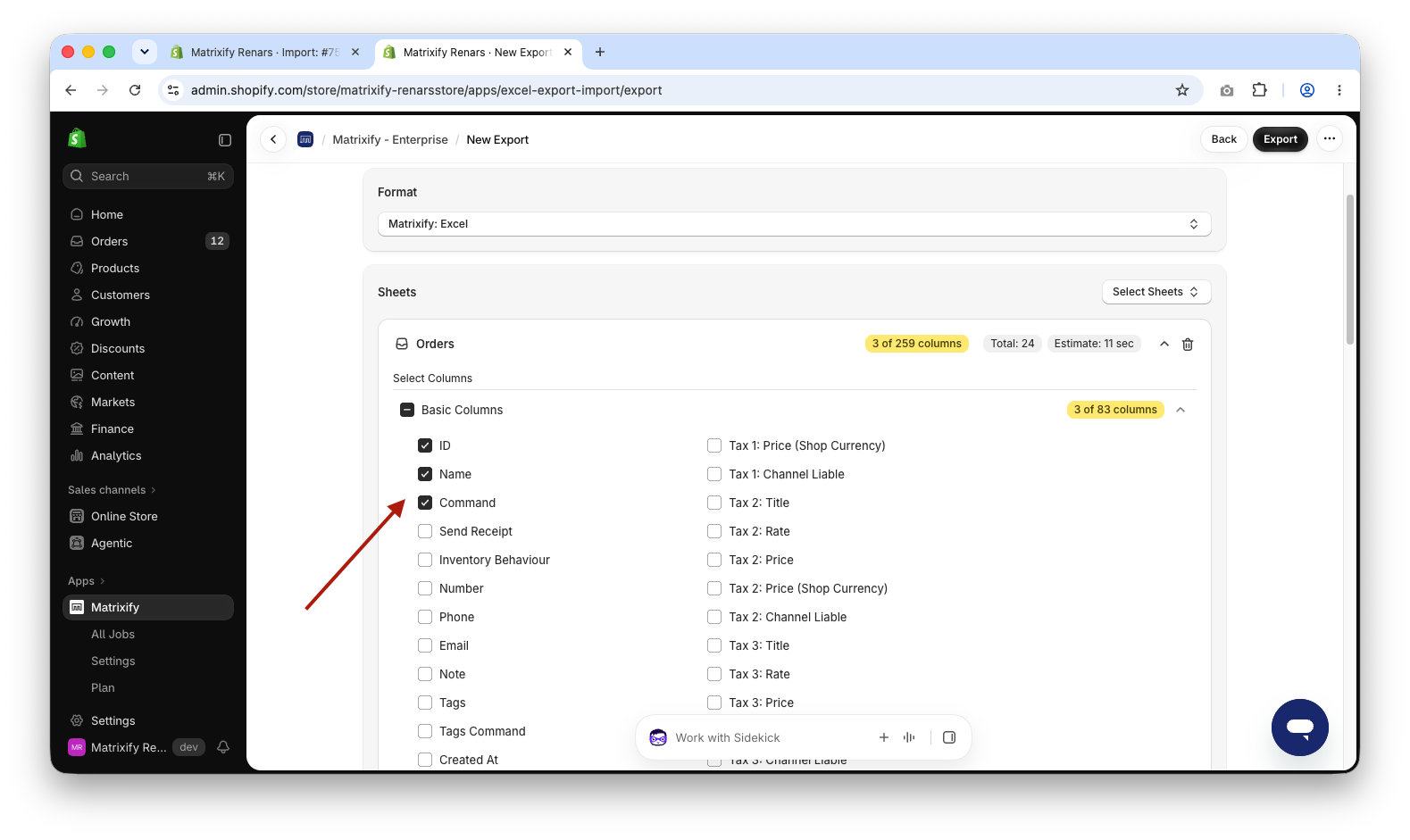
Open the Select Sheets dropdown and select Orders sheet. Click on the Orders sheet card to expand it, open the Basic Columns group and select only ID, Name and Command.
Do not select the Line Items column group. If only Basic Columns are selected, then the file will have one row per Order and no existing Line Item data, so you cannot change them by mistake.
Filter the Orders
In this example, we will add one Product “Merino Crew Socks” with SKU SOCKS-MER-CHR to all unfulfilled Orders that have other specific Product “Heavyweight Hoodie” with SKU HOODIE-GRY-M. Press the Filter button in the Orders sheet card and add these filters:
Line: SKU–equals to any of–HOODIE-GRY-M.Fulfillment Status–Unfulfilled.
You can use any other filter instead, like Tags, Created At or Name to Export only Orders that you need to edit.
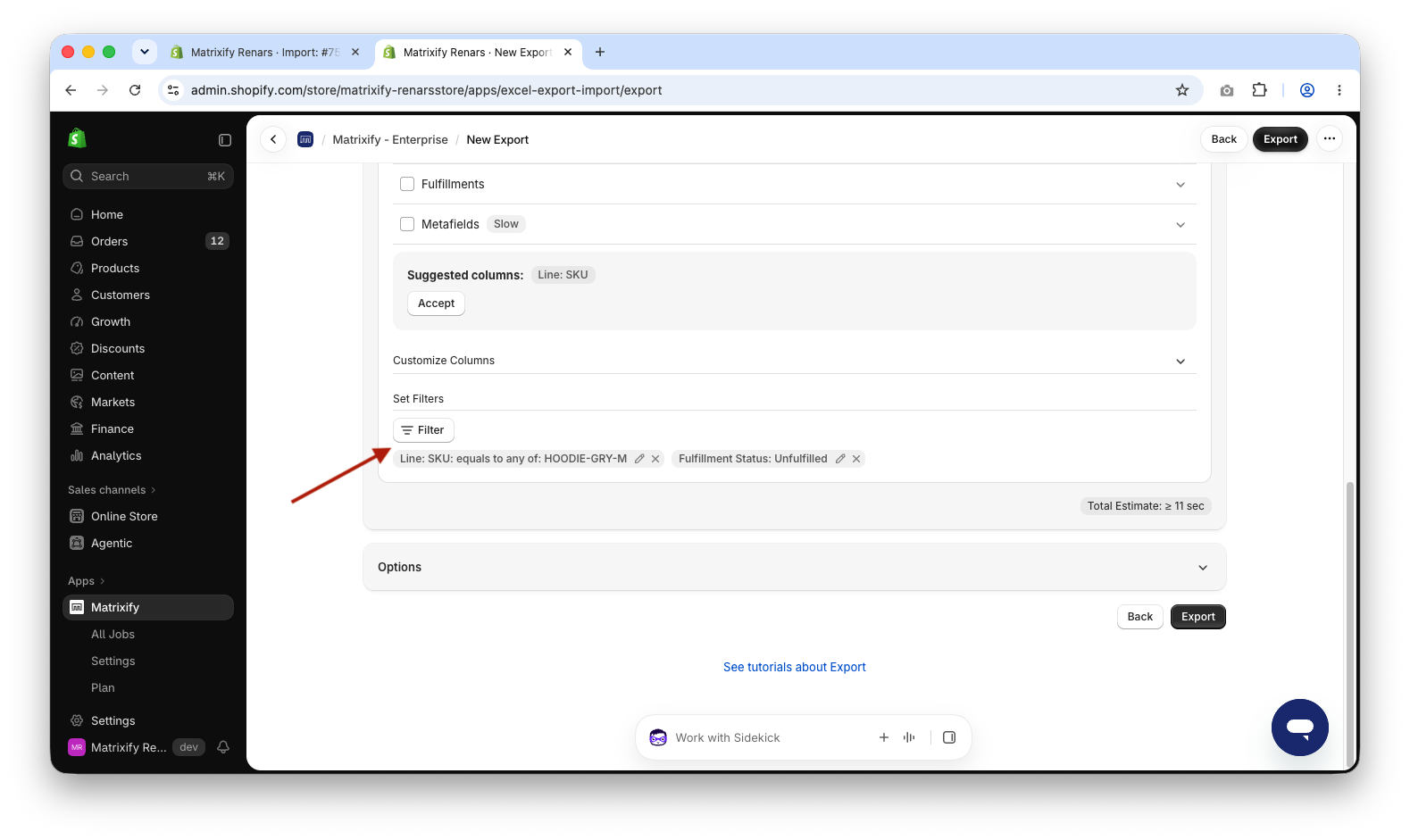
When the Export has been set up, press Export button to start the Export and wait for the Export to finish to download the exported file.
2. Add Line Item columns to the file
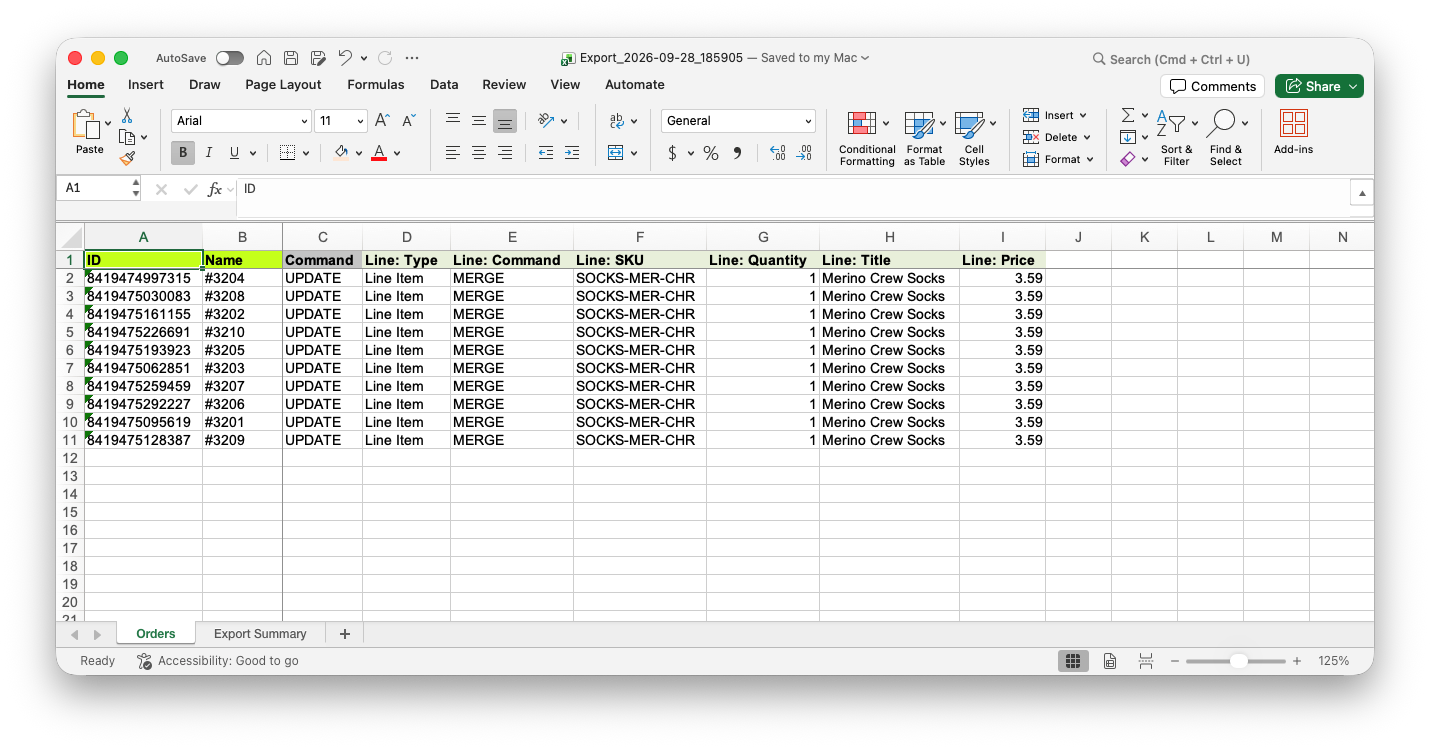
Open the exported file. Each row is one Order. Add these columns to your file:
Line: Type– set toLine Item.Line: Command– set toMERGE. It adds the Line Item to the existing Order.Line: SKU– the SKU of the Product to add,SOCKS-MER-CHRin our example.Line: Quantity– how many to add, for example1.
If you are adding a custom Line Item that is not linked to any Product in your store, for example, gift wrapping or a service fee. Then you also must add the following columns:
Line: Title– the name shown on the Order, for exampleMerino Crew Socks.Line: Price– the price of one item, for example3.50. When a Line Item is linked to a store Product, then Shopify will always take its price from the Product in the store even if a different value is specified.
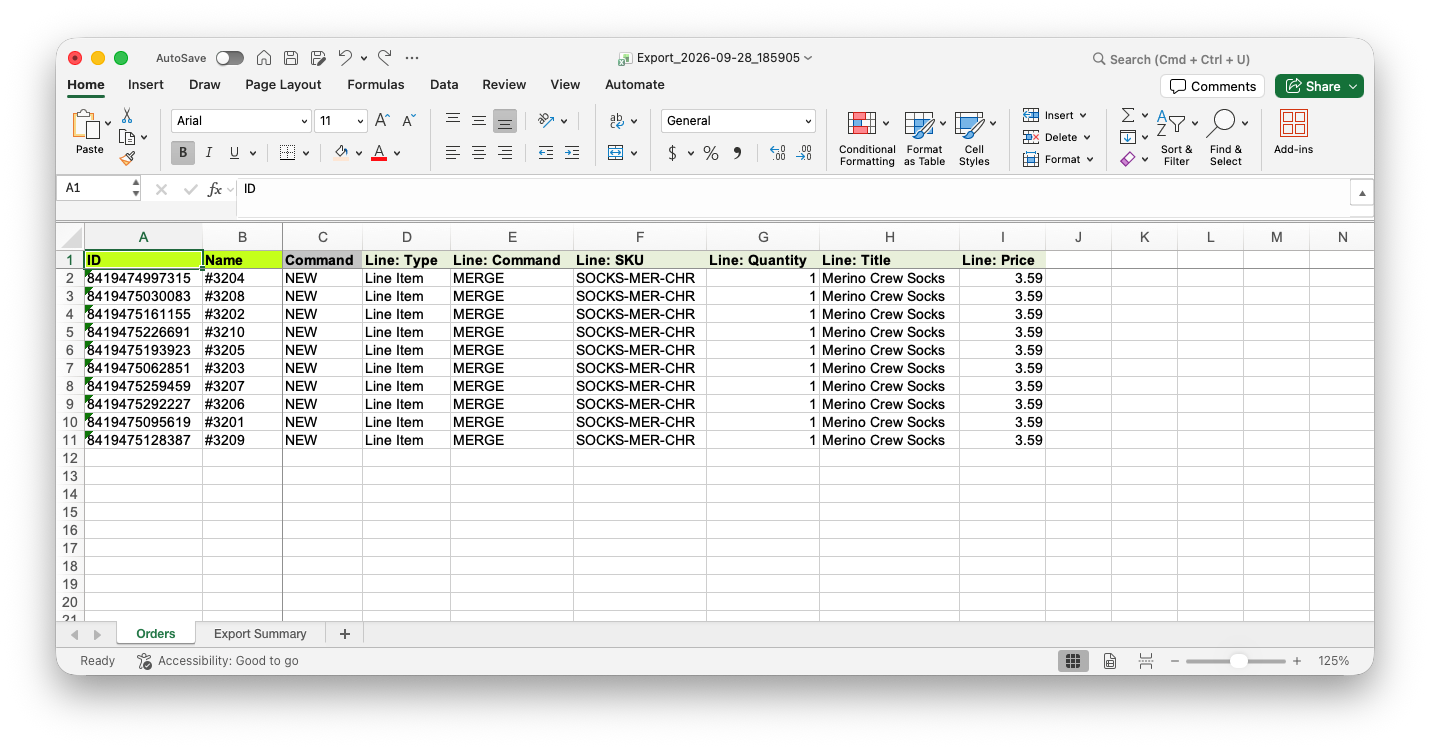
If the file has a Line: SKU that the app cannot find in your store, and Line: Title and Line: Price are filled, the app adds it as a custom Line Item. The SKU is not saved on custom Line Items.
To add more than one Line Item to the same Order, copy the Order row and fill in the other Product in the new row. Rows with the same ID and Name belong to the same Order.
Identify the Product to add
The app links the new Line Item to the Product in your store. Line: SKU is enough if each SKU is used by one Variant. Instead of SKU, you can use Line: Variant ID or Line: Variant Barcode. You can also use Line: Product Handle or Line: Product ID, but if the Product has several Variants, add one of the Variant columns as well.
Change Command to UPDATE the Order
As are updating existing Orders, so set Command to UPDATE in all rows. The Export has NEW there by default.
3. Import to add Line Items to Orders
When all edits are finished, save the file and head back into the Matrixify app.
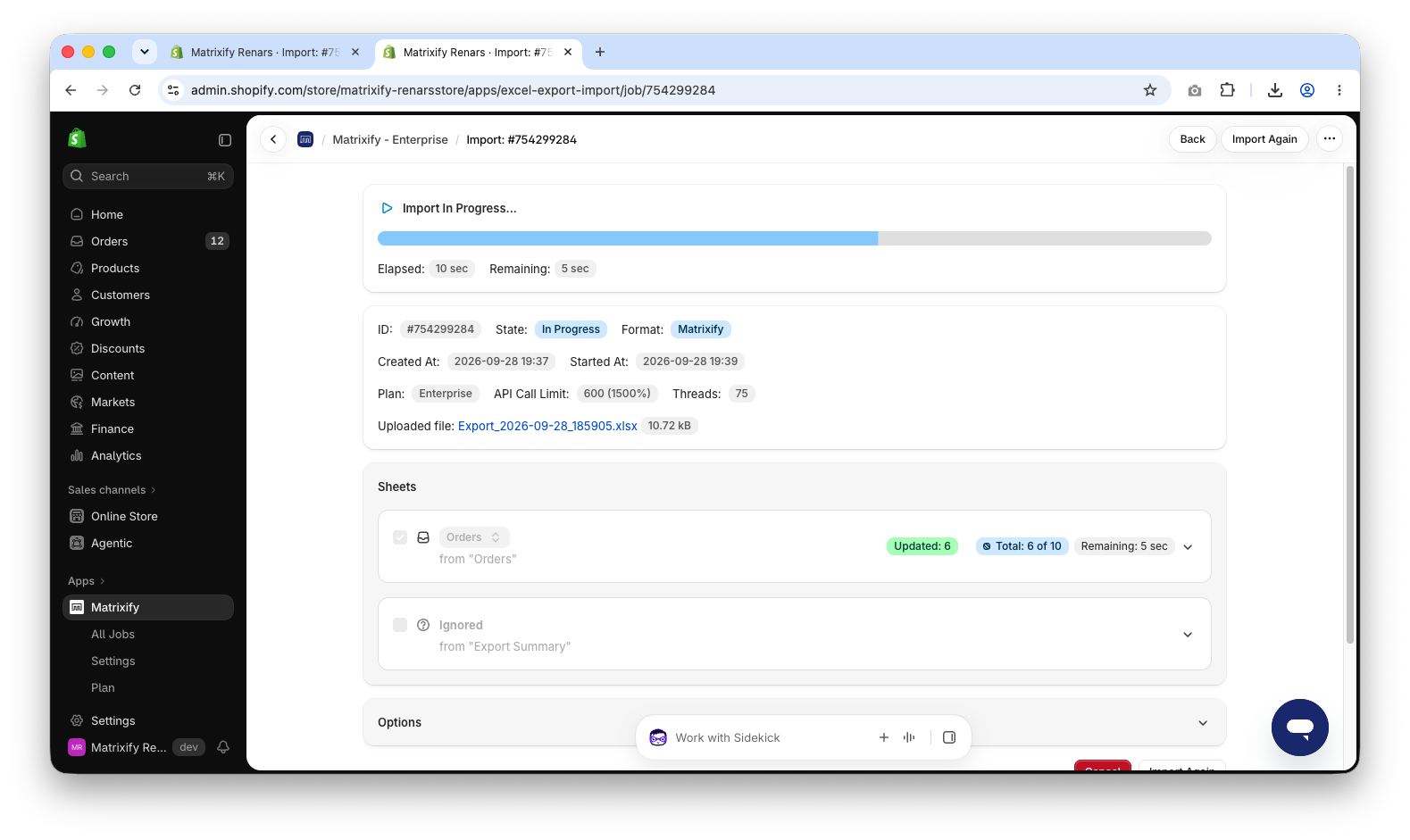
In the Matrixify app Home page upload the file in the Import section. Once the file is analyzed, make sure that the app detects the sheet as Orders and the Order count looks correct.
Press Import to start the Import.
4. Check added Line Items in Shopify Admin
When the Import is finished, the job status will be “Finished”. If some Orders failed, download the Import Results file and check the Import Comment column – it tells why the Order failed. Fix those rows and Import only them again.
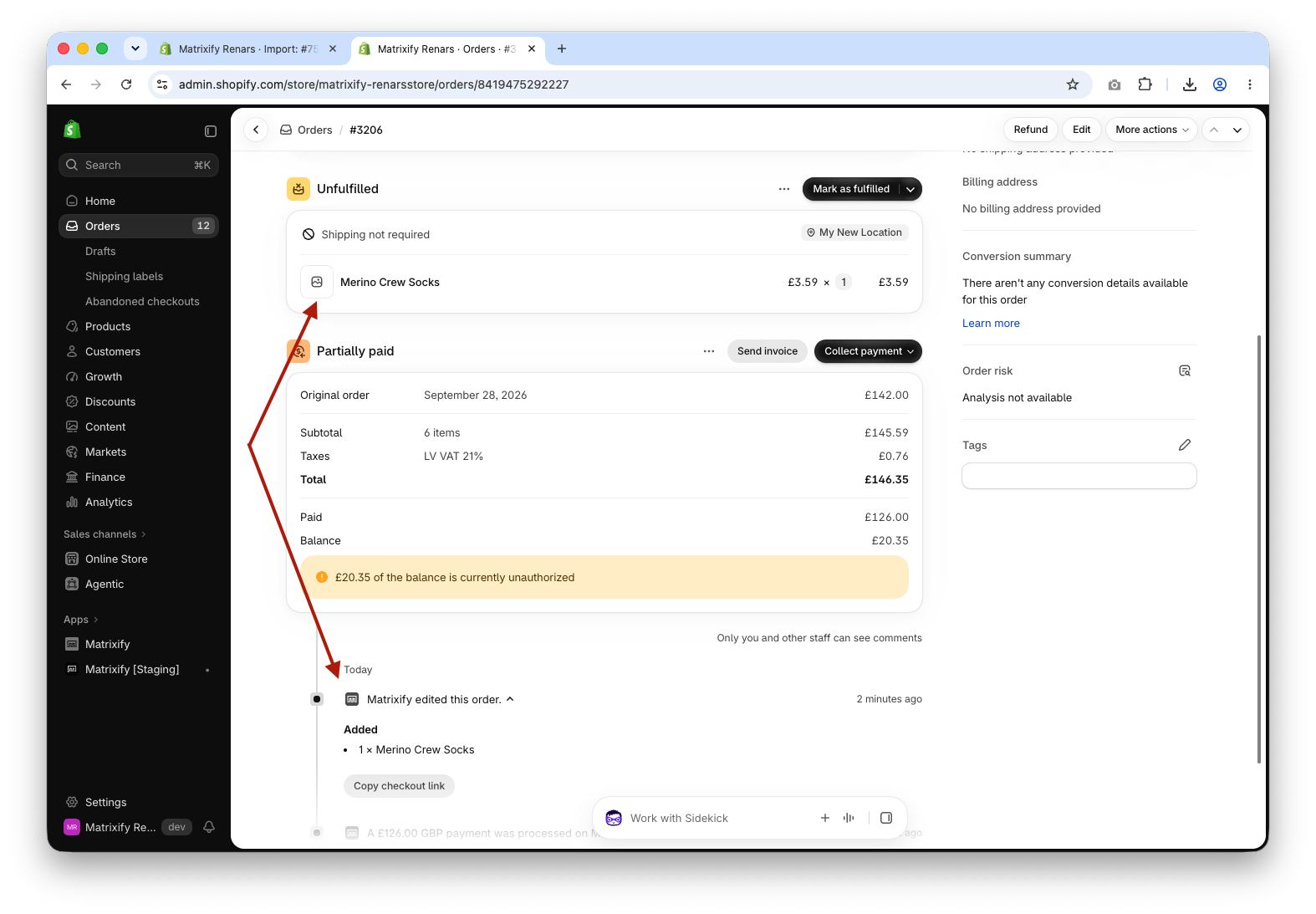
Open any of the Orders in the Shopify Admin. The new Line Item is added to the Order, and the Order timeline shows that it was edited by Matrixify.
Good to know
MERGEadds the Line Item only if the Order does not have it yet. If you Import the same file again, nothing is added twice.- With
Line: Commandset toDEFAULTor empty, Line Items are added only when creating a new Order, not when updating an existing one. - Adding a Line Item does not charge the Customer. Shopify shows on the Order that there is a balance to collect.
- Shopify does not allow editing Orders that were imported by another app. See Shopify considerations for editing orders for other Orders that cannot be edited.
- To remove Line Items from Orders, see the bulk remove Line Items from Shopify Orders tutorial.
What to do next?
- Create new Orders with your store Products – Import Shopify Orders in bulk with your store Products as Line Items.
- Update other Order data in bulk – bulk update Shopify Orders.
- See all columns you can Export and Import in the Orders documentation.
- Contact Matrixify support if you have questions.


