

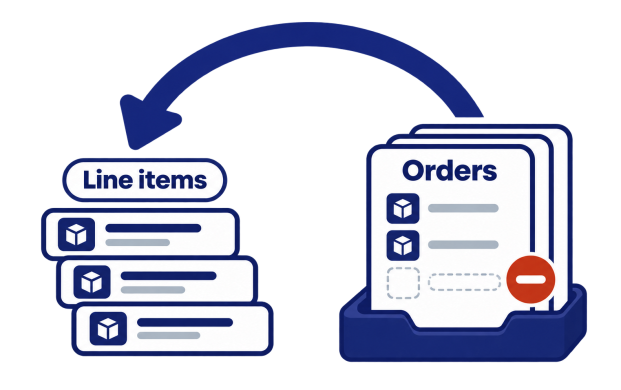
Shopify allows you to edit an Order and remove unfulfilled Line Items from it, but in the Shopify Admin it is one Order at a time. If a discontinued Product has to be removed from hundreds of open Orders, that takes a long time.
With Matrixify app you can bulk remove Line Items from existing Shopify Orders with just one Import! Simply Export your Shopify Orders with their Line Items, mark the Line Items with the DELETE command and Import the file back.
Steps in short
- Export unfulfilled Orders with only the columns needed to identify the Orders and Line Items, apply Export Filters so that the file has only the Line Items to remove.
- Set
CommandtoUPDATEandLine: CommandtoDELETEin Line Items rows you wish to bulk remove. - Import the file in the Matrixify app.
- Check the Import Results and the edited Orders in the Shopify Admin.
1. Export Orders with Line Items to remove
To remove a Line Item, the app needs to know exactly which Line Item in which Order it is. The simplest way is to Export the existing Line Items, so the file already has the Line: ID of each of them.
In the Matrixify app Home create a new Export by using the New Export button.
Press Select Sheets and select to Export Orders. Click on the Orders sheet card to expand it. You do not need whole column groups here – open each of these groups and select only the columns listed:
Basic Columns–ID,NameandCommand. These identify the Order.Line Type–Line: Type.Line Items–Line: IDandLine: Command. AdditionallyLine: TitleandLine: SKU– those are not mandatory for the Import, but they are useful to check and confirm what you are removing.
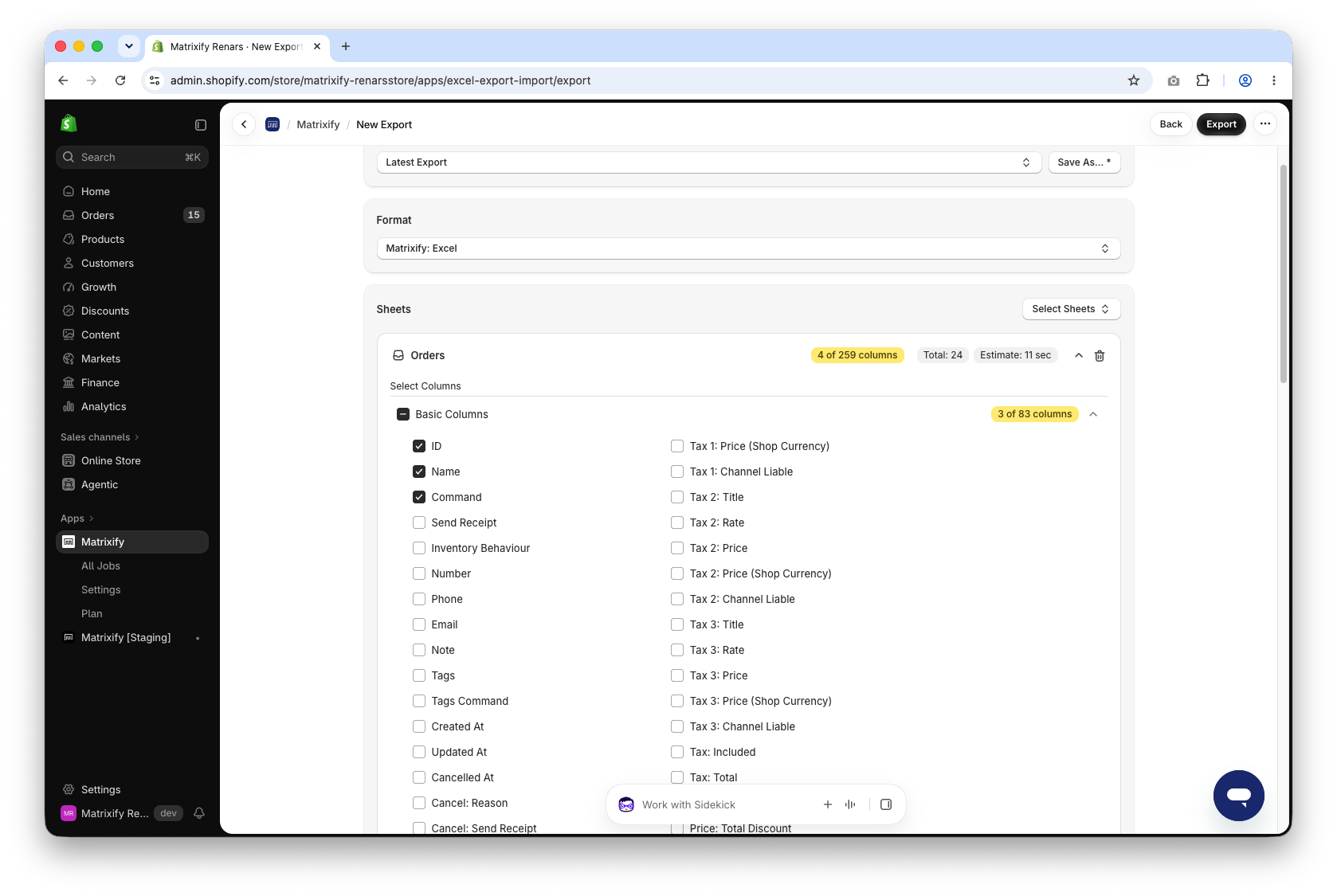
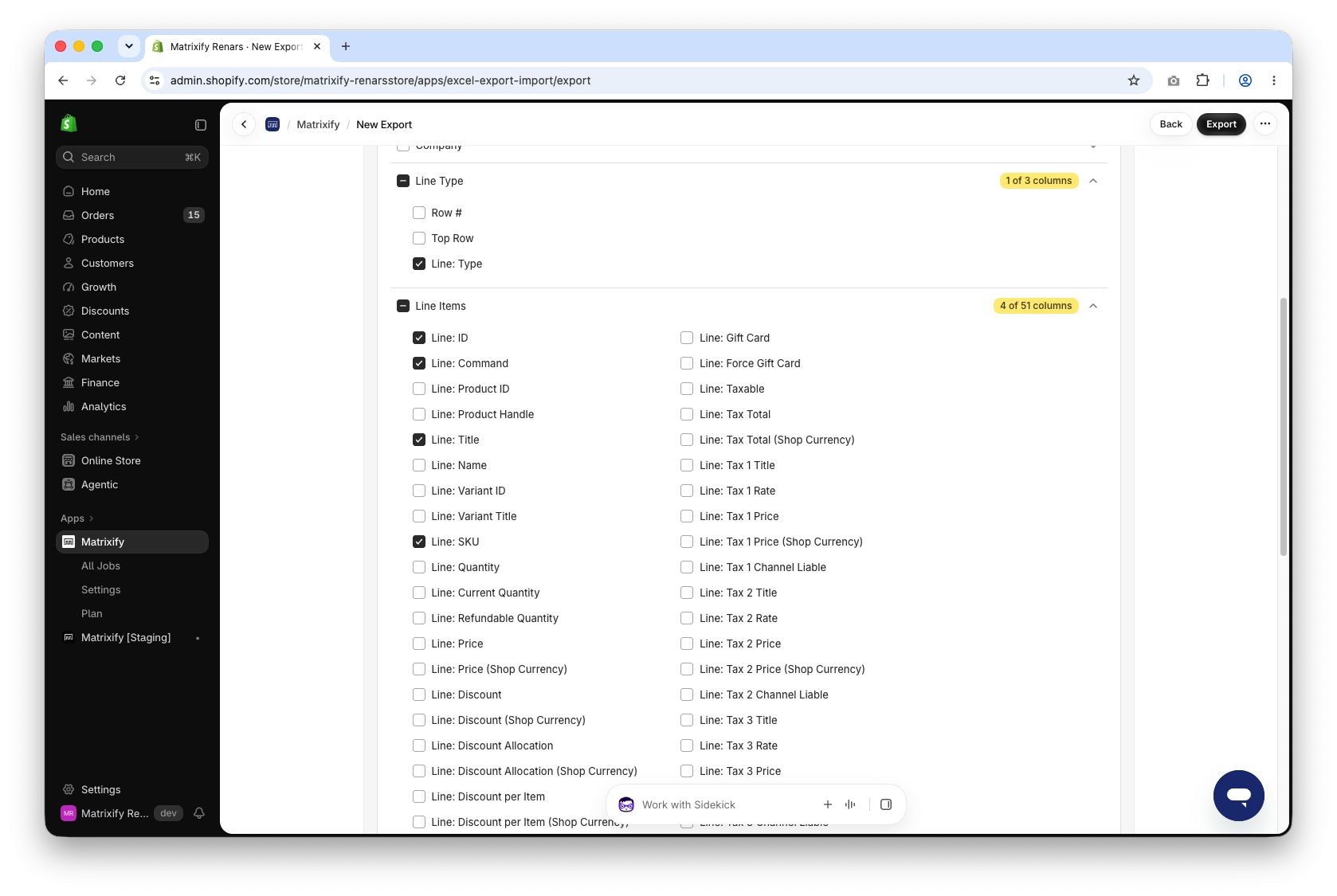
The app finds the Line Item to remove the same way as for Refund Line and Fulfillment Line rows. If Line: ID is in the file, it is used. Without it, the app matches the Line Item by other Line columns, like Line: Title or Line: Product Handle. Line: ID is the most exact, so we recommend exporting it.
Filter Orders by Line Item SKU
In this example, we will remove a discontinued product with SKU TSHIRT-RED-S from all Orders that have not been shipped yet. Press the Filter button in the Orders sheet card and add these filters:
Line: SKU–equals to any of–TSHIRT-RED-S. Select theInclude only matching Linescheckbox.Line: Type–Line Item. TheInclude only matching Linescheckbox is selected by default, keep it.Fulfillment Status–UnfulfilledandPartially Fulfilled. Shopify does not allow removing fulfilled items as they are already fulfilled, and in most such use cases you would not want to adjust Orders where the specific Line Item was fulfilled historically, only active Orders that you still need to work on.
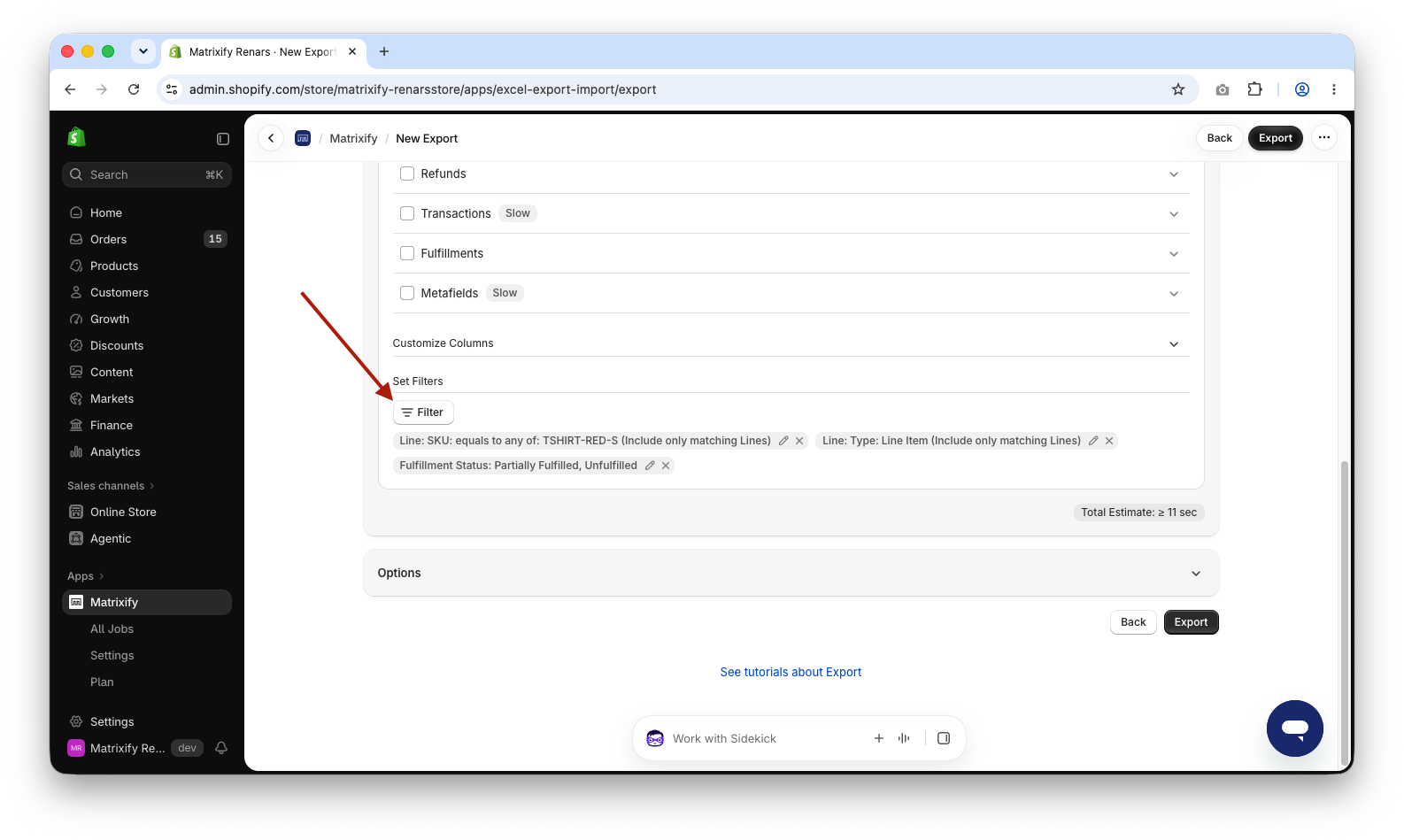
Without Include only matching Lines, the Line: SKU filter selects the Orders, but the file has all Line Items of those Orders. With it, the file has only the Line Items with that SKU, so every row is a Line Item to remove.
You can also apply other filters as you need to further limit which Orders are exported that you need to work on.
Read more about Matrixify Export filters.
When you have set up the Export job, press Export button to start the Export. Wait for the Export to finish and download the exported file by using the Download Exported File button.
2. Mark Line Items for deletion
Open the exported file. It has only the columns you selected, and each row is one Line Item to remove.
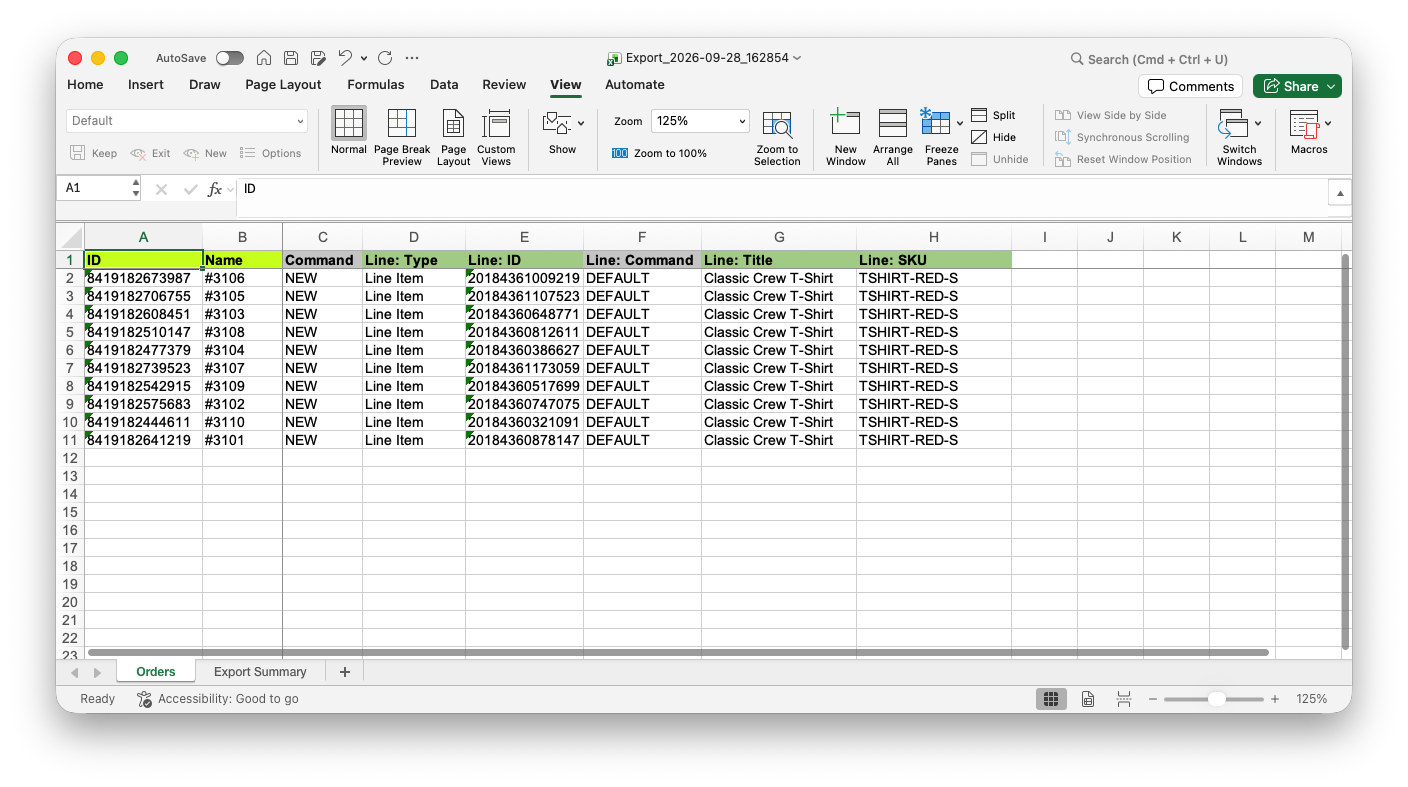
Change the Command column values:
Command– set toUPDATEin all rows.Line: Command– set toDELETEfor all Line Items you wish to delete.
If your file also has Line Items you want to keep, you can delete those rows from the file, or leave them with Line: Command set to DEFAULT. Line Items with DEFAULT are not changed when updating an Order.
When edits are finished, save the file.
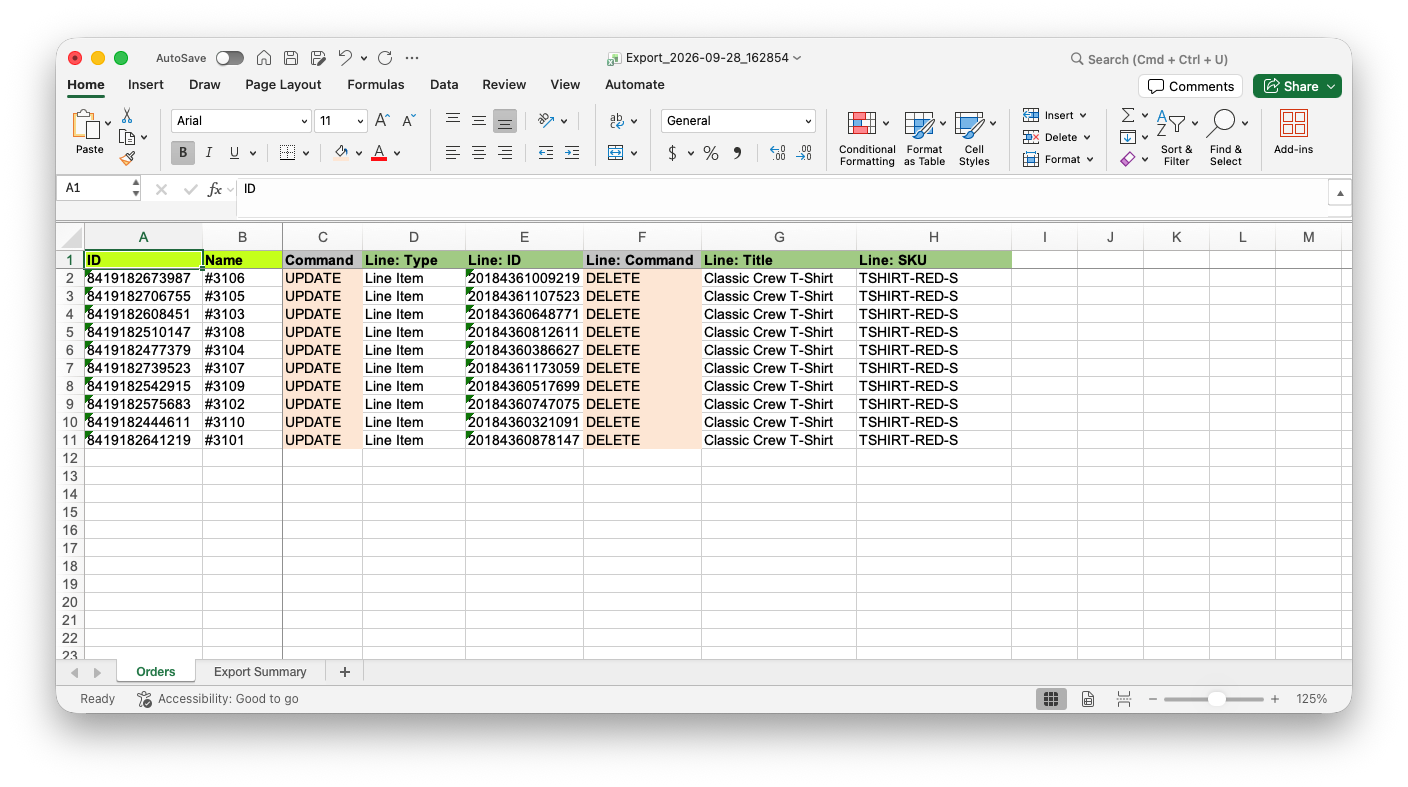
3. Import to remove Line Items from Orders
In the Matrixify app Home page, upload the file in the Import section. Once the file is analyzed, make sure that the app detects the sheet as Orders and the Order count looks correct. Default Import Options will work fine, so no Options need to be adjusted.
Press Import to start the Import job in Matrixify app.
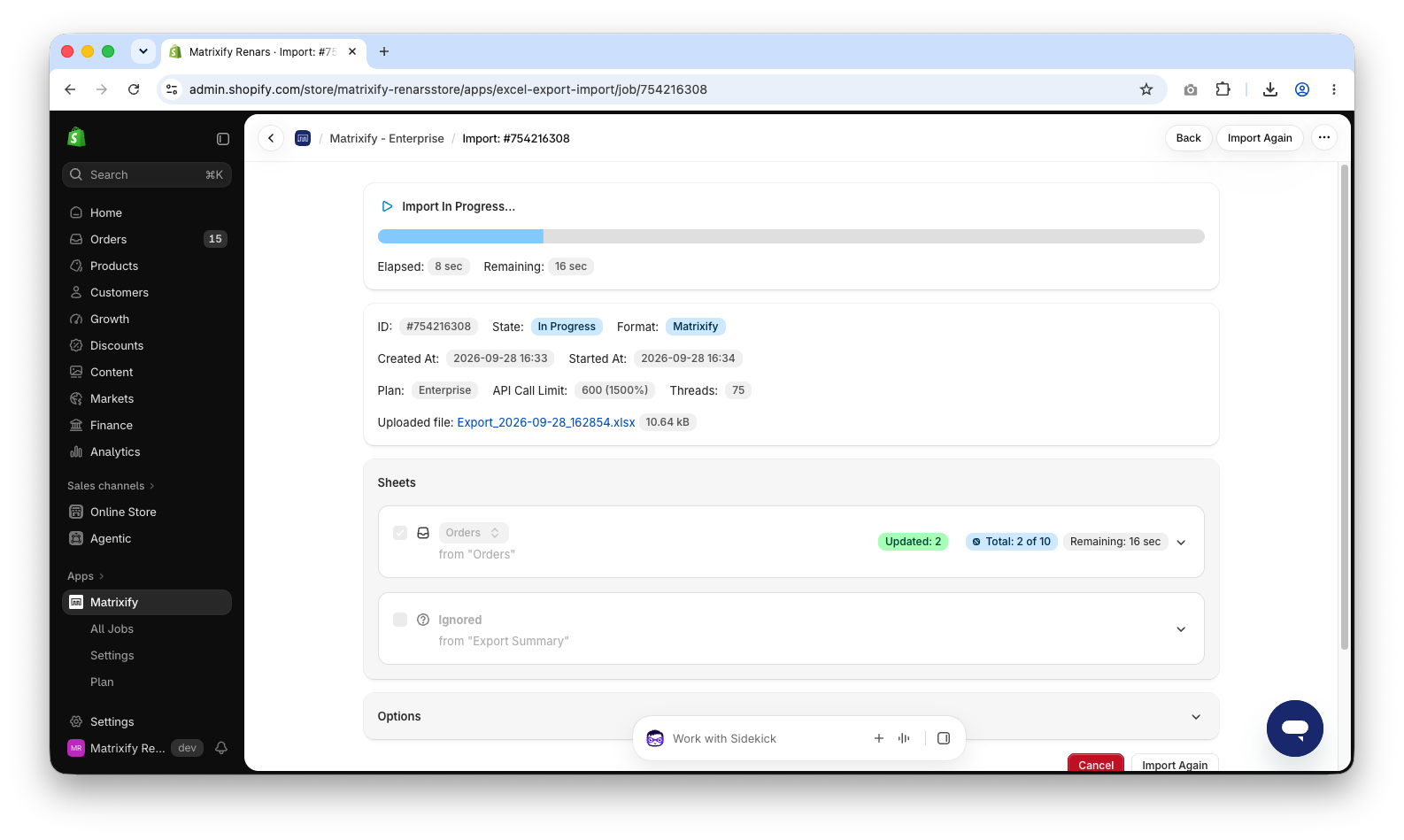
4. Check removed Line Items in Shopify Admin
When the Import is finished, the job status will be “Finished”. If some Orders failed, download the Import Results file and check the Import Comment column – it tells why the Order failed. Fix those rows and Import only them again.
Open any of the Orders in the Shopify Admin. The Line Item is shown as “Removed”, and the Order timeline has the comment “Matrixify edited this order.”
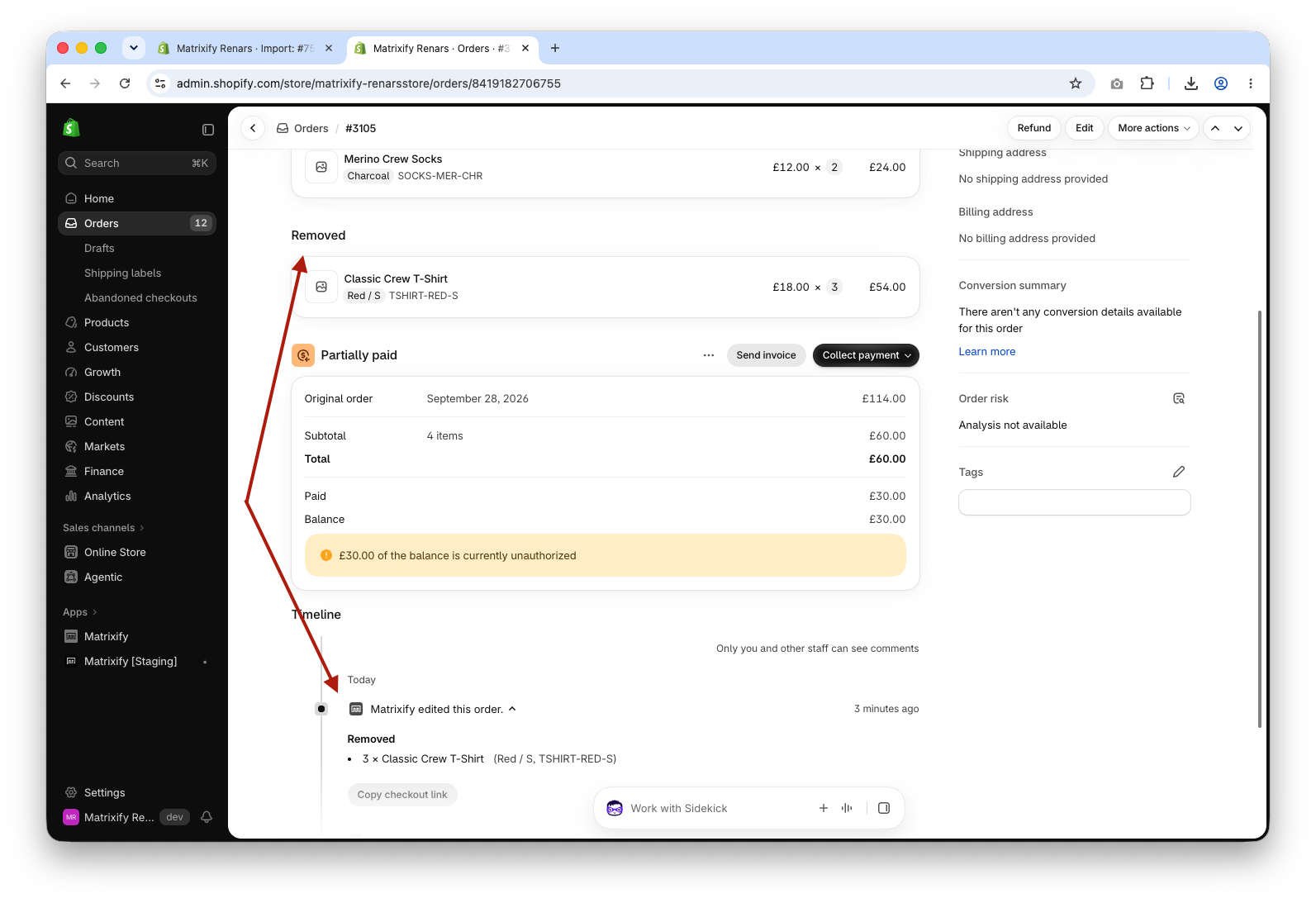
Good to know
- Removed Line Items stay in the Order. When you Export the Order again, they are still there with
Line: Current Quantityset to0. - Removing a Line Item does not refund the payment, does not restock the inventory and does not notify the customer. If the customer should get money back, refund it separately, see the refund existing Shopify Orders in bulk tutorial.
- Shopify does not allow editing Orders that were imported by another app – so with an Import you can bulk edit only Matrixify app-created Orders and Orders that were not created by an app.
- You can remove all Line Items from an Order. They will all show as “Removed” in the Shopify Admin.
What to do next?
- Add new Line Items to existing Orders – bulk add Line Items to Shopify Orders.
- Update other Order data in bulk – bulk update Shopify Orders.
- See all columns you can Export and Import in the Orders documentation.
- Contact Matrixify support if you have questions.


