


Disclaimer: Shopify has since migrated to new multi-rule Collections and no longer has separate Smart or Custom Collections. Adding Products to a Collection only works for the old Custom Collections and does not support the new Shopify multi-source Collections. To add Products to any of your Shopify collections follow our tutorial “Bulk add, include and exclude specific Products in Shopify Collections“.
How does the Product & Collections import work?
When you are importing your Products, you can add products to the Custom Collections just by listing the Collection in the correct columns so you do not need to manually add each Product to your Custom Collections after the import.
Check out this tutorial to see how you can easily import Products with Matrixify.
Importing from: “Custom Collection”
This column was earlier used just to export the list of Handles of all the Manual Collections where this product is in. Now you can import from this column too – the Matrixify app will add this product to all the collections that you have listed here.
If they don’t exist, then Matrixify will create them for you.
Example of how to add Products to collections
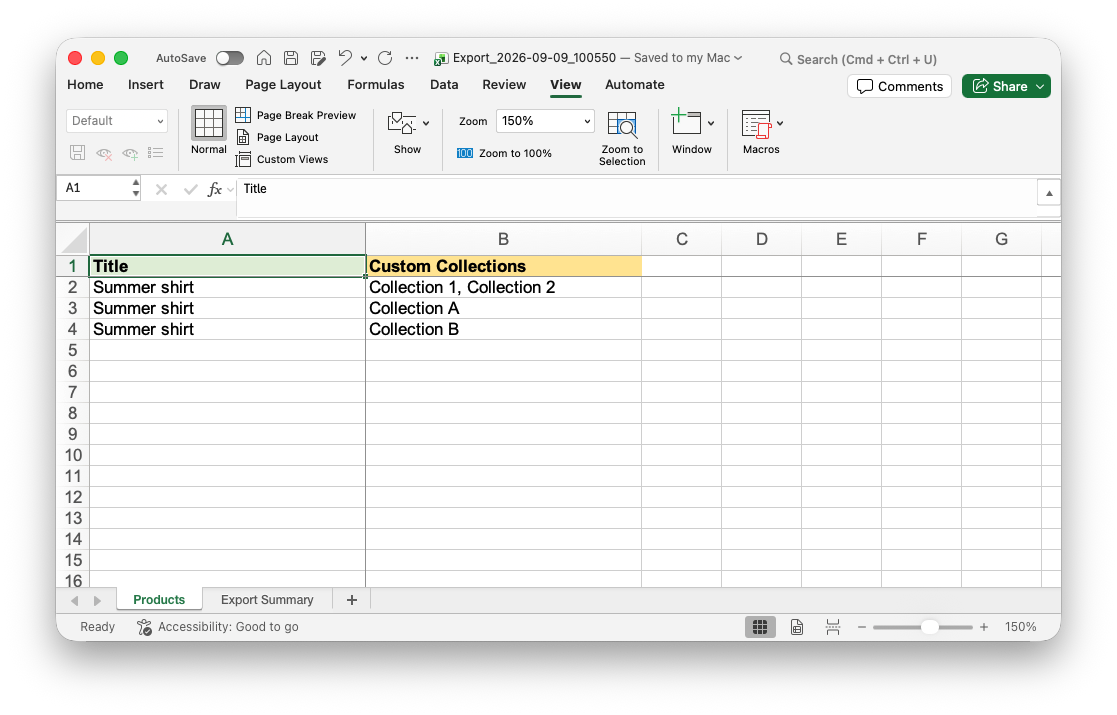
In this example, you can see that we are importing “Summer shirt” Product which will be included in the following collections:
- Collection 1
- Collection 2
- Collection A
- Collection B
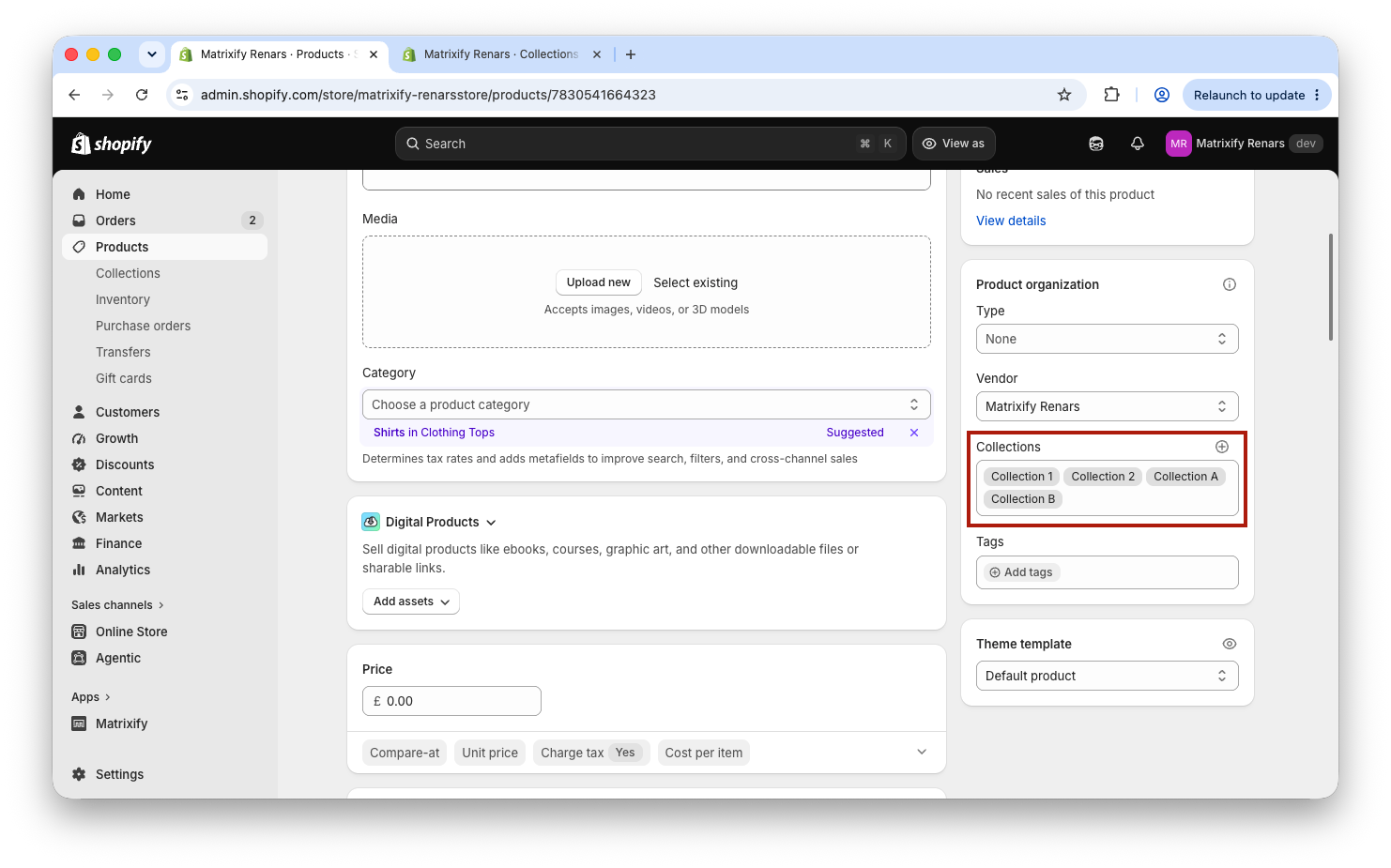
The result will look like this:
Good to know
- You can use those columns to also update existing products – add them to certain collections.
- If you need to manage your Collections in more detail, including adding and removing products, please refer to the Matrixify Collections sheet documentation.


