


In the Shopify Admin, the country of origin and the Harmonized System (HS) code are set in the Shipping section of each Product. Country-specific HS codes are added there one country at a time.
With Matrixify app, you can Export the customs information of all your Shopify Product Variants, fill it in Excel and Import the file back. This includes the country-specific HS codes.
How Shopify uses HS codes and country of origin
- HS code – an international trade code that describes what a Product is. Shopify Help Center says that if you ship internationally, each Product must have an HS code.
- Country-specific HS codes – a Variant can also have its own HS code for a destination country. When the Variant has a code for that country, Shopify uses it to calculate duties. For other countries Shopify uses the general HS code.
- Country of origin – the country where the Product was created or assembled into the form it is sold in. Shopify uses it to estimate duties and import taxes for international Customers. If a Variant has no country of origin, Shopify uses the default country of origin from the store settings, if it is set.
- Read more about HS codes and country of origin in Shopify Help Center.
Steps to bulk update HS Codes
- Export Products with ID, Handle, Variant ID, Variant SKU and the country of origin and HS code columns from the Customs Information column group.
- Fill in the country of origin, the general HS code and the country-specific HS codes for each Variant row.
- Import the file in the Matrixify app to bulk update the customs information of your Products.
- Check the country of origin and HS codes of the Variants in the Shopify Admin.
1. Export Shopify Product Variants with customs information
In the Matrixify app Home create a new Export by using the New Export button. Select the Matrixify: Excel format.
| Column group | Columns to select |
|---|---|
Basic Columns |
ID, Handle |
Inventory / Variants |
Variant ID, Variant SKU |
Customs Information |
All columns |
The ID and Variant ID columns will tell the app which Product and Variant to update. Handle and Variant SKU are not needed for the update, they only make the data more user-friendly and easier to see which row is what Product and Variant.
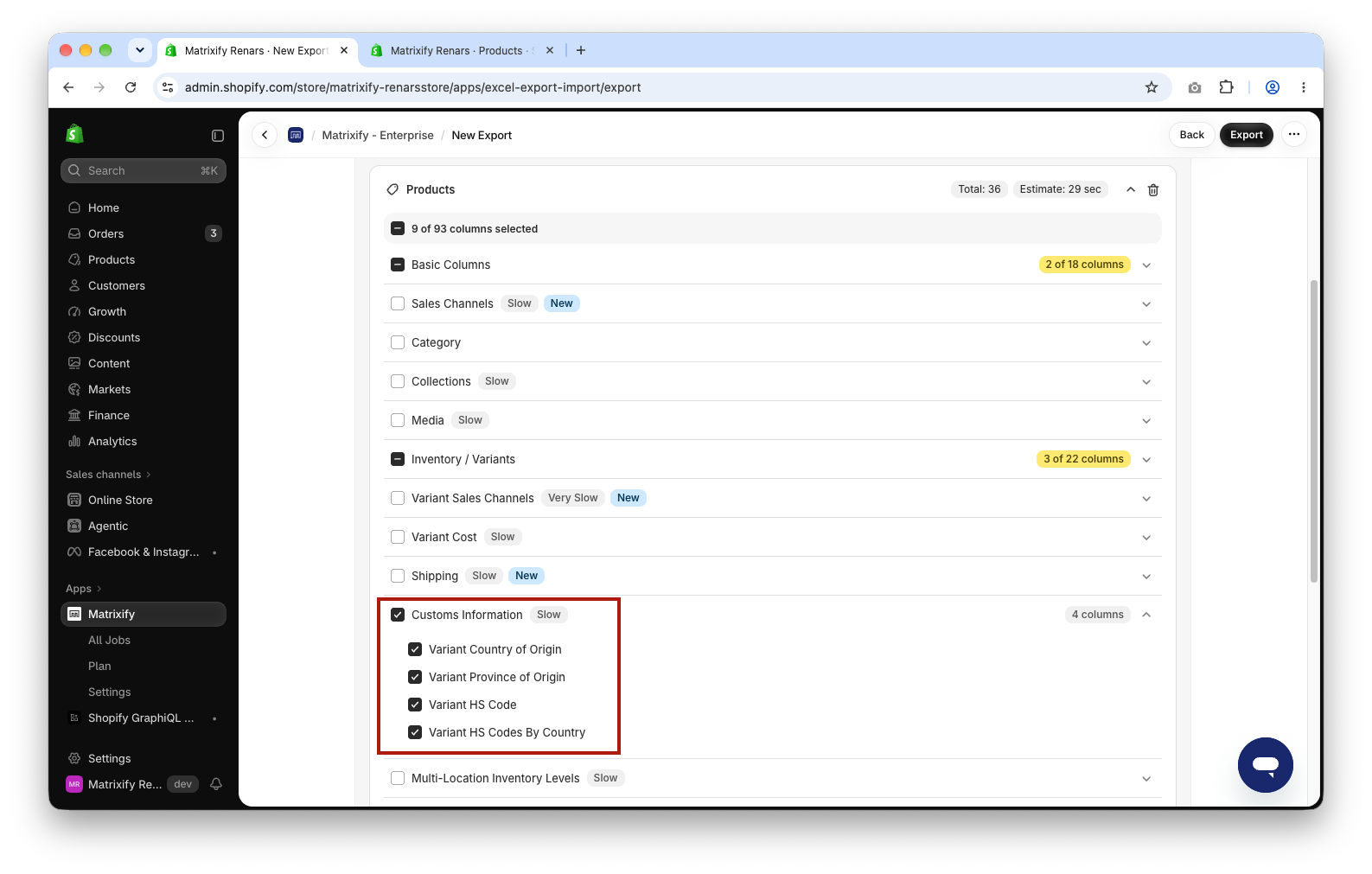
You can also filter which Products are exported by using the Filter button in the Products sheet card. When importing, the app updates only the Products that are in the file.
Press Export, wait for the Export to finish and download the exported file.
2. Edit HS codes and country of origin in Excel
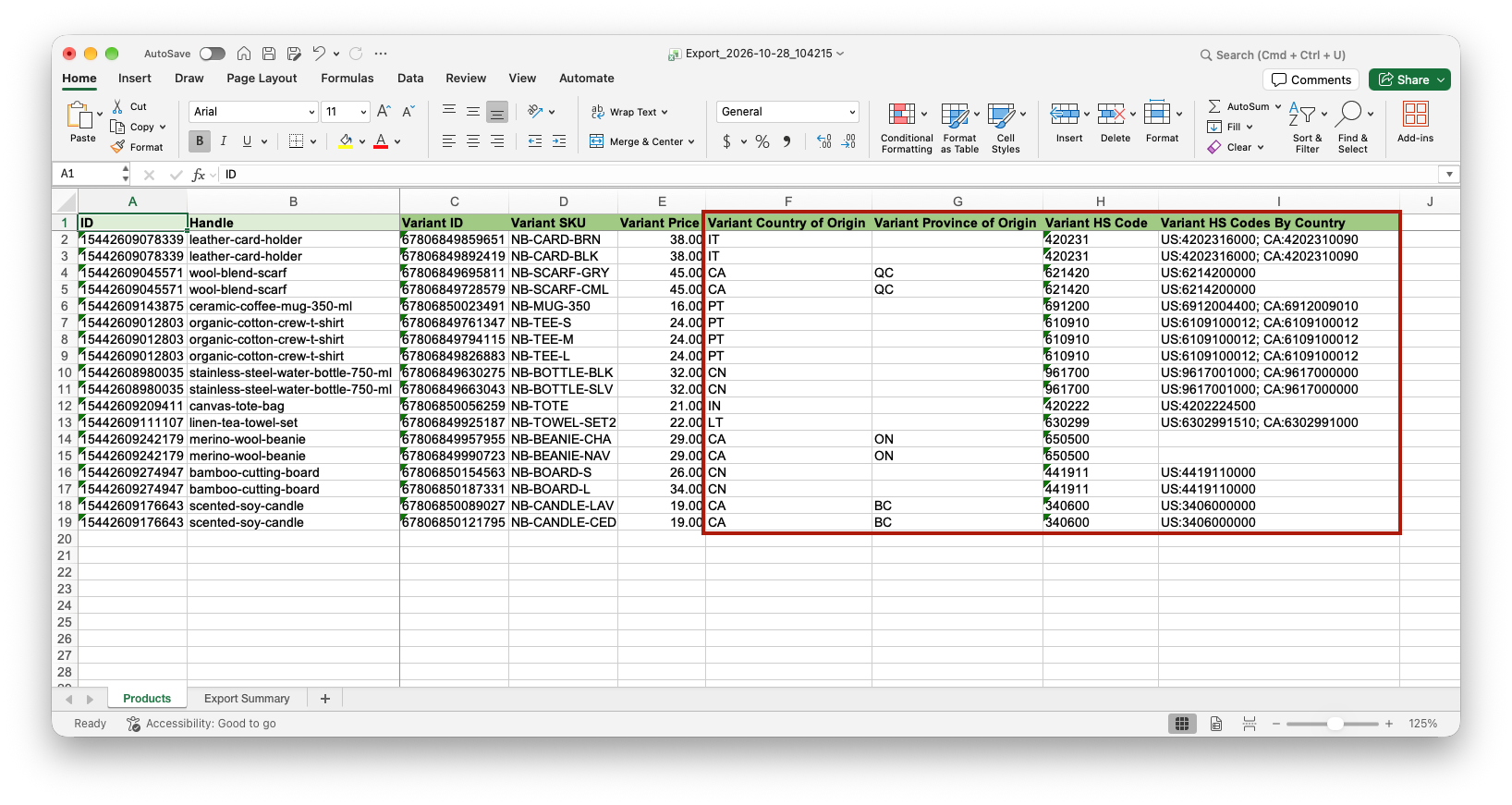
Open the exported file. Each row is one Variant. Fill in the columns:
Variant Country of Origin
The two-letter country code, for examplePT. An empty cell removes the country of origin from the Variant.Variant Province of Origin
The province code of where the Variant was made, for exampleQC. Shopify uses it only if the shipping provider for the Variant is Canada Post, so fill it in only for Variants you ship with Canada Post. It is not checked against the country of origin, so make sure it belongs to that country.Variant HS Code
The general HS code, 6 to 13 digits, for example610910. Dots are removed, and a code shorter than 6 digits is saved with leading zeros.Variant HS Codes By Country
The country code, a colon and the HS code, separated by semicolons, for exampleUS:6109100010; CA:6109100000.
The Import adds or changes the code for each country that is listed in Variant HS Codes By Country. A country that is not listed keeps its code, and an empty cell changes nothing. For example, if the Variant has codes for US and CA and the cell has only US:6109100099, the US code is updated and the CA code stays. Shopify does not let apps remove country-specific HS codes, so to remove one, delete it in the Shopify Admin.
Import country-specific HS codes from separate columns
If your HS code list has one column for each country, you do not need to join the codes into one cell. The Import also reads these column headers:
| Column header | How it is imported |
|---|---|
HS Code / US, HS Code / CA and so on |
One column for each country code. The codes are merged with Variant HS Codes By Country. If the same country is in both, the Product fails. |
HS Code |
The same as Variant HS Code. If the file has both, Variant HS Code is used. |
COO |
The same as Variant Country of Origin. If the file has both, Variant Country of Origin is used. |
Save the file and head back to the Matrixify app.
3. Import HS codes and country of origin to Shopify
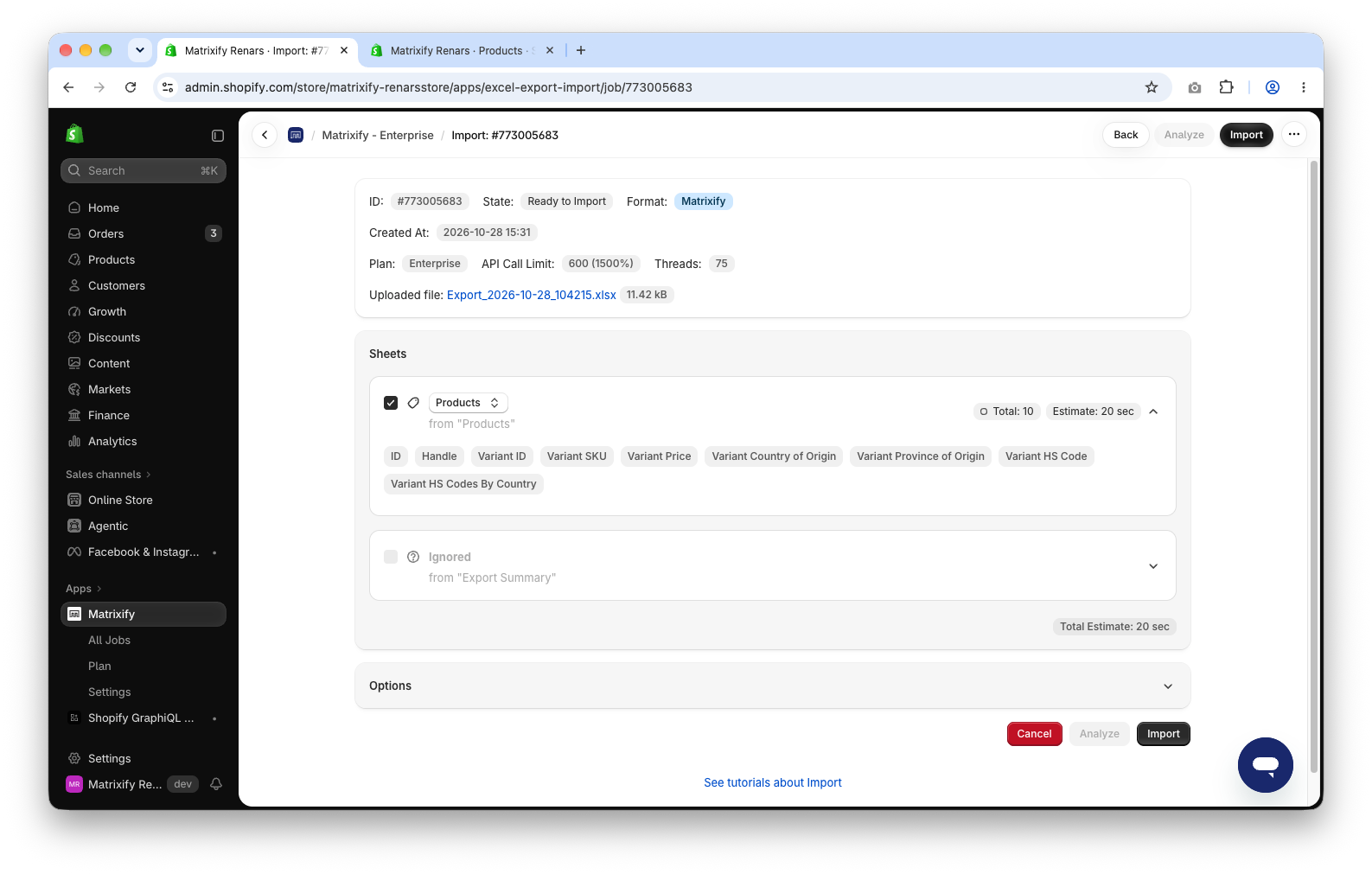
In the Matrixify app Home, upload the file in the Import section. Once the file is analyzed, make sure that the app detects the sheet as Products and the Product count looks correct. Default Import Options will work fine.
Press Import to start the Import.
4. Check HS codes and country of origin in Shopify Admin
When the Import is finished, the job status will be “Finished”. If some Products failed, download the Import Results file and check the Import Comment column – it tells why the Product failed. Fix those rows and Import only them again.
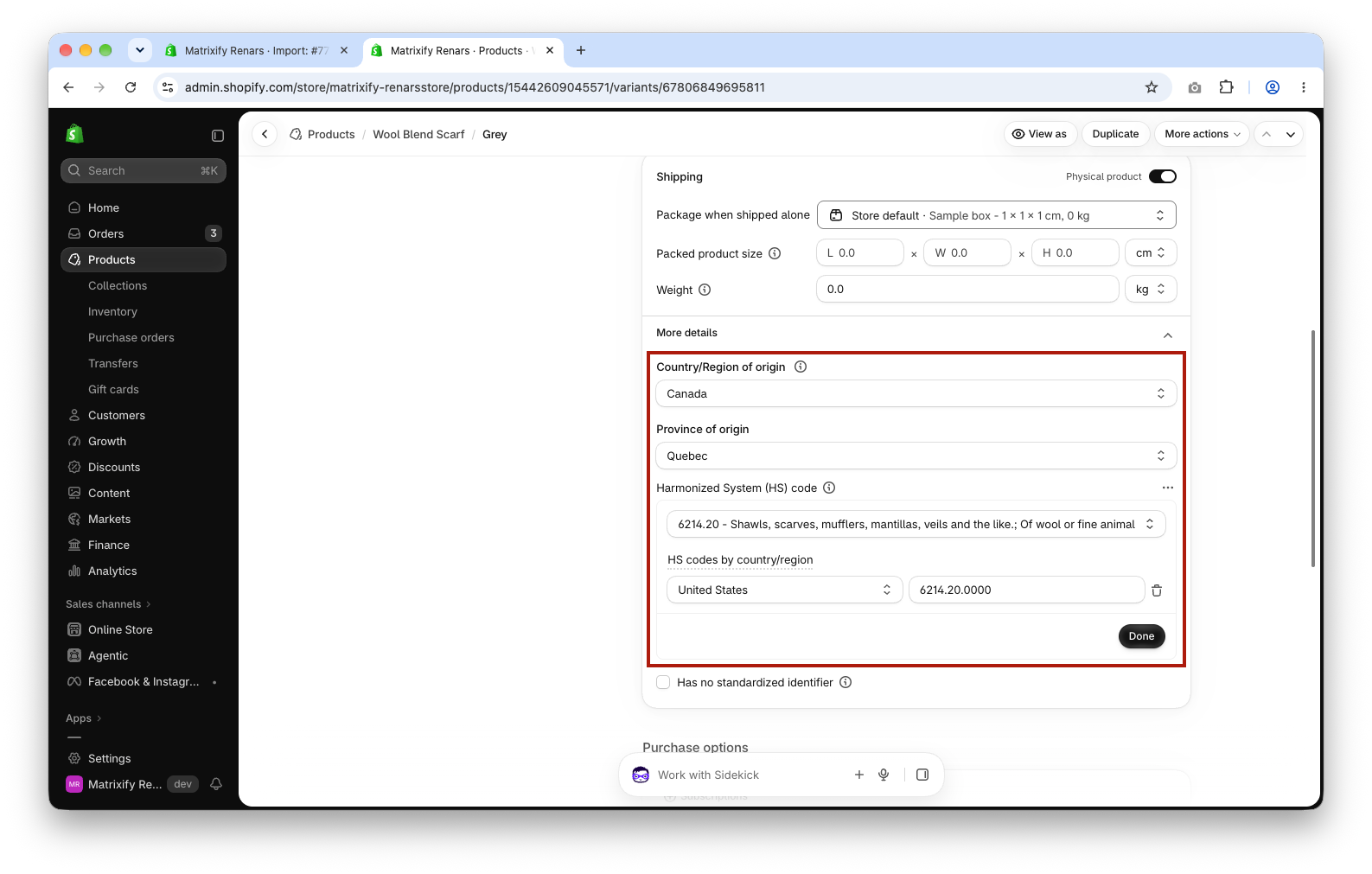
In the Shopify Admin open one of the Products. If the Product has Variants, click a Variant. The Shipping section shows the country of origin and the HS codes.
Frequently asked questions
How do I find the HS code for a Product?
In the HS code field in the Shopify Admin you can start typing a description of the Product to search for a code. Shopify Help Center also links to the Harmonized Tariff Schedule search to find HS codes.
Can I set HS codes for countries outside my Markets?
Yes. In the Shopify Admin you can pick only countries from your Markets, but the Import also accepts other countries in Variant HS Codes By Country, for example JP.
What to do next?
- See all Customs Information columns in the Products documentation.
- Find the Shopify country and province codes.
- Set the shipping weight and package size too – bulk edit Shopify Product weight and packed dimensions.
- See which columns are needed to update other Variant fields in minimum required columns to update specific Product fields.
- Contact Matrixify support if you have questions.


