


In the Shopify Admin the weight and the packed product size are set in the Shipping section of the Product page, or of each Variant page when the Product has Variants. When a whole catalog needs new weights or new package dimensions, going through Variant by Variant takes hours.
With Matrixify, you can bulk edit your Shopify Product Variant weight, length, width and height in Excel or CSV spreadsheet. Export the Variants, change the values and Import the file back to easly bulk update your Products.
How Shopify uses weight and packed product size
- Weight – the shipping weight of the Variant, in
g,kg,ozorlb. Shopify uses it for weight-based shipping rates, for carrier-calculated shipping rates at checkout and for the price of shipping labels. - Packed product size – the outer length, width and height of the Variant after it is packed, in
cmorin. When every item in a multi-item Order has a packed product size, Shopify packs them into the smallest saved box that fits. Rates and labels are then calculated for that box instead of the store default package. - Dimensional weight – carriers charge by the box size when it is higher than the real weight. A box that fits the items keeps the shipping rate at checkout close to what you pay for the label.
- Read more about packed product size in Shopify Help Center.
Steps in short for bulk update
- Export Products with
ID,Handle,Variant ID,Variant SKUand the weight and packed dimension columns from theShippingcolumn group. - Fill in the new weight, weight unit, packed length, width, height, and dimension unit for each Variant row.
- Import the file in the Matrixify app to bulk update your stores data.
- Check the weight and packed product size of the Variants in the Shopify Admin.
1. Export Product Variants with weight and packed dimensions
In the Matrixify app Home create a New Export by using the New Export button. Select the Matrixify: Excel format.
Under the Select Sheets dropdown select the Products. Click on the Products sheet card to expand it and select only these columns:
- From
Basic ColumnsIDHandle
- From
Inventory / Variants:Variant IDVariant SKU
- From
Shippingcolumn group select Shipping attributes you wish to update:- to update weight and/or weight unit select
Variant WeightandVariant Weight Unitcolumns - to update packed Variant dimensions attributes select
Variant Packed Length,Variant Packed Width,Variant Packed HeightorVariant Packed Dimension Unit.
- to update weight and/or weight unit select
If updating Variant dimensions fields it is suggested to select all 4 columns to ensure that they are set for variants where no dimensions are set.
ID and Variant ID tell the app which Product and Variant to update. Handle and Variant SKU are not needed for the update, but they make it easy to see which Product and Variant each row is and make the exported file more user-friendly.
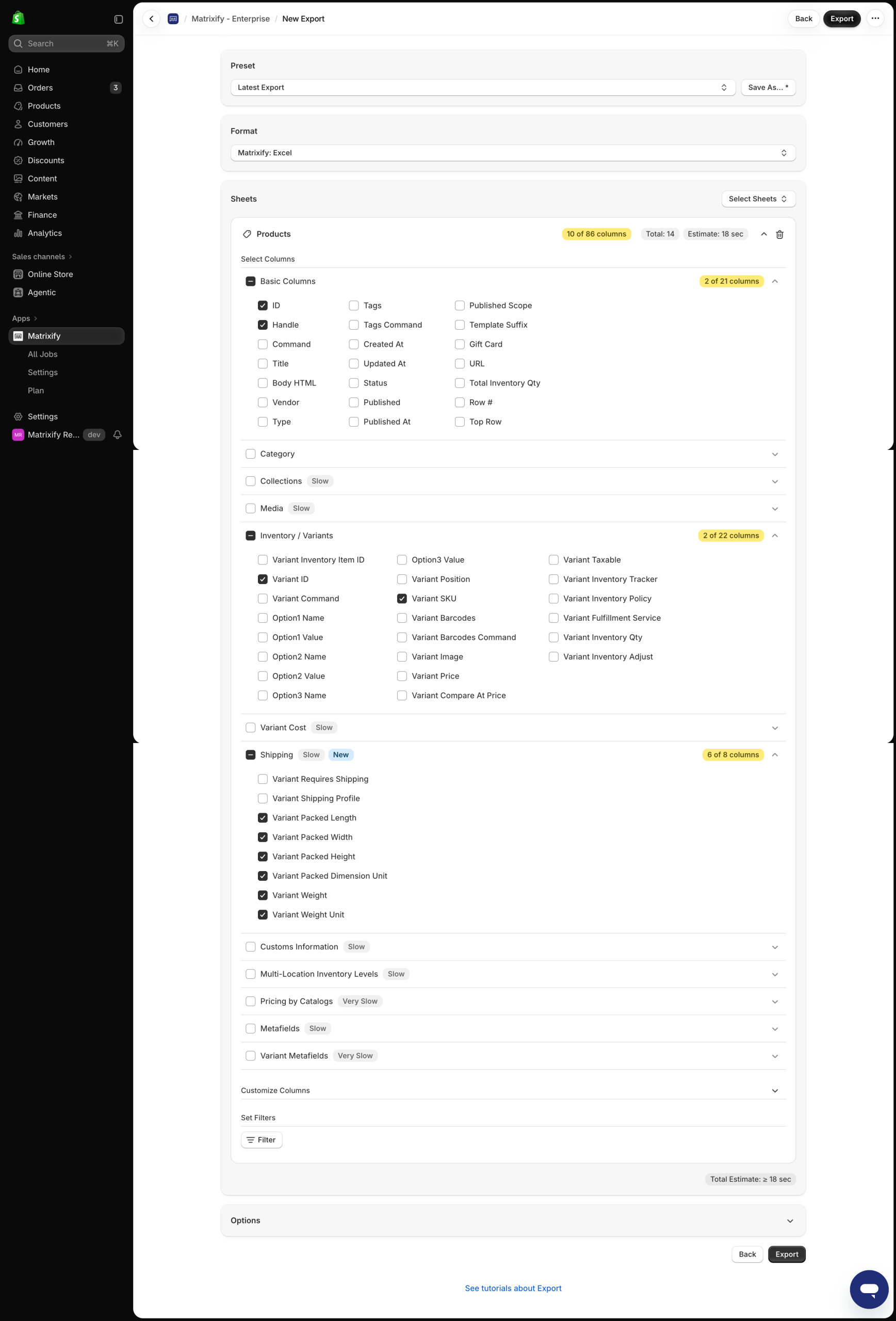
In Matrixify app you can also filter which Products are exported by using the Filter button in the Products sheet card. When importing, Matrixify app will only update Products that are included in your uploaded file to ensure that other Products are not updated by mistake.
Press Export, wait for the Export to finish and download the exported file.
2. Edit weight and packed dimensions in Excel
Open the exported file. Each row is one Variant. The packed columns are empty for Variants that do not have a packed product size yet. Now you can update data in your exported files columns:
Variant Weight– the shipping weight as a decimal number or integer, for example9.5.Variant Weight Unit–g,kg,ozorlbweight unit.Variant Packed Length,Variant Packed Width,Variant Packed Height– the outer size of the packed Variant as a decimal number or integer, for example66.50,66and28.Variant Packed Dimension Unit–cmorin. If it is empty, the unit already saved for the Variant is kept, and for a Variant without a packed product size set at all, the stores unit system is used.
Shopify saves a packed product size only when length, width and height all have a value. If the Variant already has a packed product size, you can change only one value. If the packed Variant dimensions are empty in your import file but this variant has already values saved in the store, then the app takes the value from the saved size, except if all three cells are empty, the packed product size is removed from the Variant, allowing to also clear the values from your store.
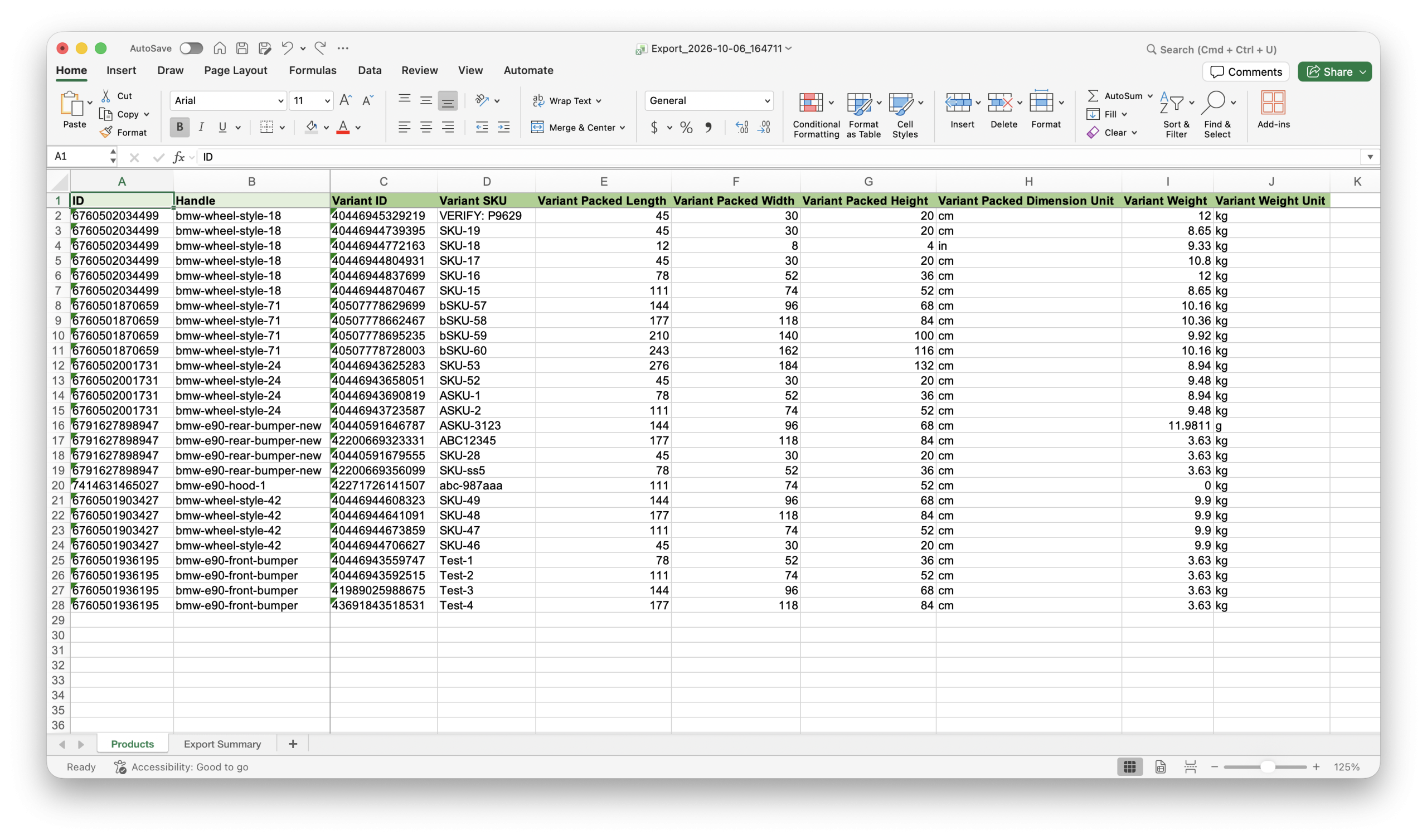
Save the file and head back into the Matrixify app.
3. Import weight and packed dimensions to Shopify
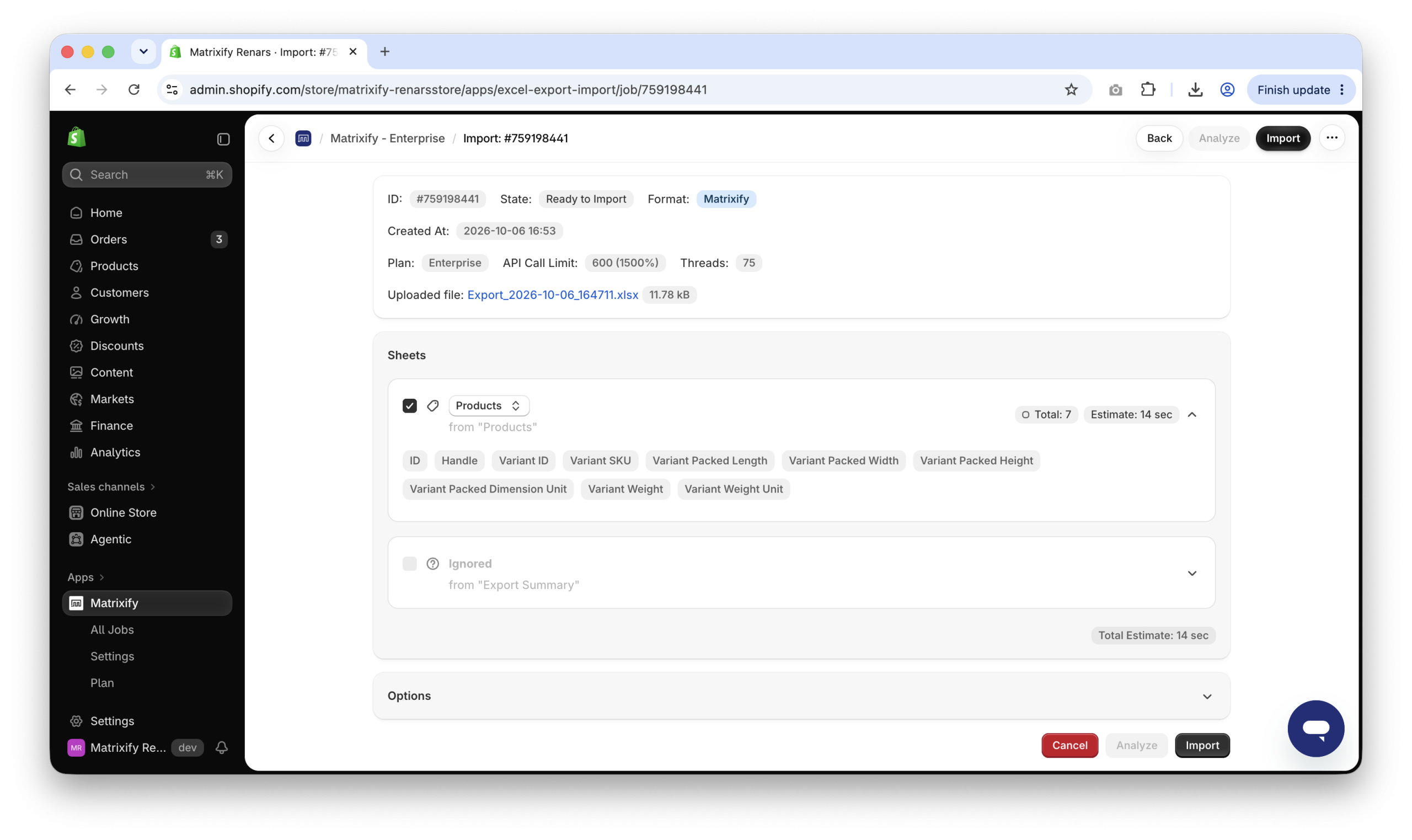
In the Matrixify app Home page, upload the file in the Import section. Once the file is analyzed, make sure that the app detects the sheet as Products and the Product count looks correct. Default Import Options will work fine.
Press Import to start the Import.
4. Check weight and packed product size in Shopify Admin
When the Import is finished, the job status will be “Finished”. If some Products failed, download the Import Results file and check the Import Comment column – it tells why the Product failed. Fix those rows and Import only them again.
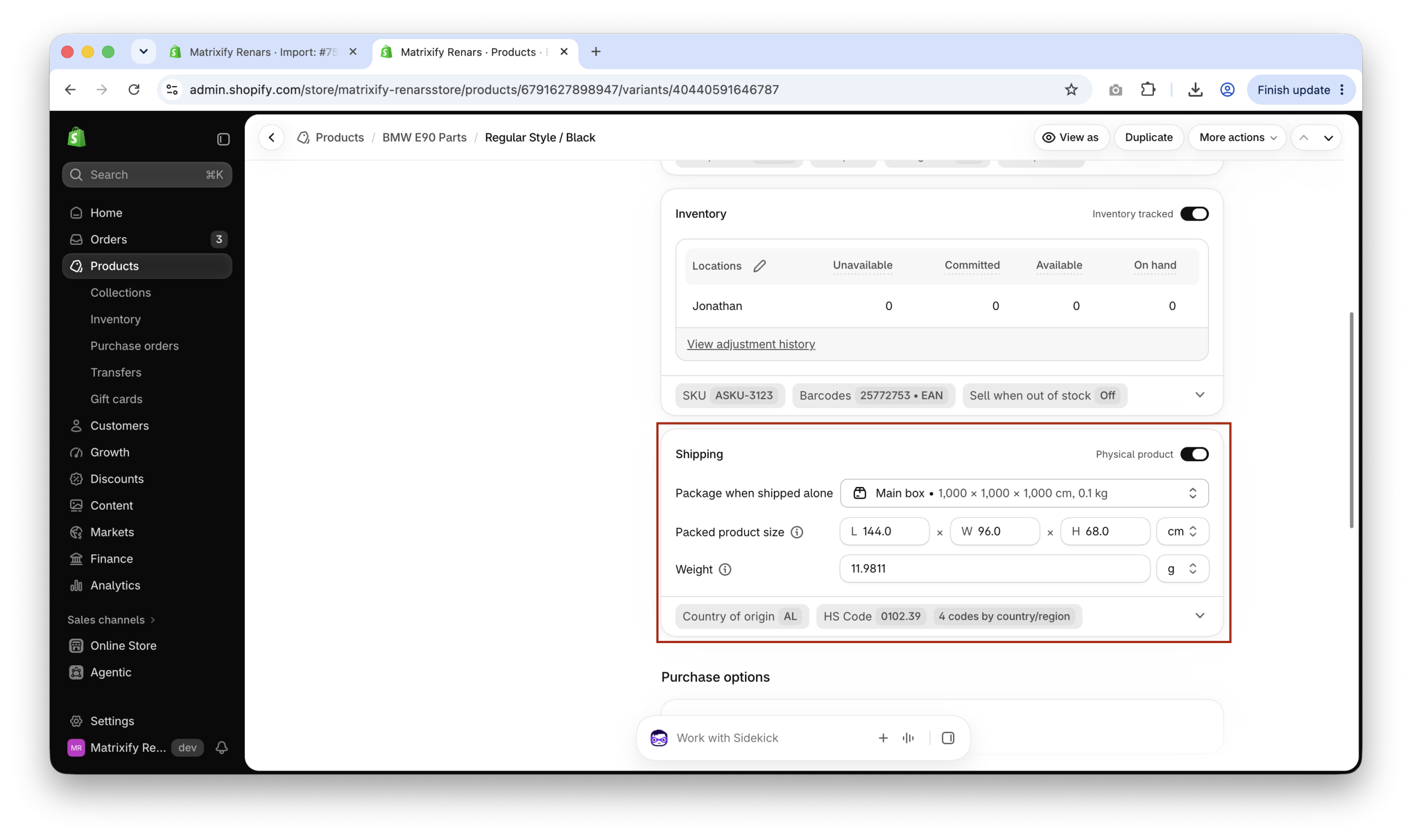
In the Shopify Admin open one of the Products. If the Product has Variants, click a Variant. The Shipping section shows the new Packed product size and Weight.
What to do next?
- Add customs data for international shipping – update Shopify Product HS Code and Country of Origin in bulk.
- See which columns are needed to update other Variant fields in minimum required columns to update specific Product fields.
- See all columns you can Export and Import in the Products documentation.
- Contact Matrixify support if you have questions.


