

Managing the sorting of Products in your Shopify Collections can be just as important as the Products themselves – the right Product in the right spot can improve visibility, highlight promotions, or simply create a smoother shopping experience.
With Matrixify, you can easily adjust Product positions in all your Shopify Collections using a simple Export > edit > Import workflow.
In this tutorial, we’ll walk you step by step through exporting your Collections, changing Product positions, and importing the updated data back to Shopify with Matrixify so you can confidently reorder Products across your entire store.

Steps in short:
- Export Shopify Collections with Basic Columns and Linked Products.
- Edit the exported file – reorder the Product positions by changing the Sort: Position column value.
- Save your file and Import back into your Shopify store with Matrixify.
1. Export Shopify Collections with Linked Product Positions
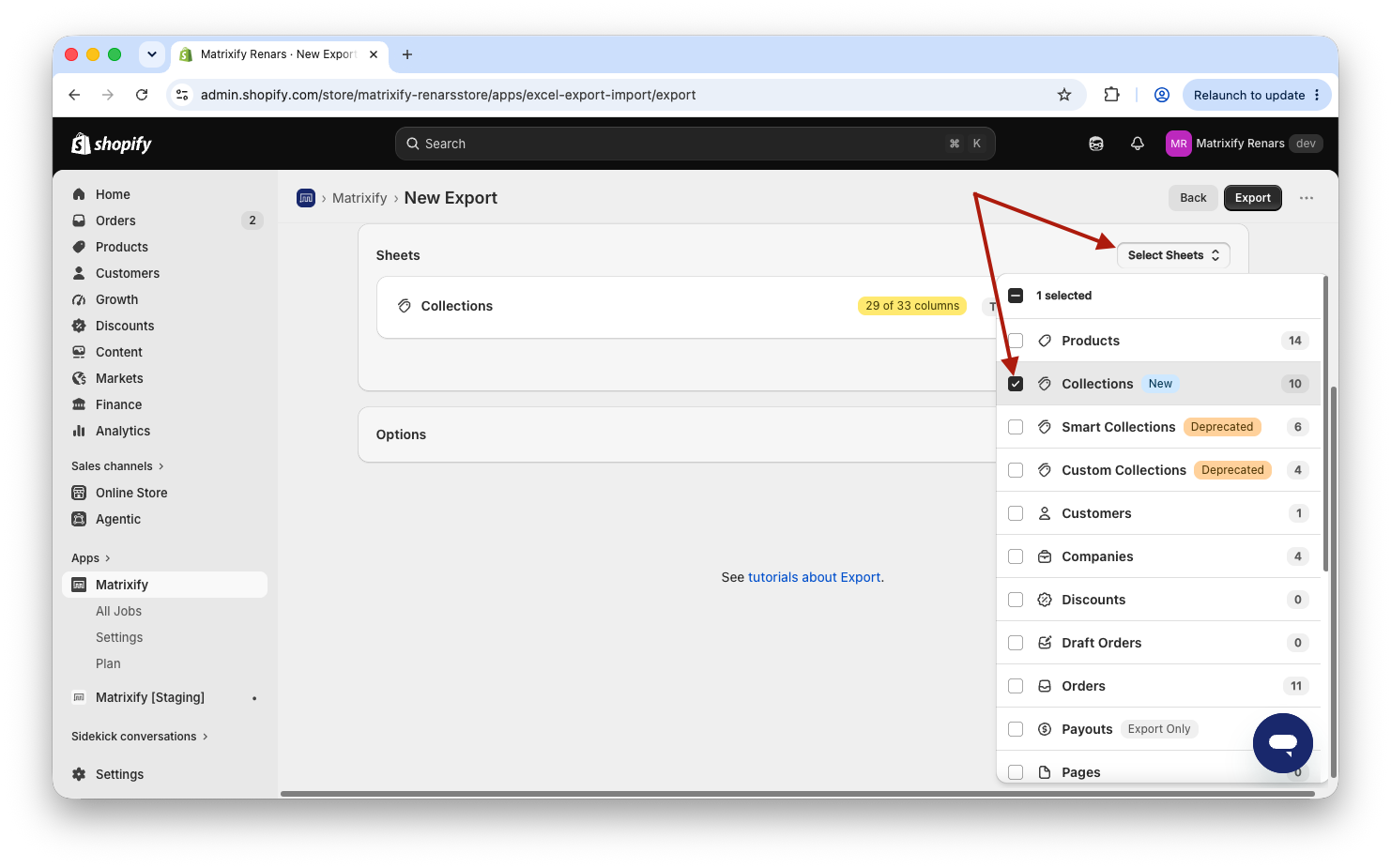
Go into the Matrixify App and create a new Export. In the New Export page under Select Sheets dropdown select to export Collections.
Open the Collection sheet and select to Export the following columns:
- from
Basic ColumnsgroupIDHandleSort Order
- all columns from
Linked Productscolumn group.
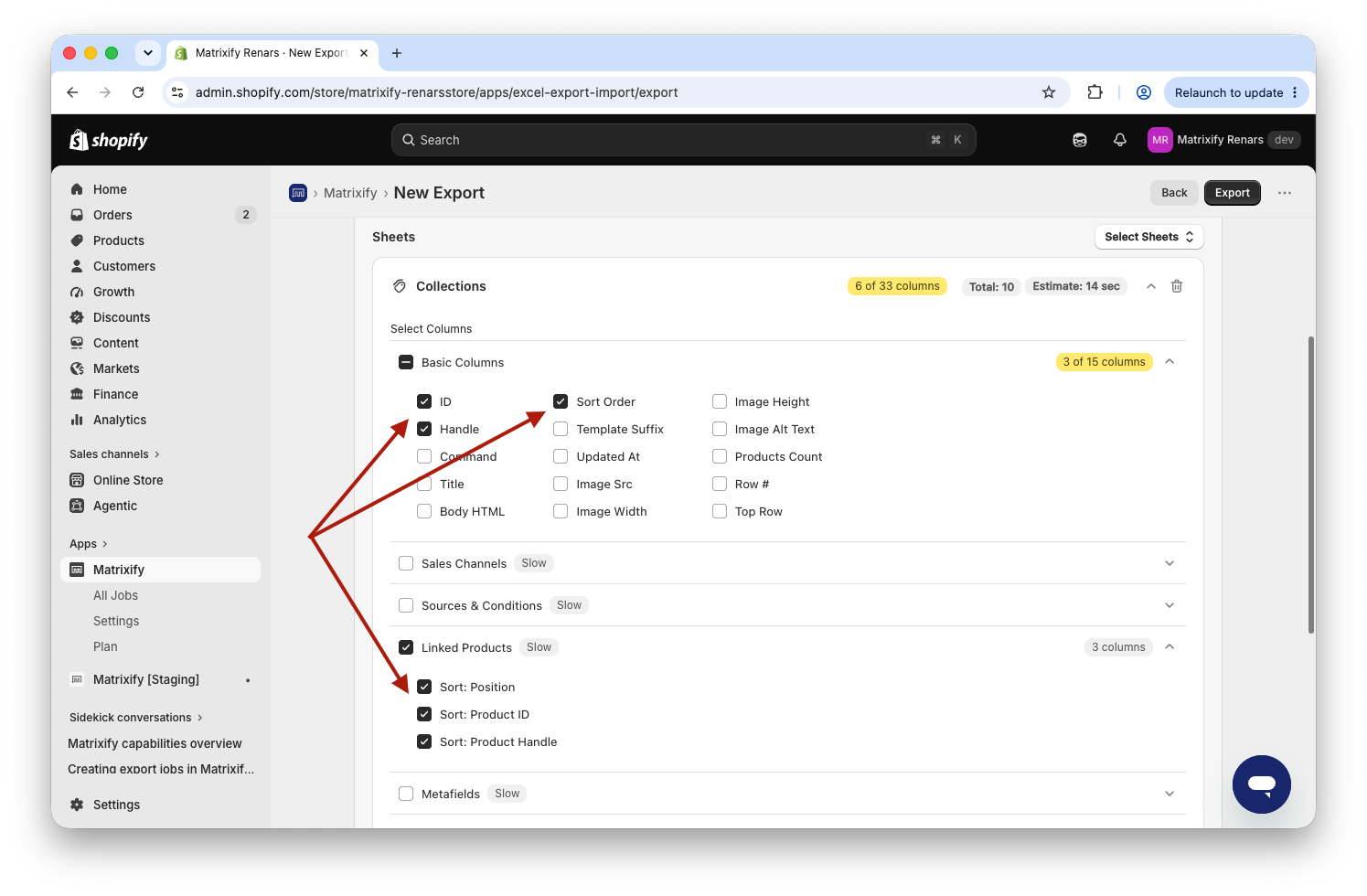
Once you have everything set up, you can go ahead and press the Export button. When the Export has finished, download the exported file by using the Download Exported File button.
2. Adjust Product positions in a Collection via spreadsheet
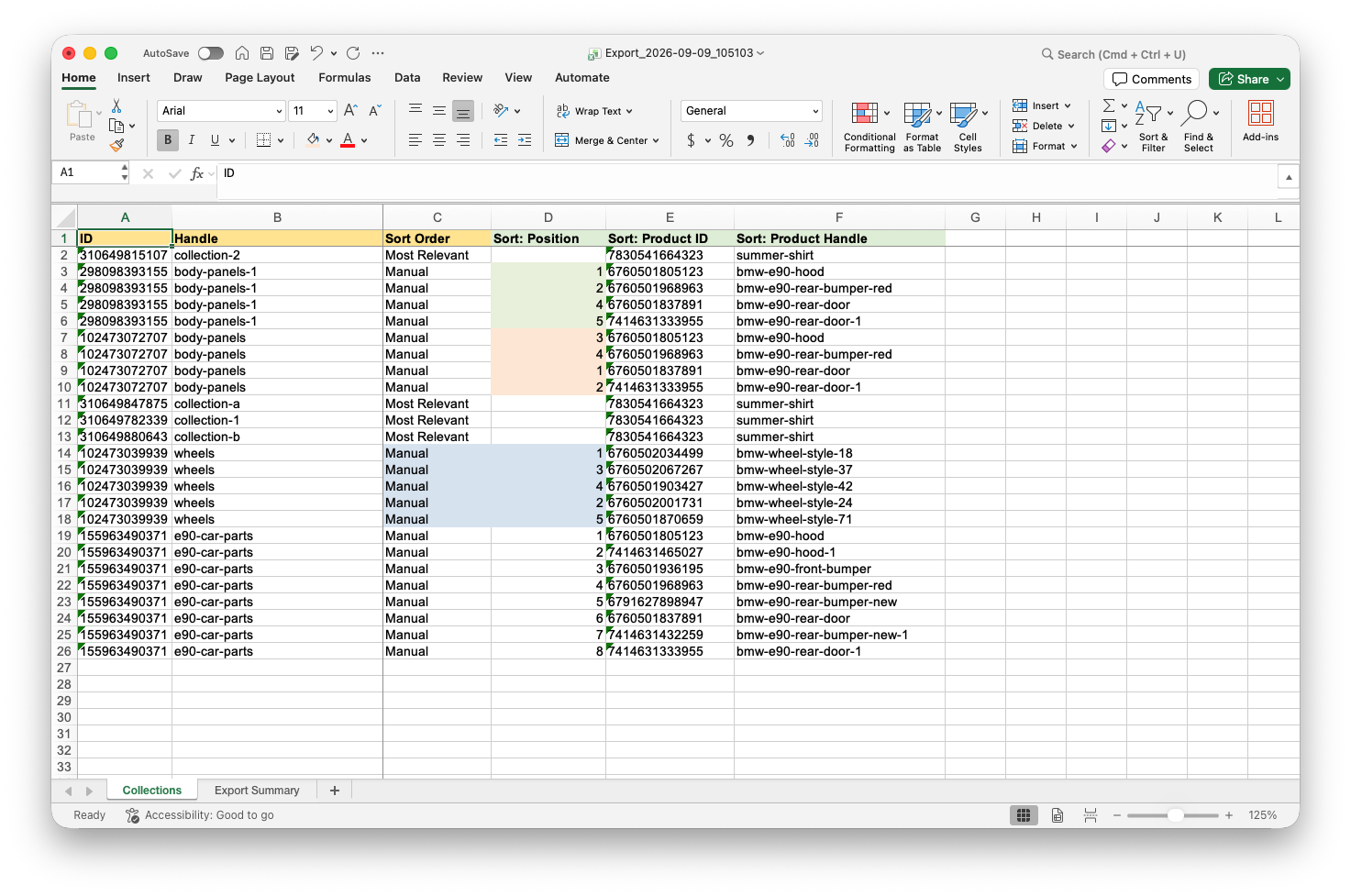
In the exported file, you should see your selected column, rows of your Collection, and their linked Product data. A single Collection will have as many rows as there are linked Products in it, as each Product is in a separate row.
In the Sort: Position column, you can see what position each Product has in each collection.
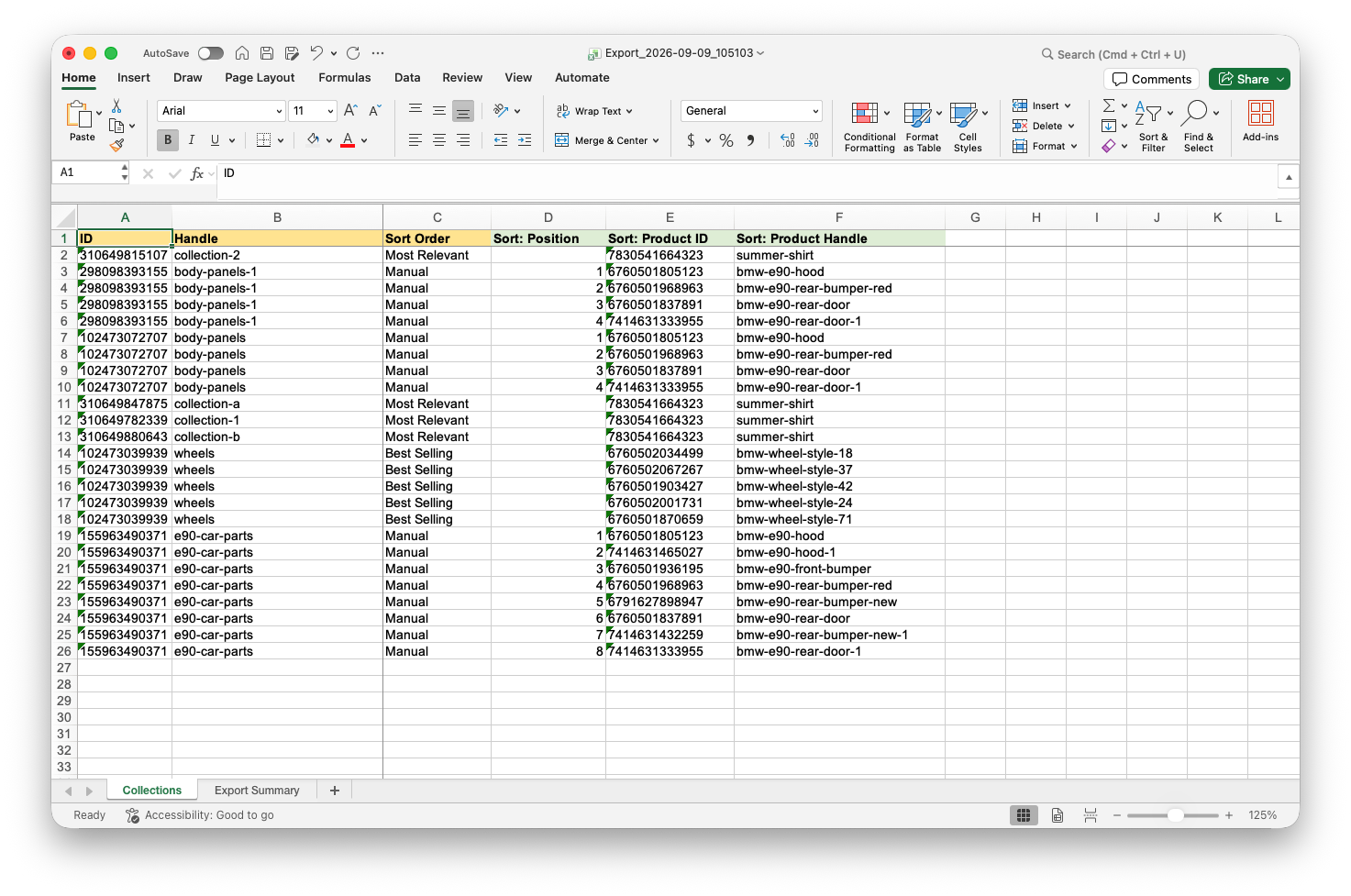
If the Sort: Position is empty, it means that the specific Collection doesn’t have the Sort Order set to Manual. In which case the position is automatically managed by Shopify and cannot be set manually.
If you do need to change Product positions in such Collections, then you can change the value in the Sort Order column to Manual.
Then you can adjust the values in the Sort: Position column as needed. The sorting does not need to be in order in the file, and you can also skip some position numbers – the app will sort them in your store in values from smallest position to the biggest.
If you just need to change the positions of some Products, you can import just those Product positions with Collections. No need to list all of the Products of that Collection. For example, if you need to just move a certain Product to the 1st position, Import just the row of that one Product position for that collection and remove other linked Product rows from the file.
In my example screenshot, I have colored the cells in which changes were made by changing one Collection Sort Order to Manual and changing the position numbers in other Collections.
3. Import Product Positions for Collections
Once you have adjusted the file as you need, save it and Import it into the app in the Import section. The app will then upload your file and analyse it.
Make sure that the app has correctly recognised the number of Collections you are importing and that it has recognised your sheet as a Collections entity.
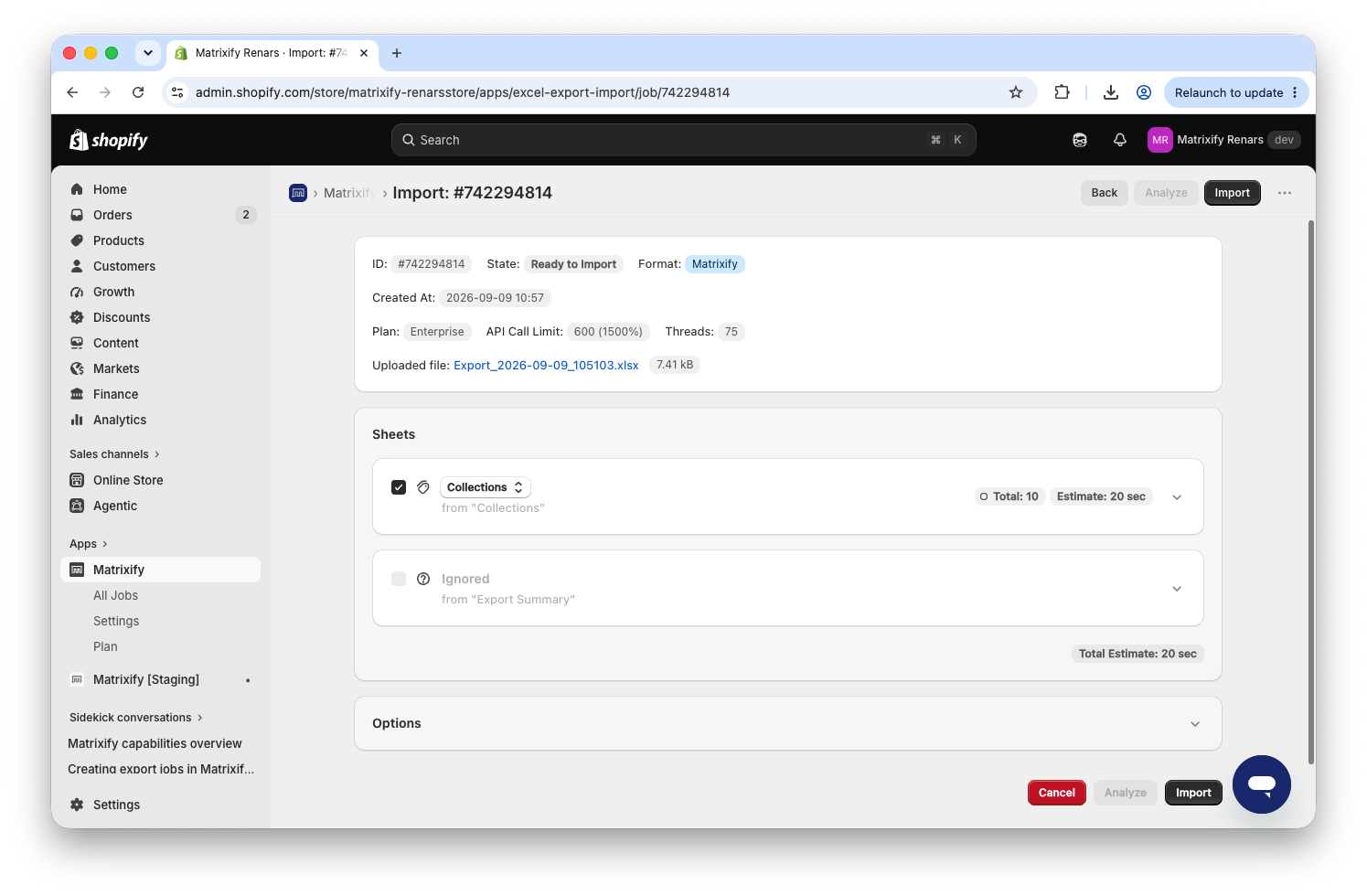
If all looks correct, you can press the Import button and the app will start importing your Collection data and changing the Product positions within the collection to the Product positions you have set in your Import file.
Once the Import has finished, you can enjoy your updated Product positions within your Shopify store Collections!
Will it sort the products in the Collection when copying from one store to another?
Yes, it will.
But sometimes, if it takes longer for Shopify to recalculate the Products for the Collection, the app will not be able to set that sort order – actually, it will complain that there are no such Product was found in the Collection.
If you have such an issue, just count to 5 and import the same Collections file again.
Where to go from here?
- Read the full documentation about all the Collection sheet columns.
- See other tutorials on bulk managing your Shopify Collections.


