


Shopify does not hide out-of-stock Products by itself. With Matrixify you can hide them in bulk in two ways: unpublish them from the Online Store with the Published column set to FALSE (this tutorial), or set their Status to Draft using the Total Inventory Qty column, which needs no pivot table. Both are a Products Export, a small edit in the file and an Import back.
Sometimes you don’t want to show Products that are out of stock on your Shopify store.
Such products can be easily hidden using the property Published = FALSE, by the app. Let’s take a look at 3 cases:
- if a Product has only one Variant and it is out of stock, then we will hide this Product;
- if a Product has several Variants and only some of them are out of stock, we will not hide this Product. Customer will be able to see the Product and select Variants. If out of stock variant will be selected, the appropriate message will appear. Basically, we will not hide this product and any of its Variants;
- if a Product has several Variants and all of them are out of stock, then we will hide this Product.
Let’s see how it is done, following these steps.
1. Export Products with Variants.
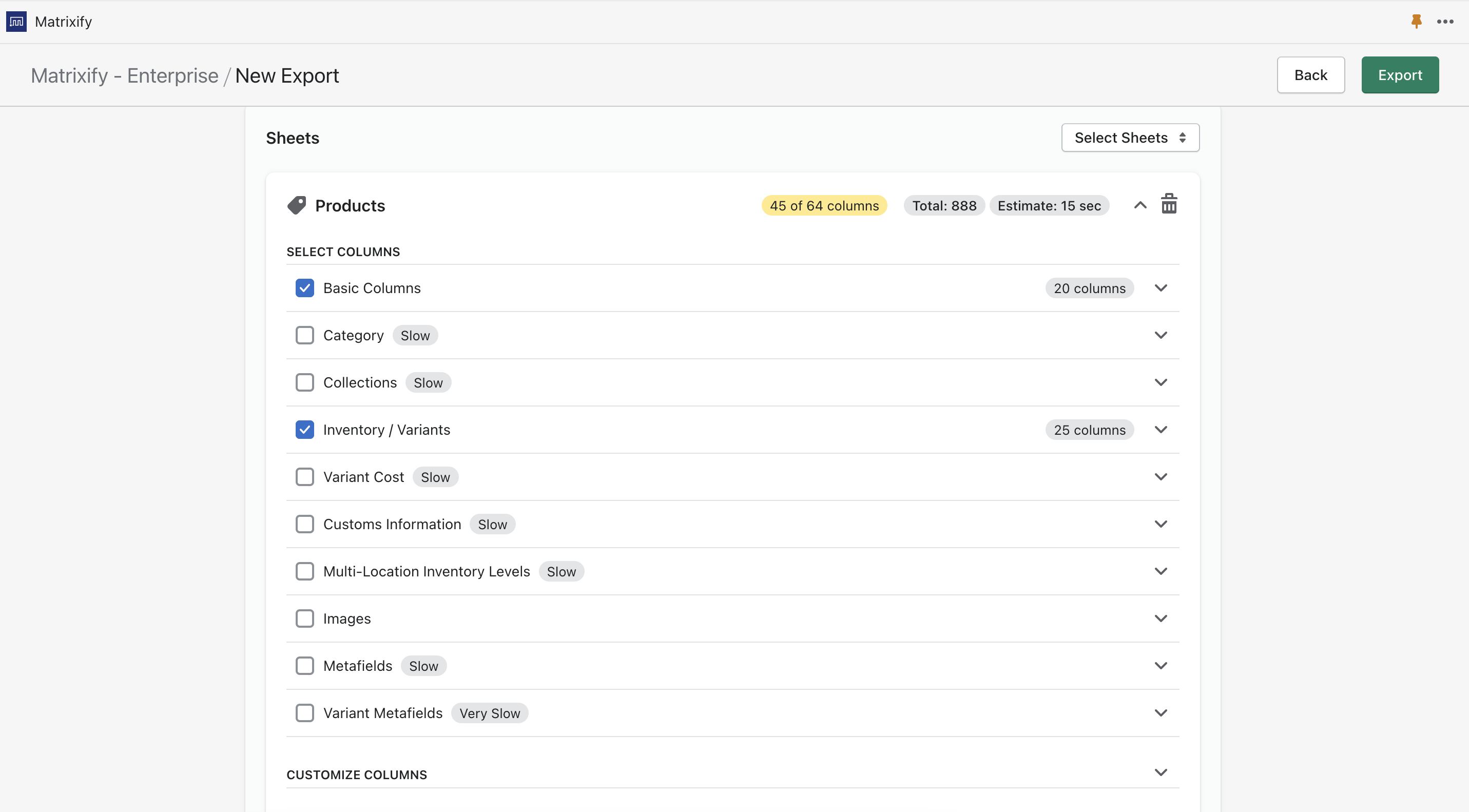
Download and open the exported file. There is Variant Inventory Qty column that contains data about Variant quantities.
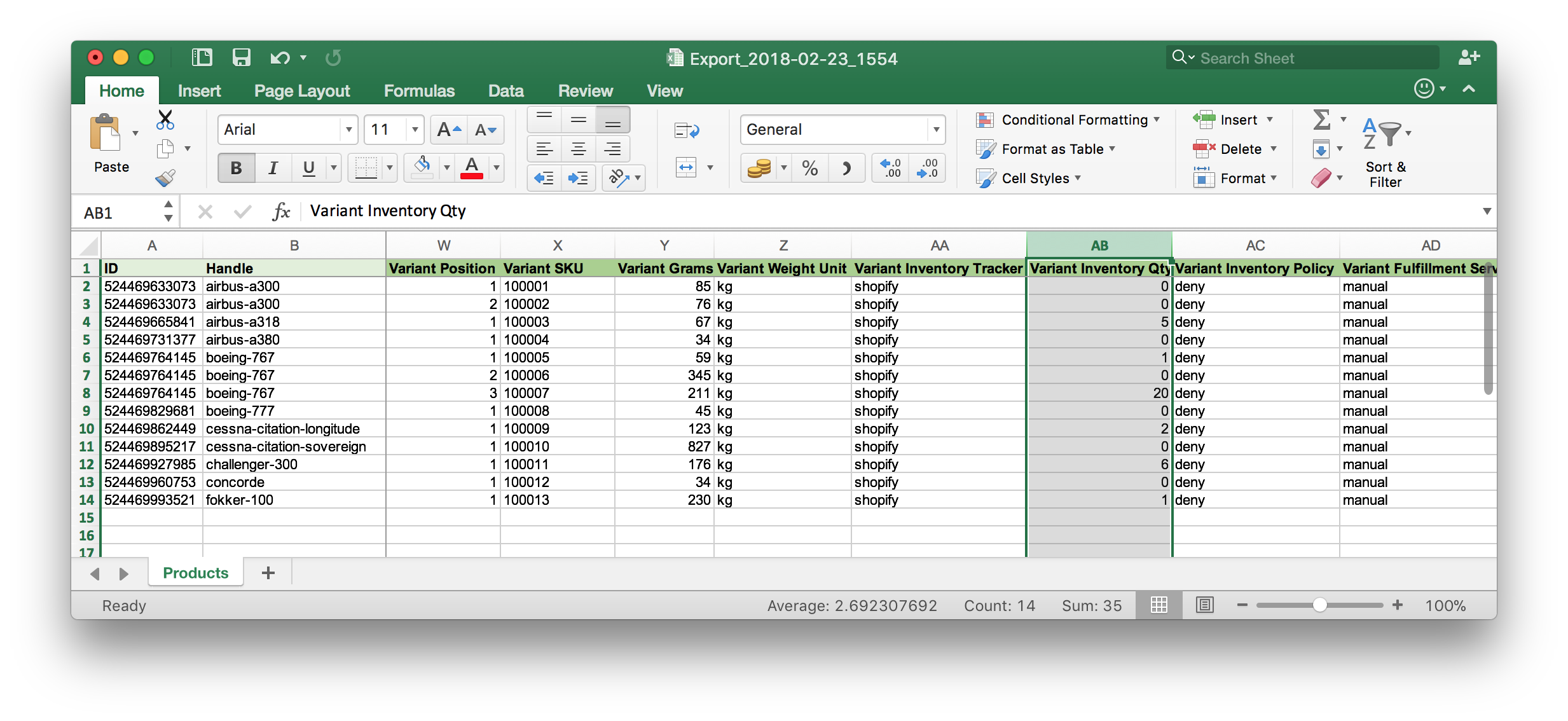
We need to know, what products to hide. This means we need to know what Products have all Variants with quantity equals 0.
We will find them with the help of Pivot table in the next step.
2. Find all out of stock products
In the Excel file go to Insert -> Pivot Table:
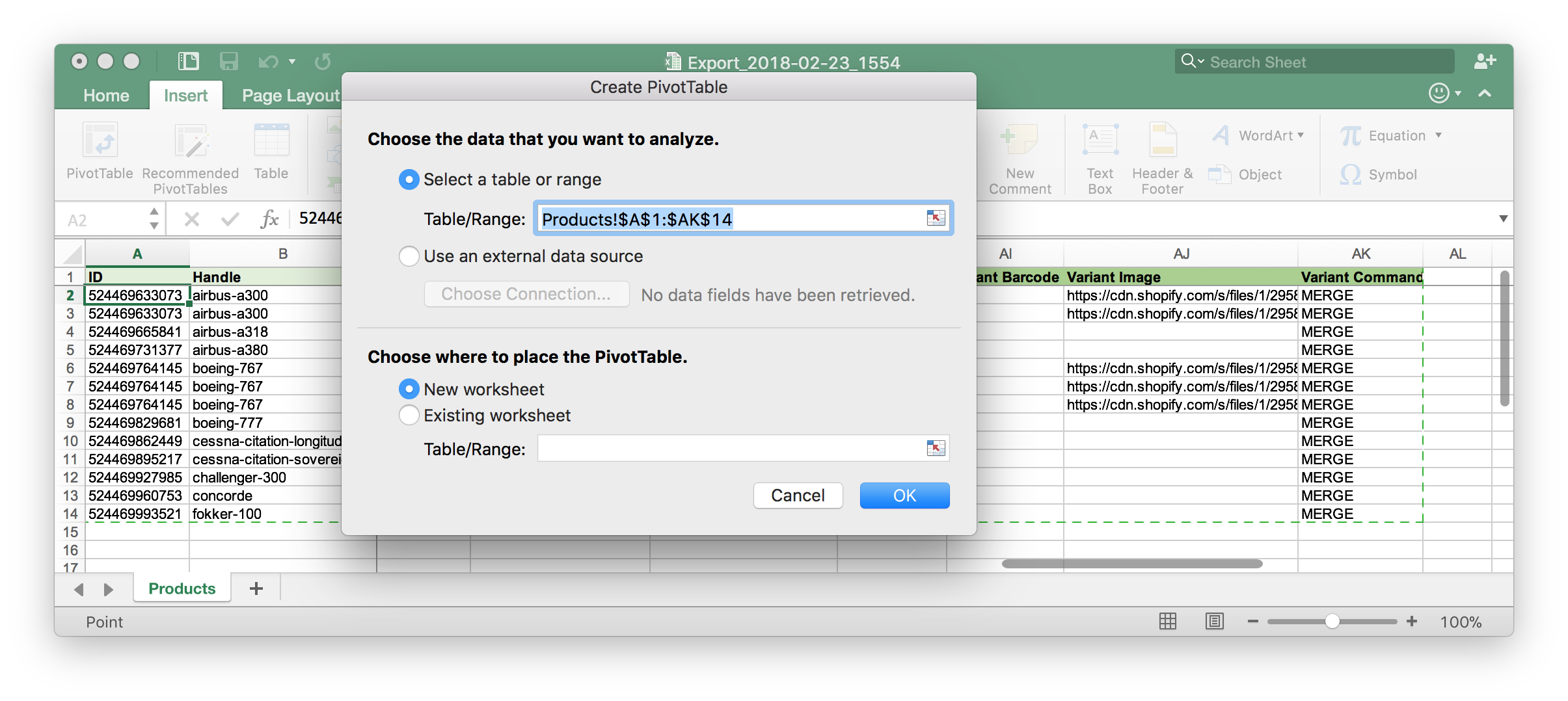
Click OK.
Drag and Drop field Handle to the Rows, field Variant Inventory Qty to the Values. Ensure, that there is Sum of Variant… displayed in the Values (this means, that quantities of all Variants for particular Product Handle will be summed up).
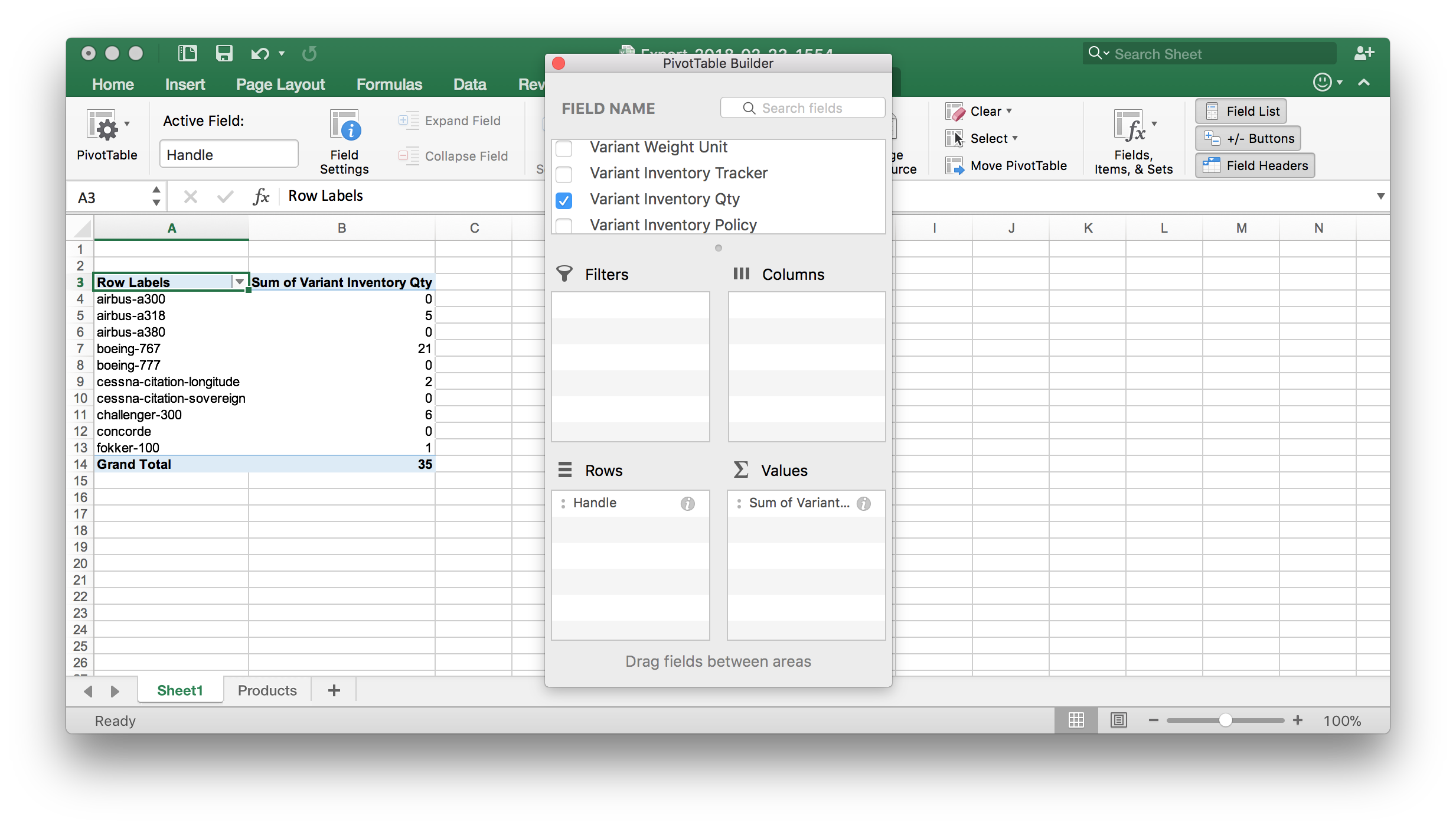
Now we have a table of all Product Handles and Total Variant quantity.
Let’s sort this table by Sum of Variant Inventory Qty from Smallest to Largest:
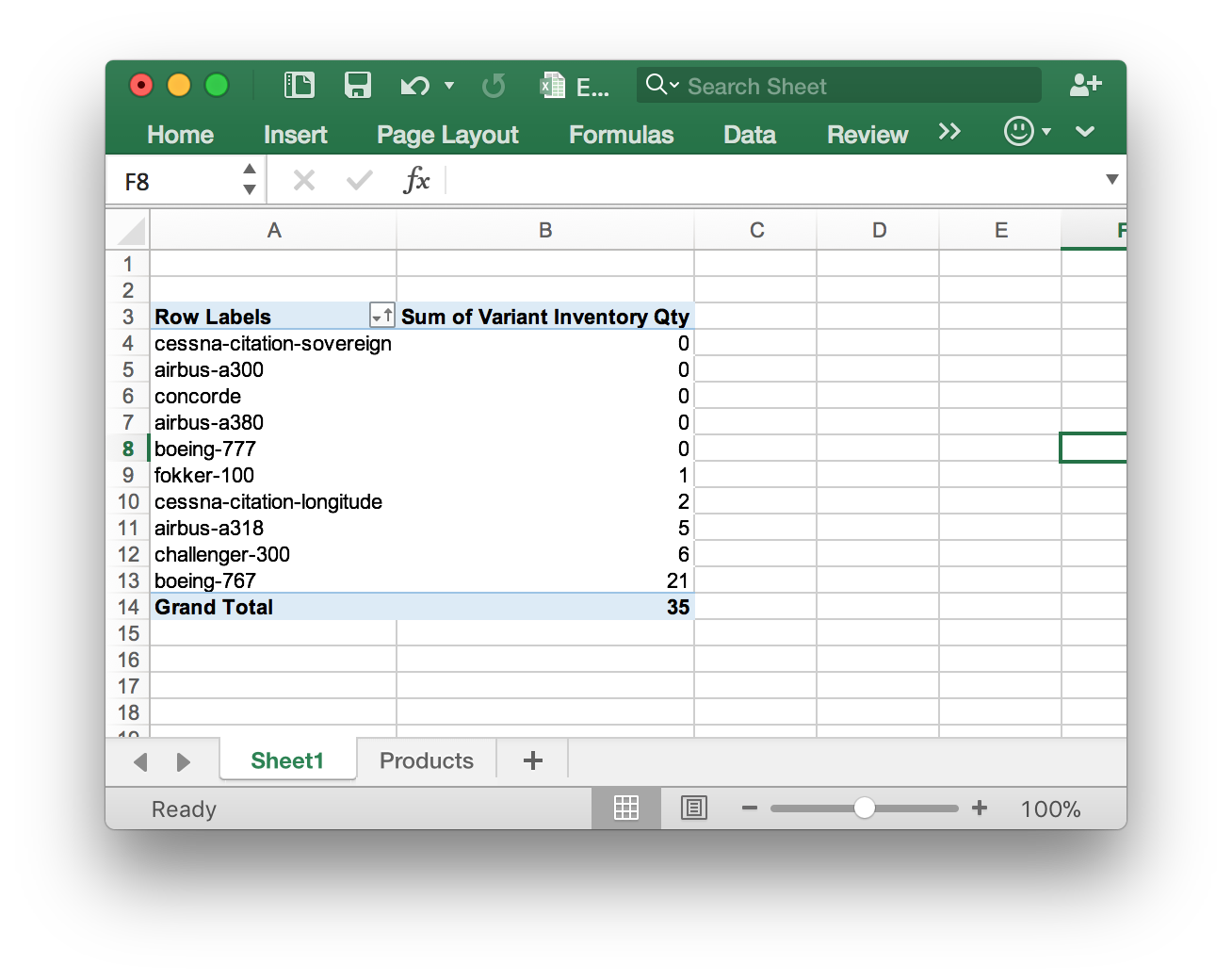
Now we have the Handles for all products that are out of stock and can import them into the Shopify Store with Published column value set to FALSE (this will unpublish your products from your sales channels).
3. Import out-of-stock Products as unpublished
You can create new Excel file. It should have only 2 columns: Handle and Published. Copy Handles of all products with Sum of Variants Inventory Qty that have 0 from the Pivot Table into column Handles. Put FALSE value for all products in the column Published. Remeber to name the Sheet Products.
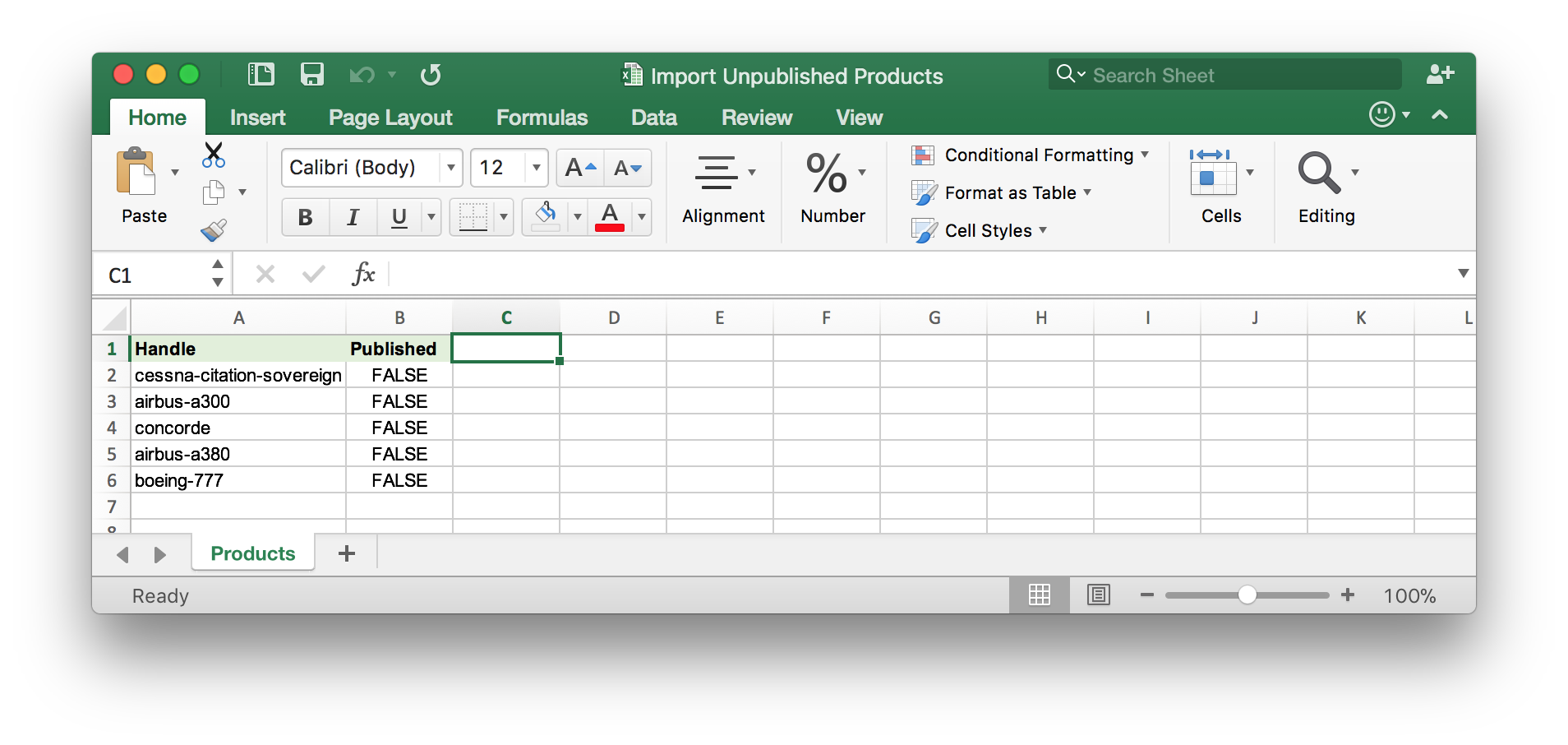 Save the file and import it with the app.
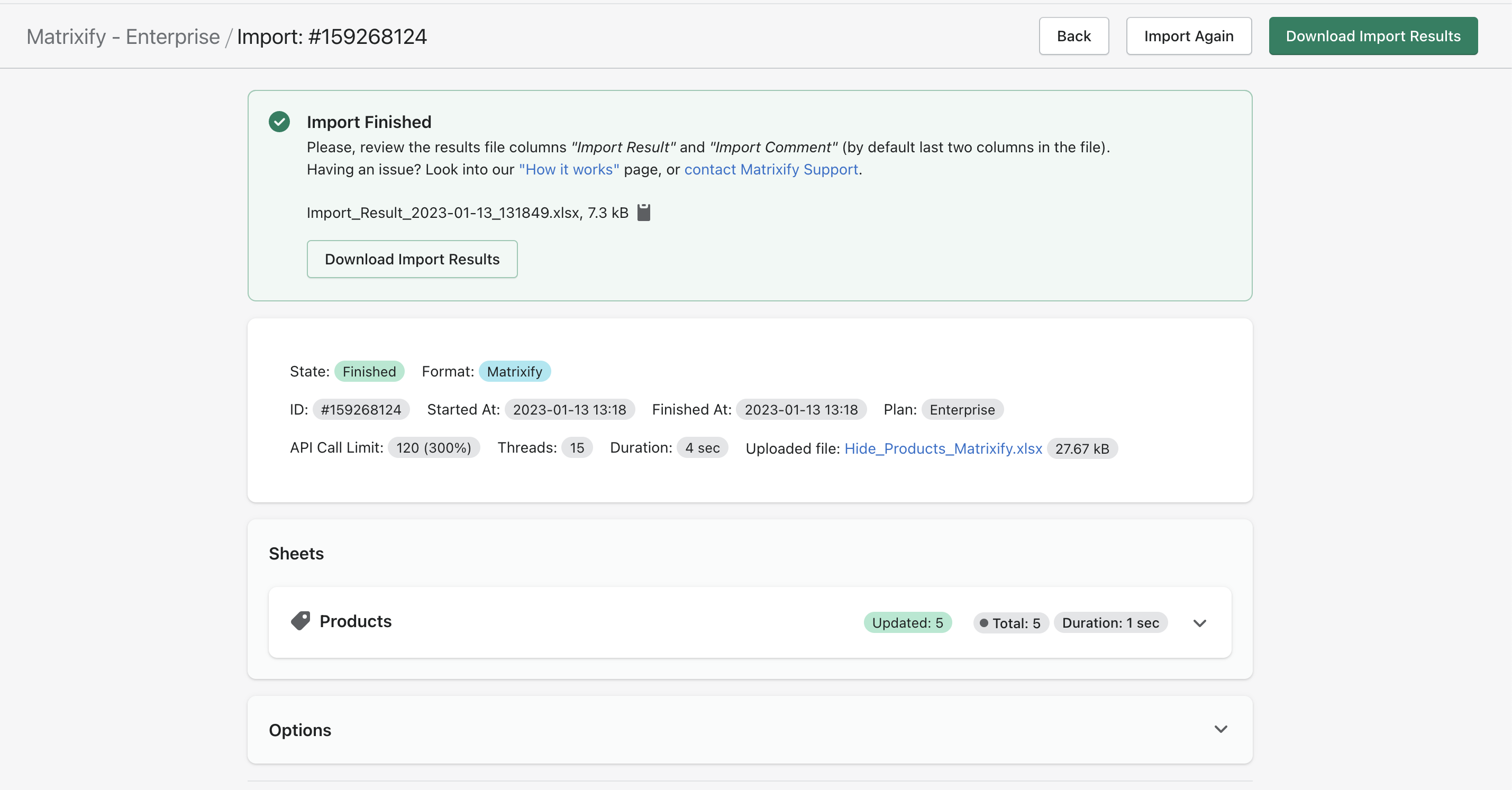
Let’s check on the Store page:

5 products of 10 are displayed, as 5 were out of stock and are unpublished at the moment.
Frequently asked questions
Does Shopify hide out-of-stock Products automatically?
No. Shopify shows out-of-stock Products with a “Sold out” label and keeps them in Collections and search. Hiding them is a manual change to the Product, which Matrixify does in bulk from a spreadsheet.
How do I hide sold-out Variants but keep the Product?
Shopify has no setting to hide a single Variant. A Product with some Variants in stock stays visible, and the sold-out Variants show as unavailable in the Variant selector. To remove a sold-out Variant completely, Import it with Variant Command set to DELETE.
How do I show the Products again when they are back in stock?
Export Products with the Variant Inventory Qty filter set to greater than 0, or with Total Inventory Qty in the file, and Import the Handles with Published set to TRUE (or Status set to Active if you used the Draft method).
Can this run on a schedule?
Not fully, because the exported file has to be edited before it is imported. You can schedule the Export with the Variant Inventory Qty filter to a Google Sheet, keep a second sheet in that document that maps the Handles to Published = FALSE with a formula, and schedule an Import from that second sheet.


