


Shopify can display a unit price next to a Variant’s price. Unit prices let customers compare Products sold in different sizes, like a 500 ml and a 1 l bottle, and in some regions showing them is a legal requirement. In Shopify Admin, you can set this for each Variant individually by specifying its total measure and base measure.
In this guide we will Export Product Variants with the Unit Price columns, fill in the measurements in Excel, and Import the file back into Shopify to update unit prices for multiple Variants at once.
Steps in short
- Export Products with ID, Handle, Variant ID, Variant SKU, Variant Price and the Unit Price columns.
- Fill in the total measure and the base measure with their units for each Variant row.
- Import the file in the Matrixify app to update the unit prices.
- Check the Import Results and the unit price of the Variants in the Shopify Admin.
1. Export Product Variants with Unit Price columns
In the Matrixify app Home create a new Export by using the New Export button. Select the Matrixify: Excel format.
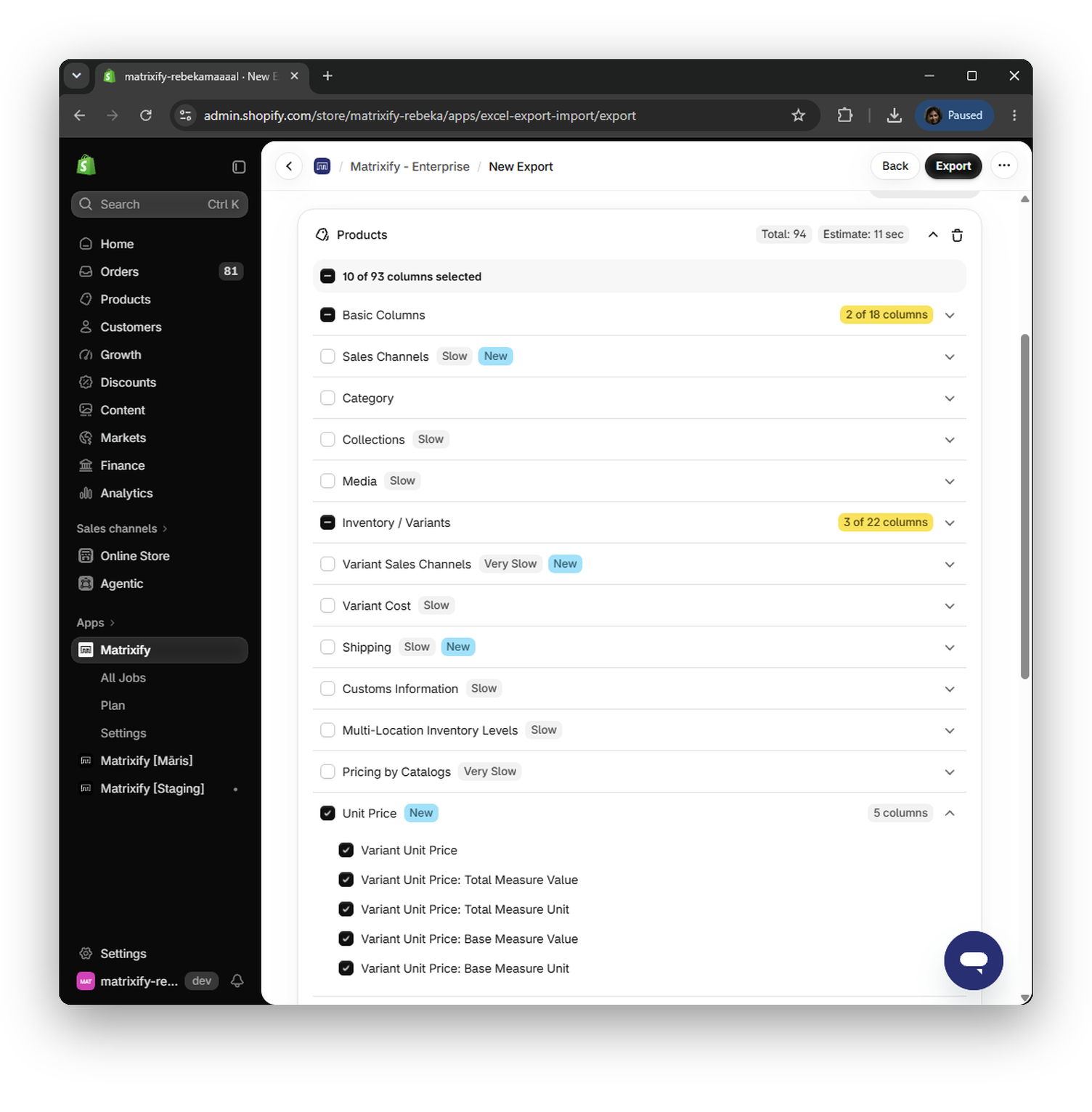
Under the Select Sheets dropdown select Products. Click on the Products sheet card to expand it and select only these columns:
- From
Basic Columns:IDHandle
- From
Inventory / Variants:Variant IDVariant SKUVariant Price
- From
Unit Price:Variant Unit PriceVariant Unit Price: Total Measure ValueVariant Unit Price: Total Measure UnitVariant Unit Price: Base Measure ValueVariant Unit Price: Base Measure Unit
ID and Variant ID tell the app which Product and Variant to update. Handle and Variant SKU columns are included for reference only, to help you identify the Product and Variant in each row. Variant Price and Variant Unit Price show the current price and price per unit of each Variant.
You can use Filters to Export only the Products that are sold by weight, volume, or length. To do this, click the Filters button on the Products sheet card. For example, set the Type filter to equals to any of and enter Coffee to Export only Products of that type. When you Import the file later, only the Products included in the file will be updated.
Press Export and wait for the job to finish. Then press Download Exported File.
2. Set total and base measures in Excel
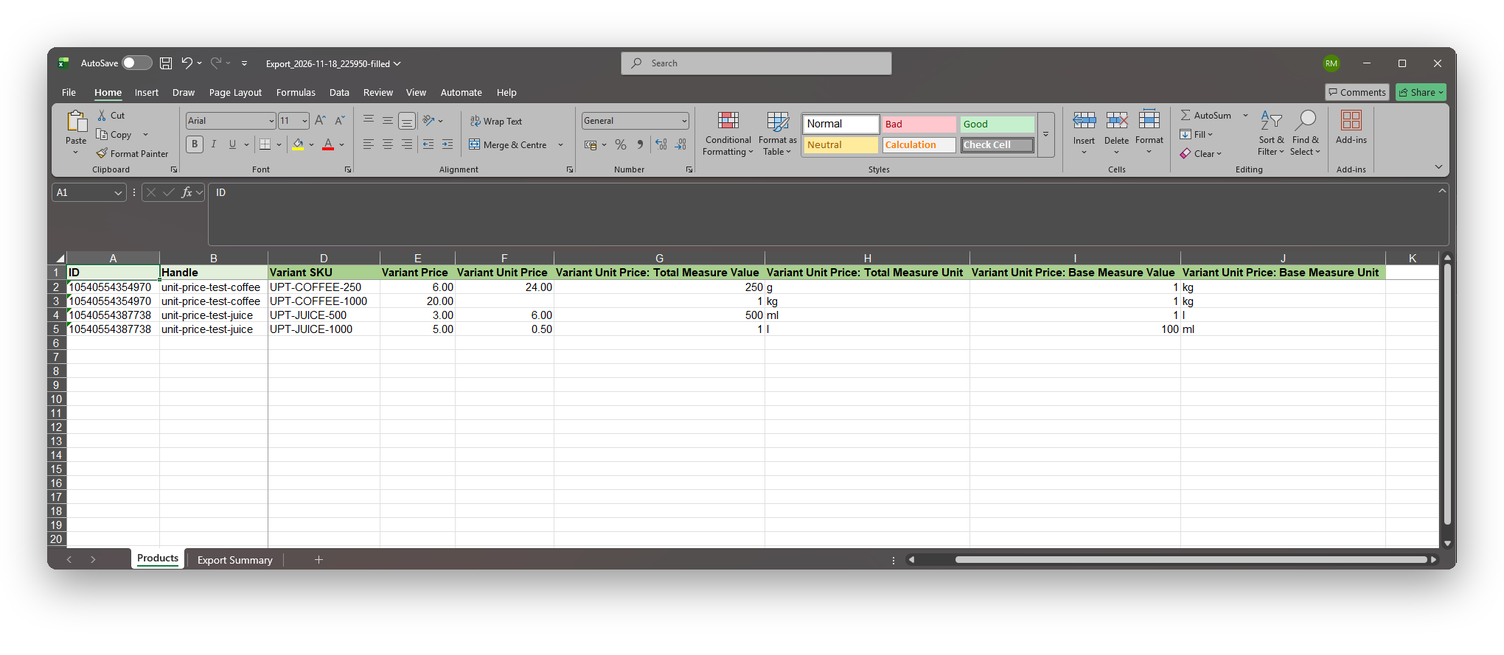
Open the exported file, where each row represents a single Variant. The Unit Price columns will be empty for Variants that do not yet have a unit price displayed in Shopify. Fill in the following columns:
Variant Unit Price: Total Measure ValueandVariant Unit Price: Total Measure Unit– specify the total quantity the Variant contains. For example, enter250andgfor a 250 g bag.Variant Unit Price: Base Measure ValueandVariant Unit Price: Base Measure Unit– specify the quantity used to calculate and display the unit price. For example, enter1andkgto display the price per kilogram. The Base Measure Value must be a whole number.
Units are Shopify’s unit codes, such as ml, l, g, kg, cm, m2 and item. Letter case does not matter – ML is saved as ml. The total and base units must be of the same type, so a total in ml can be shown per l, but not per kg.
For a Variant that has no unit price yet, fill in all four columns. For a Variant that already has one, fill in only what you want to change. For example, to show the price per 1 kg instead of per 100 g, set only the base measure value and unit to 1 and kg. The total measure stays as it is saved.
You can leave the Variant Unit Price column as it is. This column is for Export only, as Shopify calculates the unit price automatically, so Matrixify ignores it during Import.
How Shopify calculates the unit price
Shopify divides the Variant Price by the total measure and shows the result for the base measure. A 250 g bag of coffee for 6.00 shown per 100 g has a unit price of 2.40. Change the base measure to 1 kg, and the same bag shows 24.00.
Because it is calculated from the price, a later change of Variant Price updates the unit price too. When we changed the price of a 500 ml juice from 2.50 to 3.00, its unit price per 1 l went from 5.00 to 6.00 without importing the measures again.
3. Import unit prices to Shopify
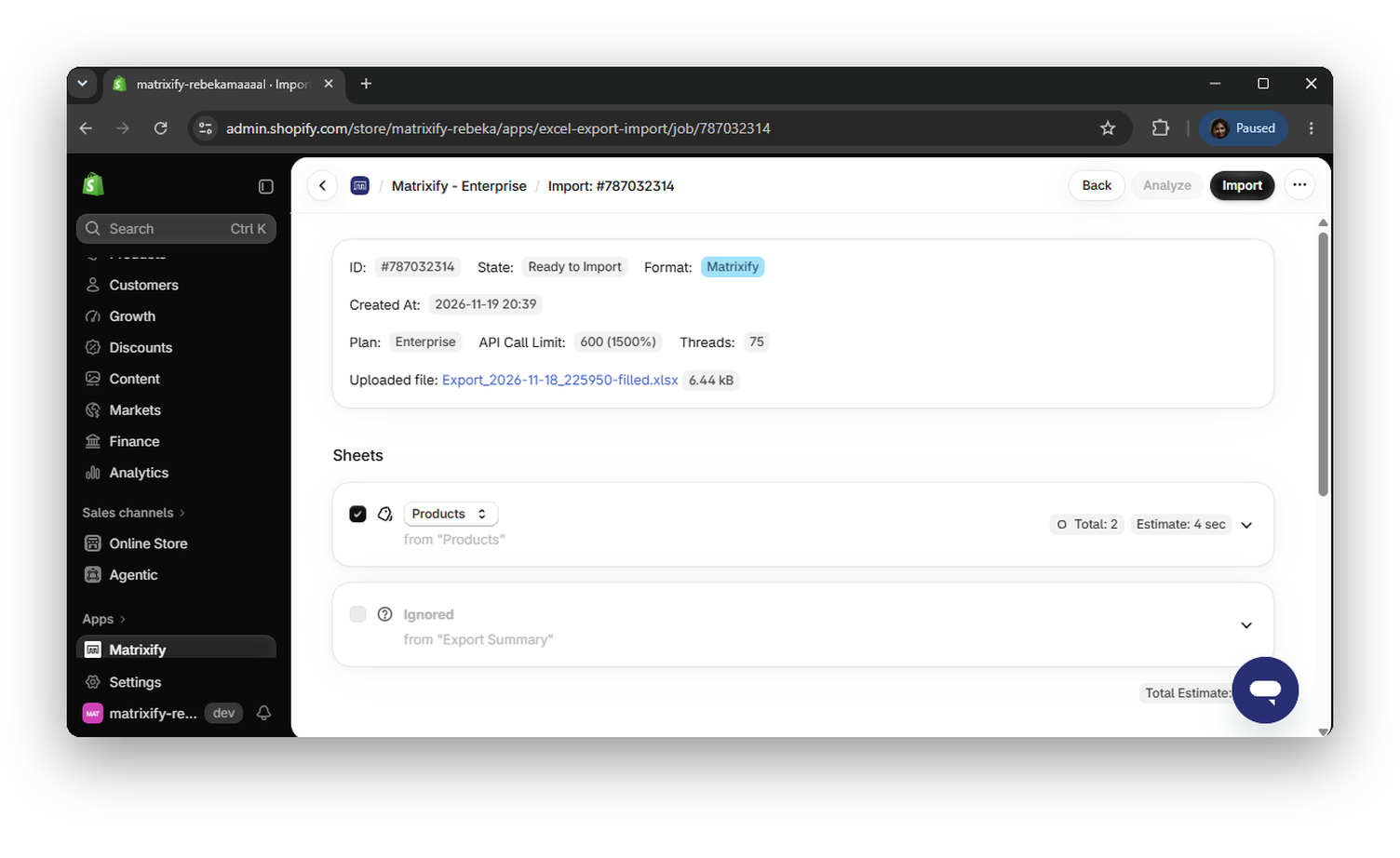
In the Matrixify app Home upload the file by using the Import button. Once the file is analyzed, make sure that the app detects the sheet as Products and the Product count looks correct. Default Import Options will work fine.
Press Import to start the Import.
4. Check unit prices in Shopify Admin
When the Import is finished, check the job. If some Products failed, download the Import Results file and check the Import Comment column – it tells why the Product failed. Fix those rows and then Import them again, without including the others.
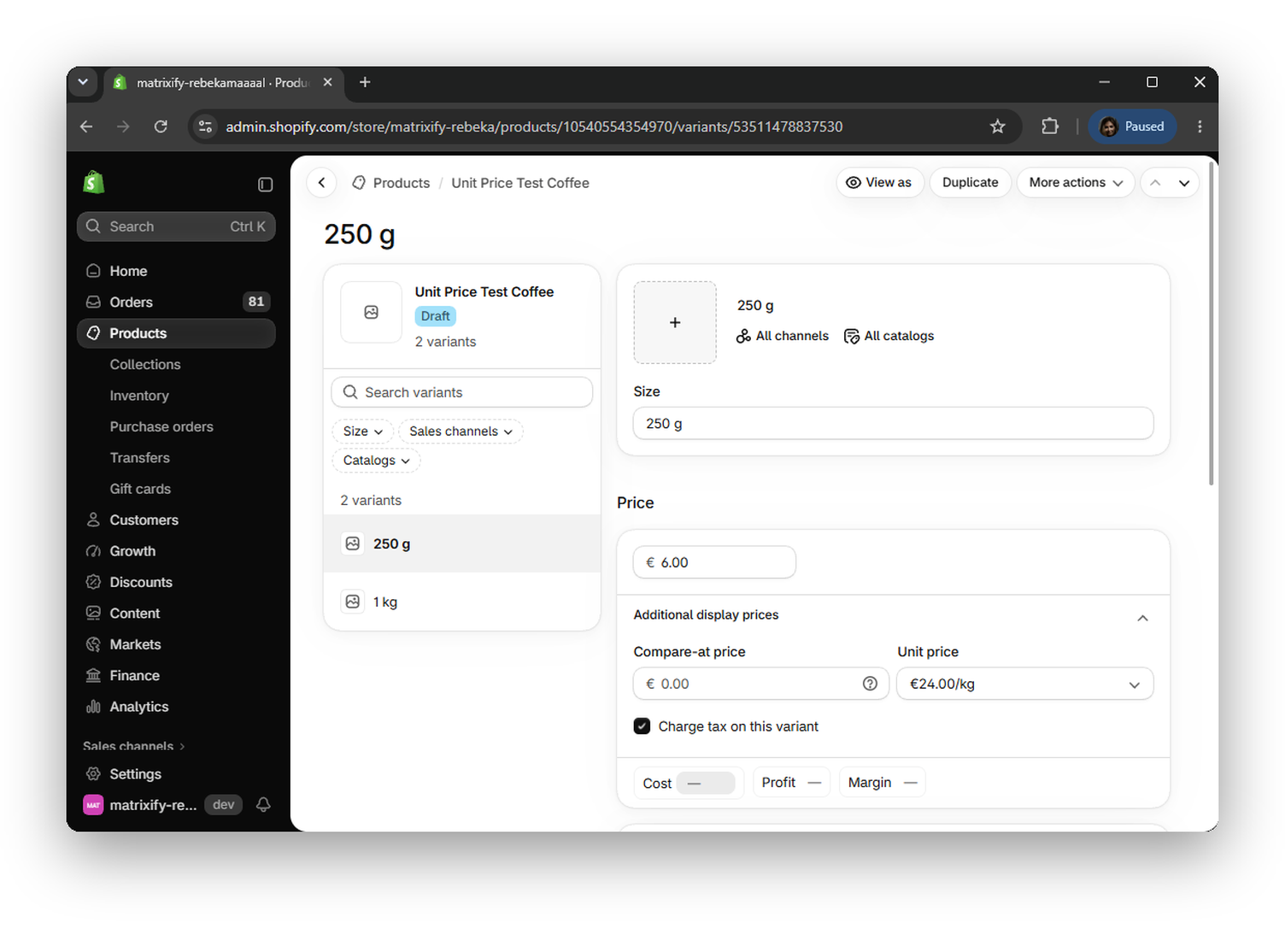
In the Shopify Admin open one of the Products and click a Variant. In the Price section, Additional display prices shows the new Unit price, for example €24.00/kg. You can also run the Export from step 1 again – Variant Unit Price now has the price per base measure Shopify calculated.
Good to know
- The Export writes
Variant Unit Price: Total Measure Valueas a decimal number, for example250.0for 250 g. - The column names from the Shopify Product CSV, such as
Unit price total measure, are ignored by the Matrixify Import. Rename them to the Matrixify column names from step 2. - The Matrixify Google Shopping feed fills
unit_pricing_measureandunit_pricing_base_measurefrom these columns for Variants that show a unit price – see the Google Shopping Data Feed documentation. - Read how unit prices show in your store in the Shopify Help Center – Displaying unit prices for products.
Frequently asked questions
How do I remove unit prices from Shopify Products in bulk?
Export the Variants as described in step 1, then clear all four measure columns for the Variants you want to update and Import the file. This will remove the unit prices from those Variants, and the Unit Price cells will be empty in the next Export.
Why did the Import of unit prices fail for a Product?
You can find the reason in the Import Comment column. If a Variant does not already have a unit price, all four measure columns must be filled in. If any are missing, the Import will fail, and the comment will tell you which column is missing. The Import will also fail if the total and base measure units are incompatible, such as ml and kg, if an unsupported unit is used, or if the base measure value is not a whole number. For an unsupported unit or a base measure value that is not a whole number, the Import Comment will list all affected cells for the Product, along with the accepted units.
What to do next?
- Change the Variant prices themselves – Bulk update Shopify product prices.
- Update the weight and packed size of the same Variants – How to bulk edit Shopify Product weight and packed dimensions.
- See which columns are needed to update other Variant fields in Minimum required columns to update specific Product fields.
- See all columns you can Export and Import in the Products documentation.
- Contact Matrixify support if you have questions.


