

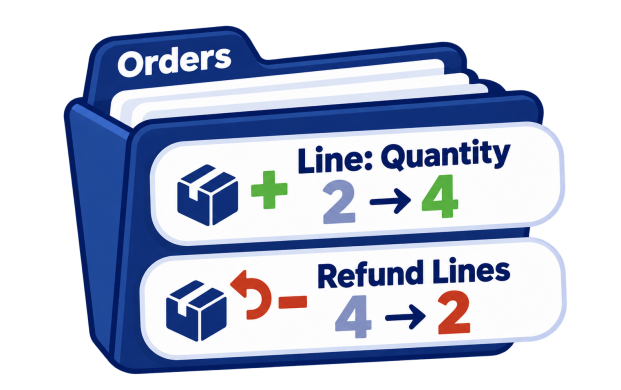
Shopify allows you to edit an Order to increase or decrease item quantities, but in the Shopify Admin it is one Order at a time. If a supplier delivers fewer units than expected and the quantity has to be reduced in hundreds of open Orders, that takes a long time.
With the Matrixify app you can bulk adjust Line Item quantities in existing Shopify Orders with one Import. Export the Orders with their Line Items, enter the new quantities in the file and Import it back.
Steps in short
- Export unfulfilled Orders with only the columns needed to identify the Orders and Line Items, and filter them so that the file has only the Line Items to adjust.
- Set Command to UPDATE, then enter a higher total quantity to increase a Line Item, or change the row to a Refund Line with a negative quantity to decrease it.
- Import the file in the Matrixify app.
- Check the Import Results and the adjusted Orders in the Shopify Admin.
1. Export Orders with Line Items to adjust
To change a quantity, the app needs to know exactly which Line Item in which Order it is. The simplest way is to Export the existing Line Items, so the file already has the Line: ID of each of them.
In the Matrixify app Home create a new Export by using the New Export button.
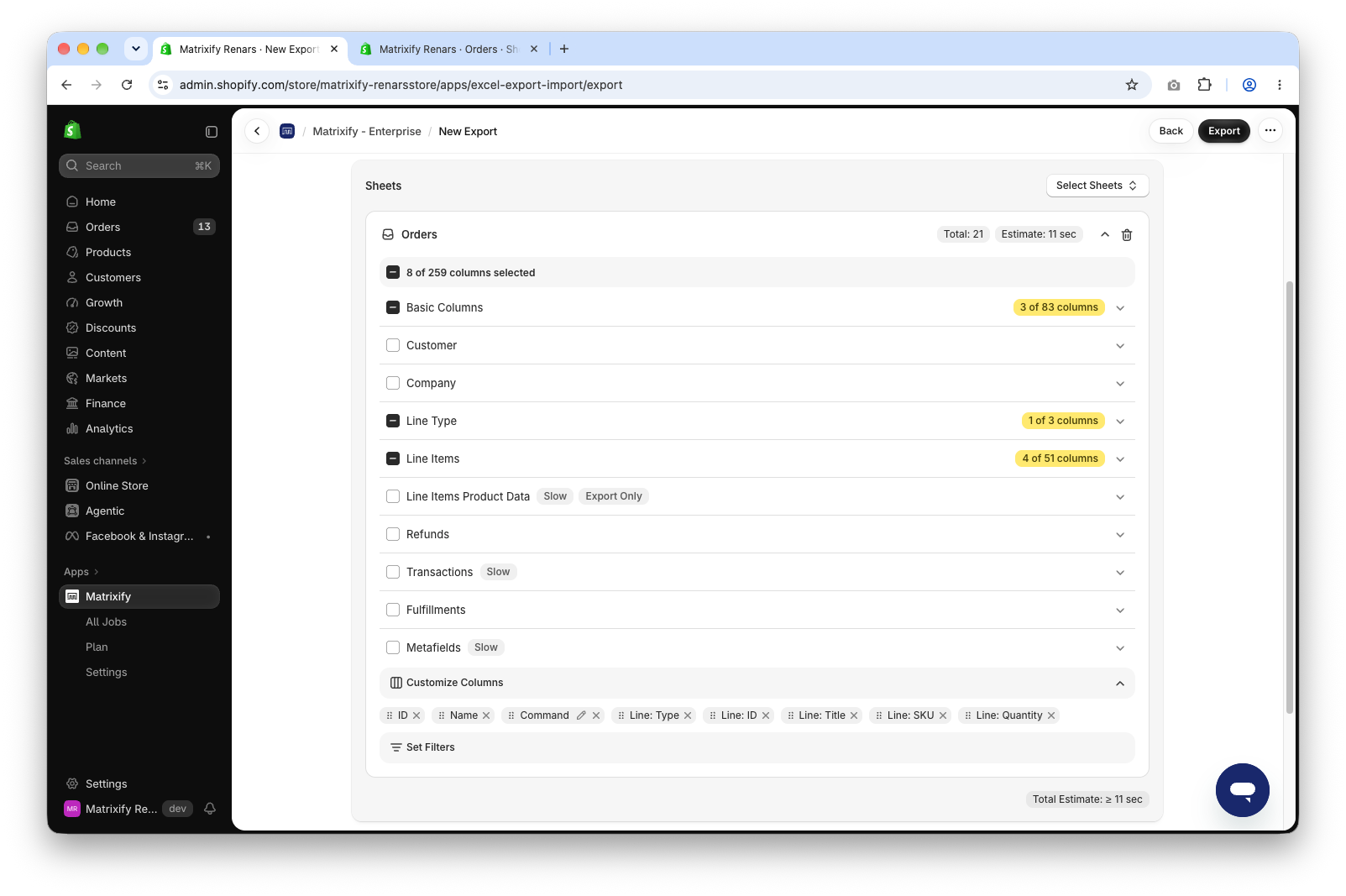
Press Select Sheets and select to Export Orders. Click on the Orders sheet card to expand it. Open each of these column groups and select only the columns listed:
| Column group | Columns to select |
|---|---|
Basic Columns |
|
Line Type |
|
Line Items |
|
Name, Line: Title and Line: SKU are not needed for the Import – they are there only to make the file easier to read.
Filter Orders by Line Item SKU
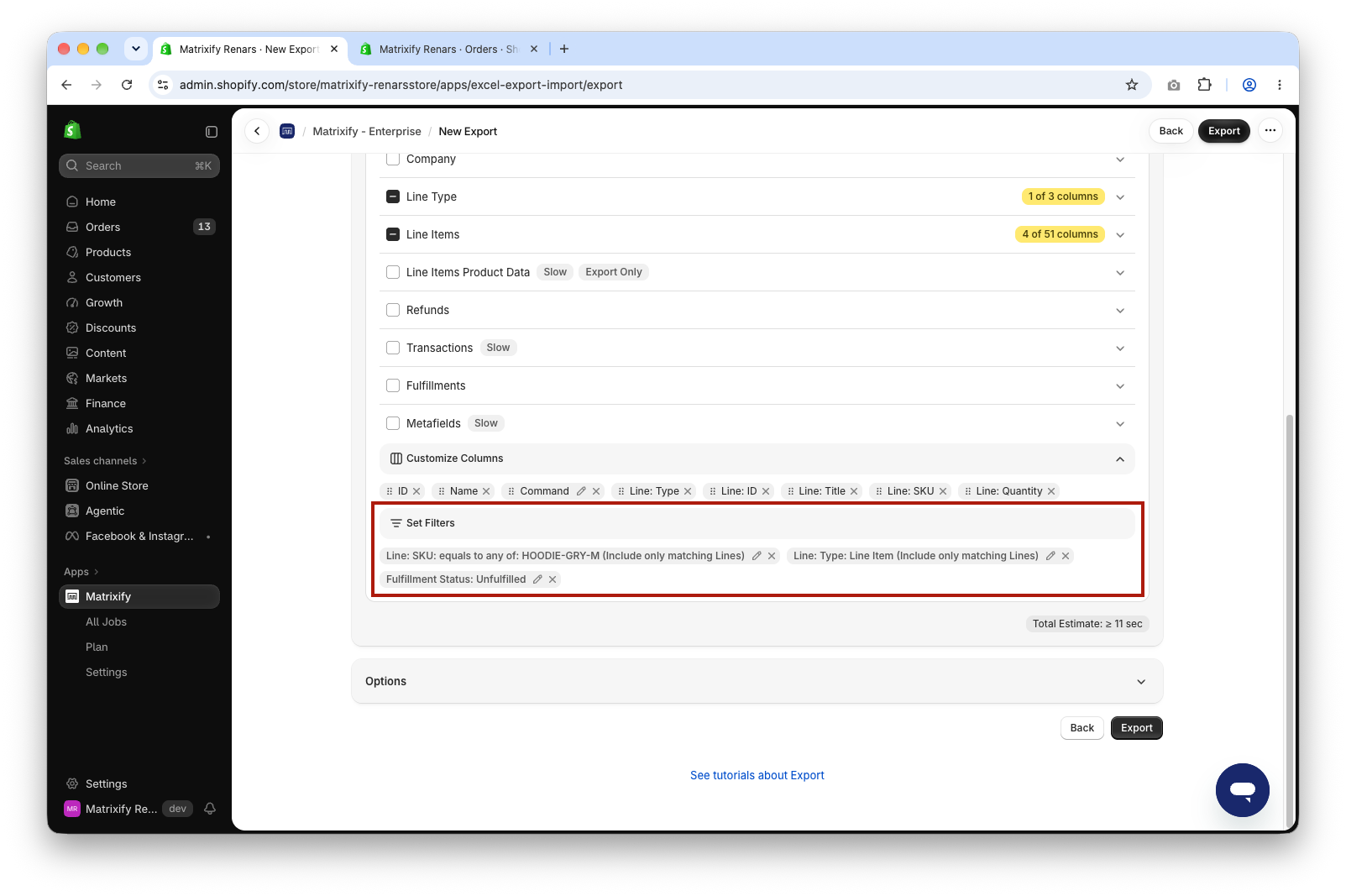
In this example, we will adjust the quantity of a hoodie with SKU HOODIE-GRY-M in all Orders that have not been shipped yet. Press the Set Filters section in the Orders sheet card and add these filters:
Line: SKU–equals to any of–HOODIE-GRY-M. Select theInclude only matching Linescheckbox.Line: Type–Line Item. TheInclude only matching Linescheckbox is selected by default, keep it.Fulfillment Status–Unfulfilled. Decreasing a quantity in a partially fulfilled Order needs one more column, see Good to know.
With Include only matching Lines selected, the file has only the Line Items with that SKU.
You can add other filters to further limit which Orders are exported.
When you have set up the Export job, press the Export button to start the Export. Wait for the Export to finish and download the exported file by using the Download Exported File button.
2. Change Line Item quantities in the file
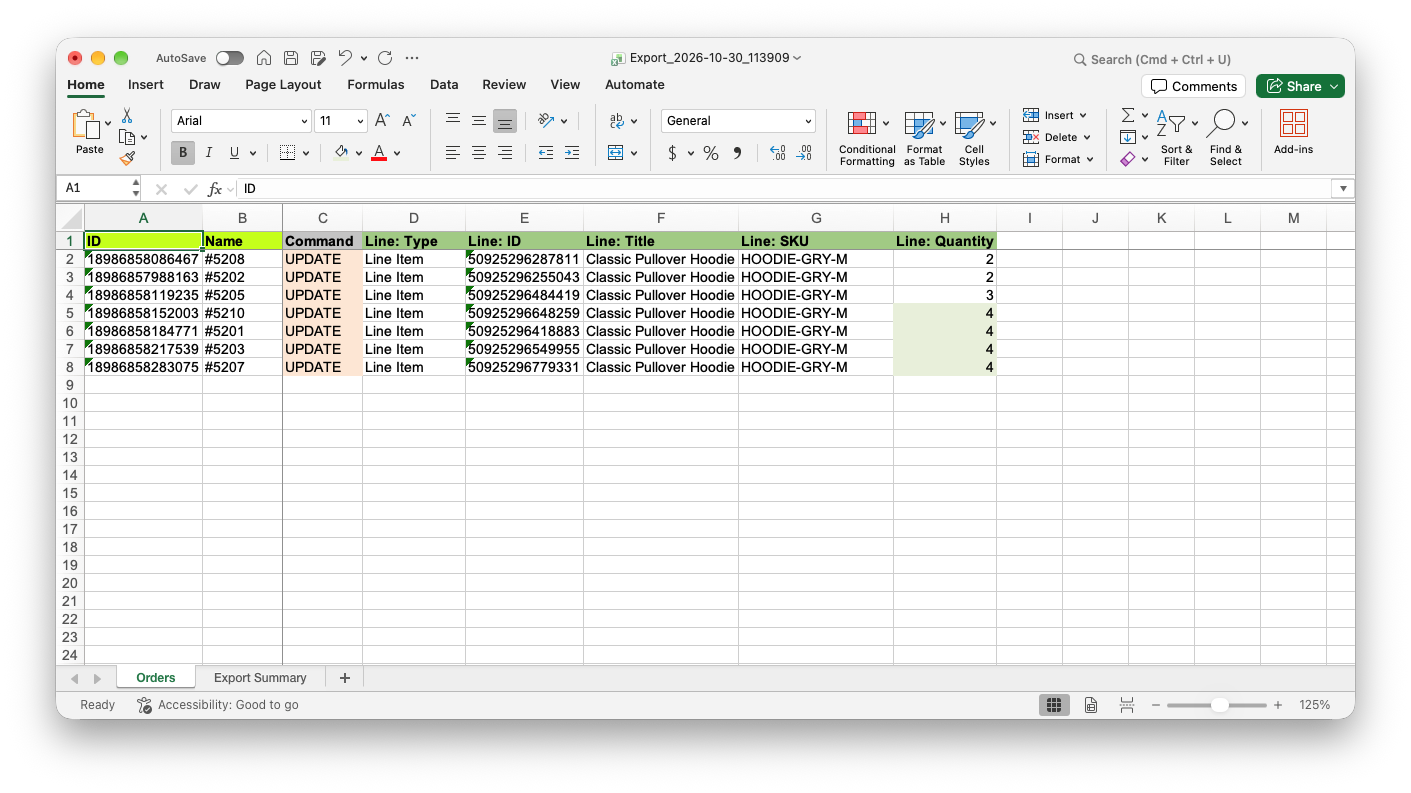
Open the exported file. Each row is one Line Item with its current Line: Quantity.
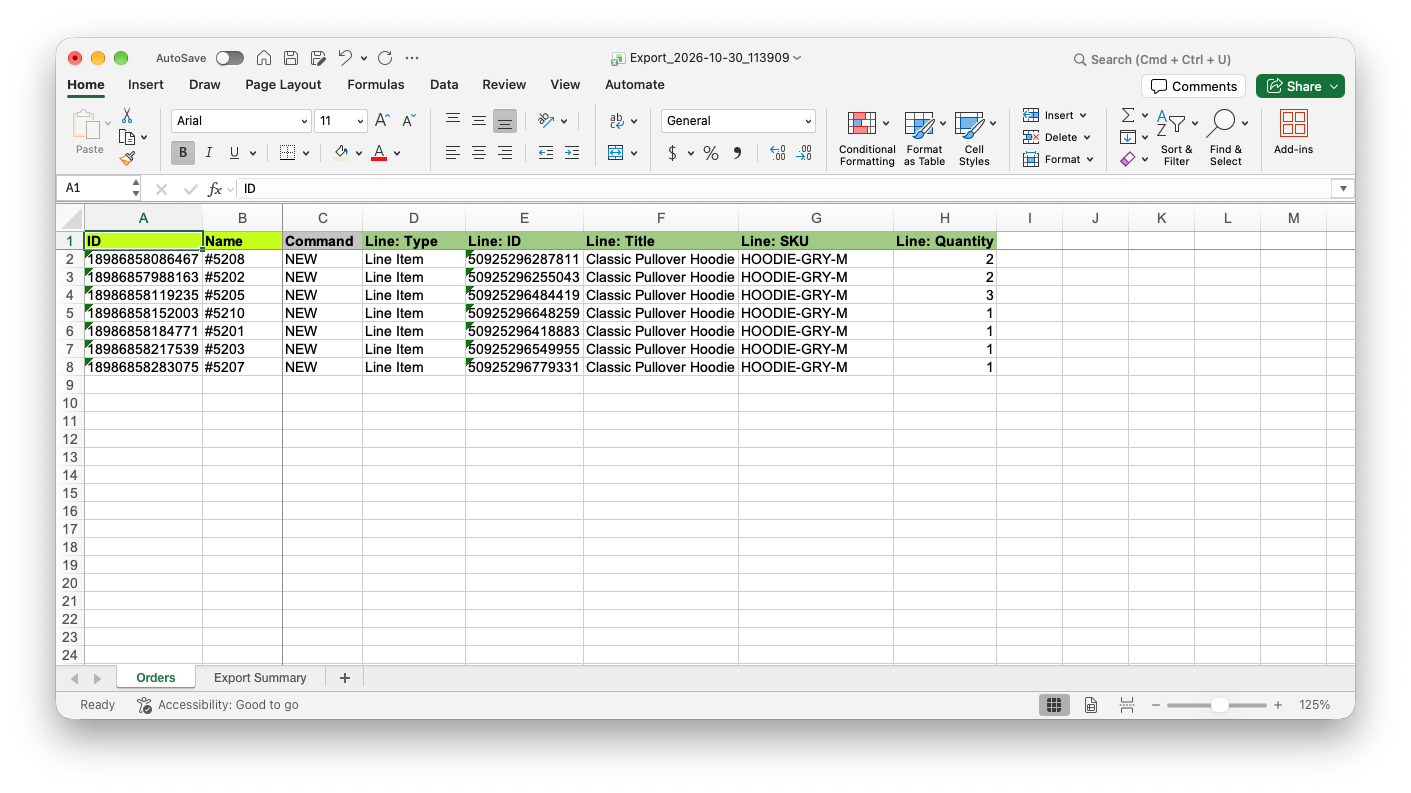
Set Command to UPDATE in all rows for the import job to update existing Orders.
You can increase quantities in some Orders and decrease in others in the same file. Rows you do not change can stay in the file – when Line: Quantity is the same as in the Order, nothing is changed.
Increase Line Item quantity in Orders
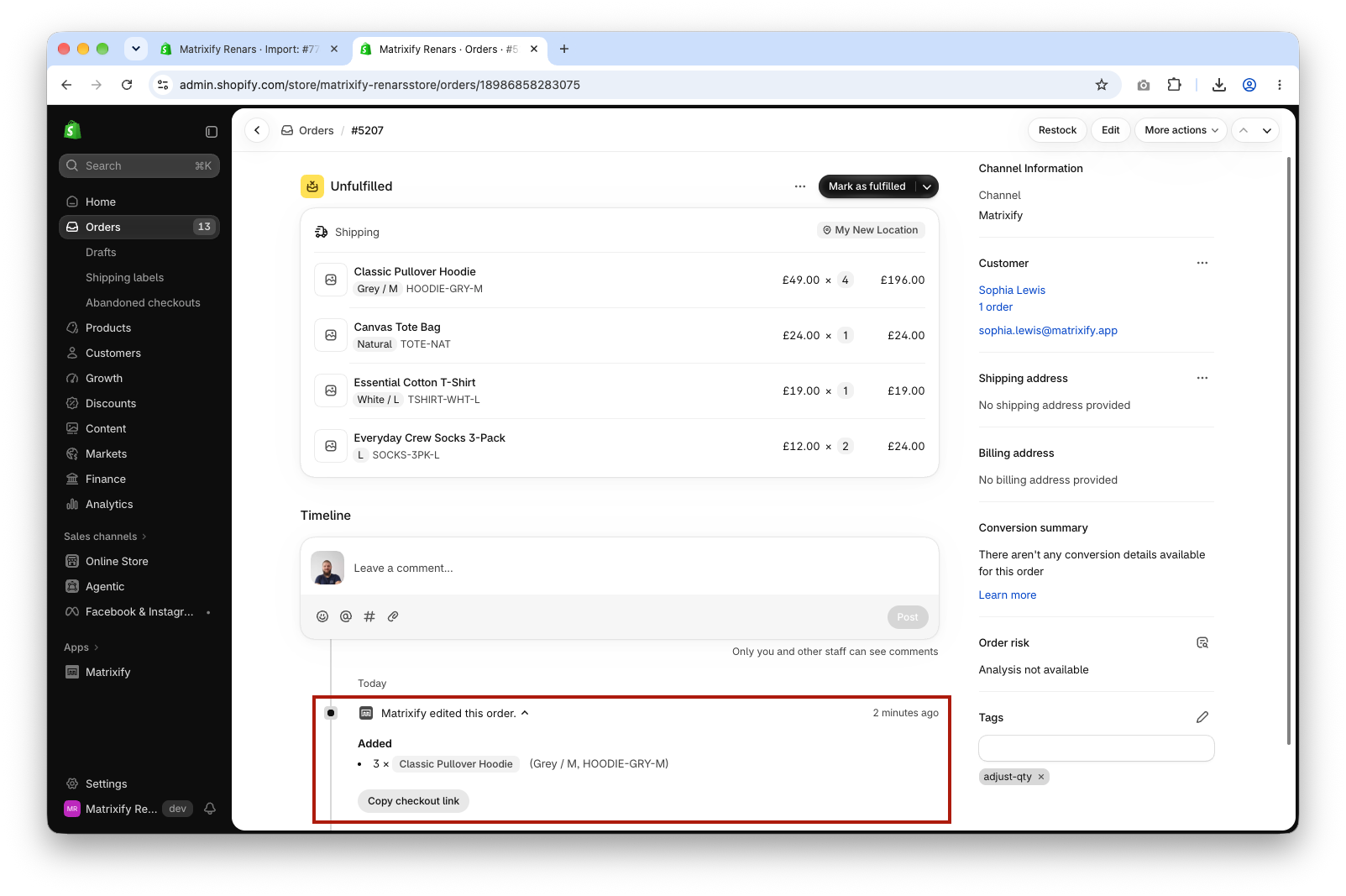
Enter the new total quantity in Line: Quantity. The app adds the difference to the Order. For example, if the Line Item has 1 and you enter 4, then 3 units are added.
Shopify reduces the available inventory for the added units. If the Order is already paid, it becomes Partially paid, and you need to collect the balance from the customer in the Shopify Admin.
Decrease Line Item quantity with a Refund Line
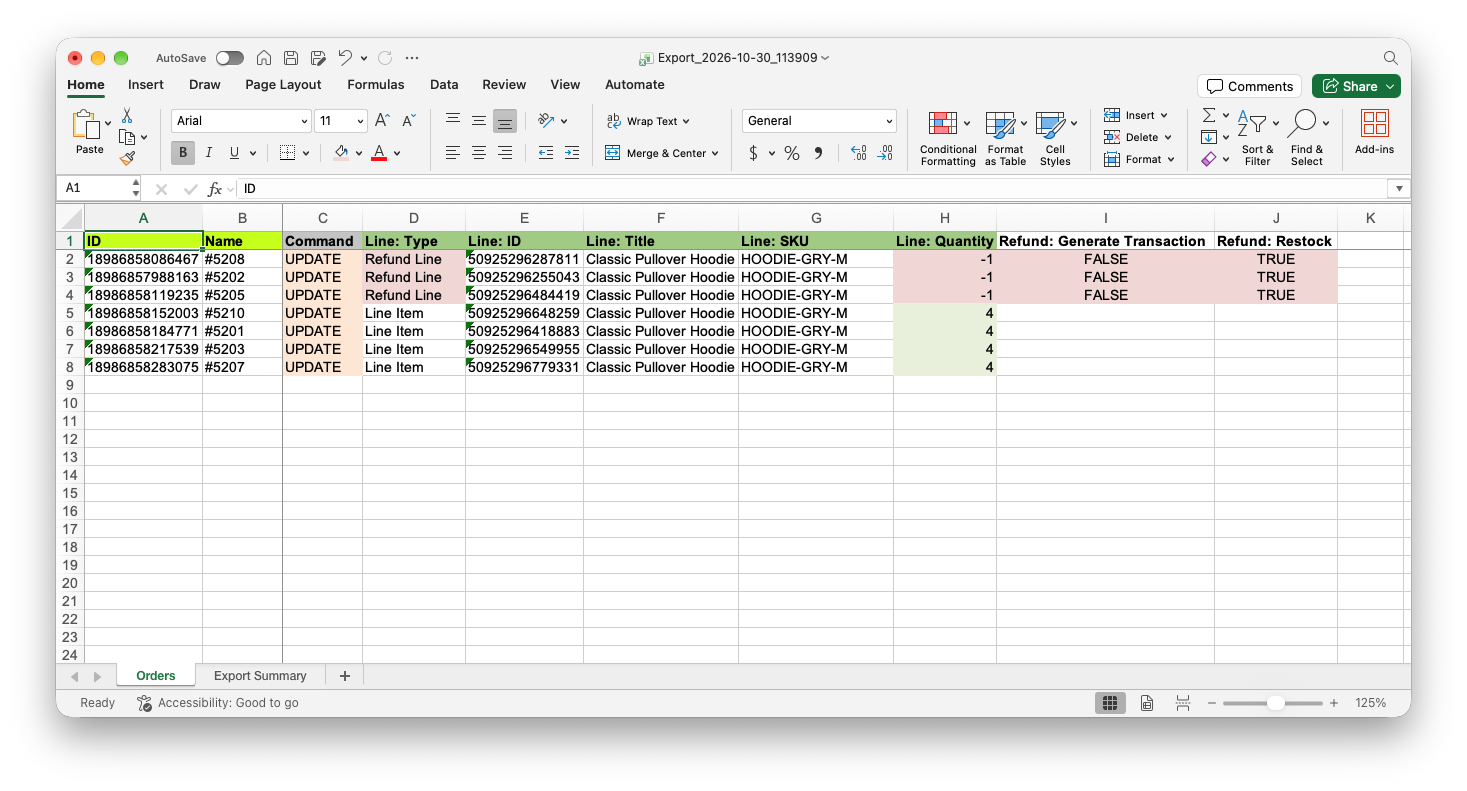
Shopify allows to decrease a quantity only by refunding the units. If you enter a lower number in Line: Quantity, the app does not change the Line Item and shows the warning “Cannot decrease quantity of existing Line Item – do this by creating a Refund instead.”
So for each Line Item to decrease, change these columns in the same row:
Line: Type– changeLine ItemtoRefund Line.Line: Quantity– the number of units to remove, as a negative number. Not the new total. For example, to go from2to1, enter-1.
Keep Line: ID as it is – the app uses it to find the Line Item to refund. If one Order has several Refund Line rows, the app creates one refund for all of them.
On unpaid Orders the refund only reduces the quantity. On paid Orders the app also creates the refund transaction, so the customer gets the amount of the removed units back. To reduce the quantity without refunding money, add a column Refund: Generate Transaction with value FALSE.
The removed units are not returned to inventory. If you want to restock them, add a column Refund: Restock with value TRUE.
When edits are finished, save the file.
3. Import to adjust Line Item quantities in Orders
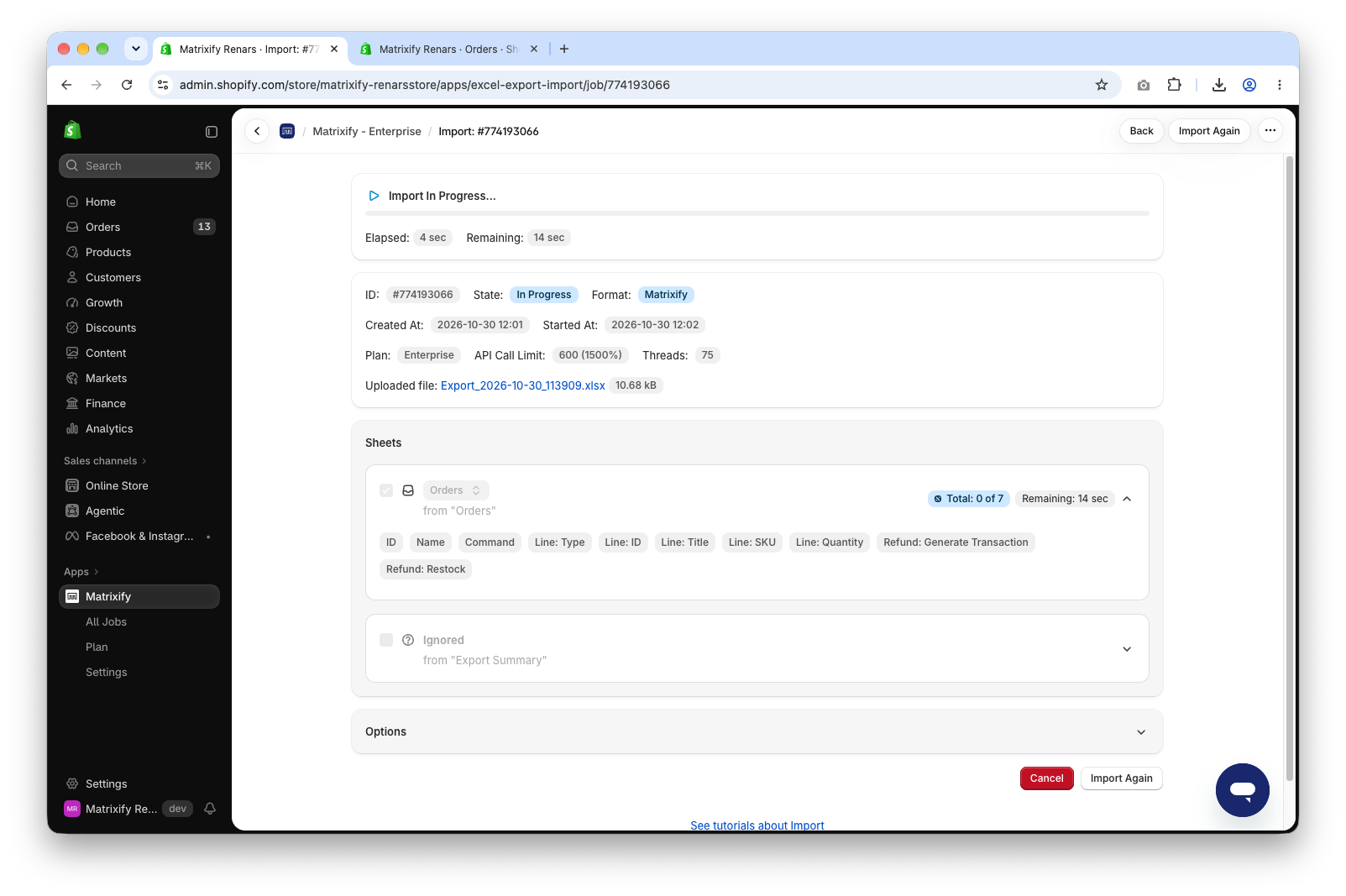
In the Matrixify app Home, upload the file in the Import section. Once the file is analyzed, make sure that the app detects the sheet as Orders and the Order count looks correct. Default Import Options will work fine, so no Options need to be adjusted.
Press Import to start the Import job.
4. Check adjusted Line Item quantities in Shopify Admin
When the Import is finished, the job status will be “Finished”. If some Orders failed or have warnings, download the Import Results file and check the Import Comment column – it tells what happened with each Order. Fix those rows and Import only them again.
Open any of the Orders in the Shopify Admin to check the new quantities.
Good to know
Line: Quantityis always the ordered quantity. Refunded units are not subtracted from it. The increase is counted fromLine: Quantity– if 2 were ordered and 1 refunded, entering3adds 1 unit, and the Order has 2. Export theLine: Current Quantitycolumn to see how many units are on the Order now.- To decrease a quantity in a partially fulfilled Line Item with
Refund: Restockset toTRUE, also add theRefund: Restock Typecolumn with valuecancelto restock the unfulfilled units. See specify return type for Shopify Order Refund restocks. - Shopify calculates taxes for the added units by your store tax settings, so the Order total can grow by more than the price of the added units.
- The refund does not notify the customer, unless you add the
Refund: Send Receiptcolumn with valueTRUE. - Shopify does not allow editing Orders that were imported by another app – so with an Import you can increase quantities only in Matrixify app-created Orders and Orders that were not created by an app.
What to do next?
- Add new Line Items to existing Orders – bulk add Line Items to Shopify Orders.
- Remove whole Line Items – bulk remove Line Items from Shopify Orders.
- Refund Orders with the money amount – refund existing Shopify Orders in bulk.
- See all columns you can Export and Import in the Orders documentation.
- Contact Matrixify support if you have questions.


